
PPR Manufacturing Hub Navigator provides access to the Manufacturing Hub, allowing you to open projects and navigate their PPR structure.

This scenario assumes that you have:
- Access to the Manufacturing Hub
- One or more projects stored in the Manufacturing Hub

Opening a Project
-
Select File > Open Project from Manufacturing Hub, or select Open Project from Manufacturing Hub
 in the Manufacturing Hub toolbar.
-
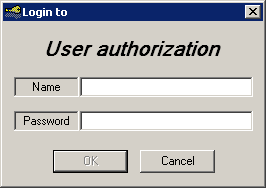
Log into the Manufacturing Hub when prompted:
-
Select a project to open.
Once logged in, a dialog box is presented which lists all of the projects currently stored in the Manufacturing Hub database:
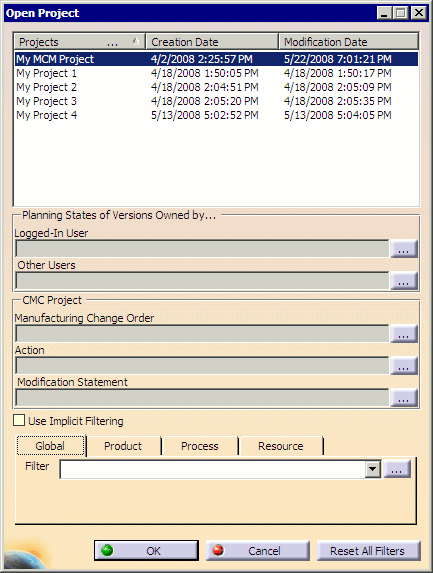
Any of the listed projects may be selected by clicking on the name of the project to highlight it, then selecting OK to load the selected project. Filters may also be optionally applied, as described in Applying Filters.
If you have selected a Change Management Controlled (CMC) project, Modification Statements can be selected as described below. For non-CMC projects, the CMC Project frame is disabled.
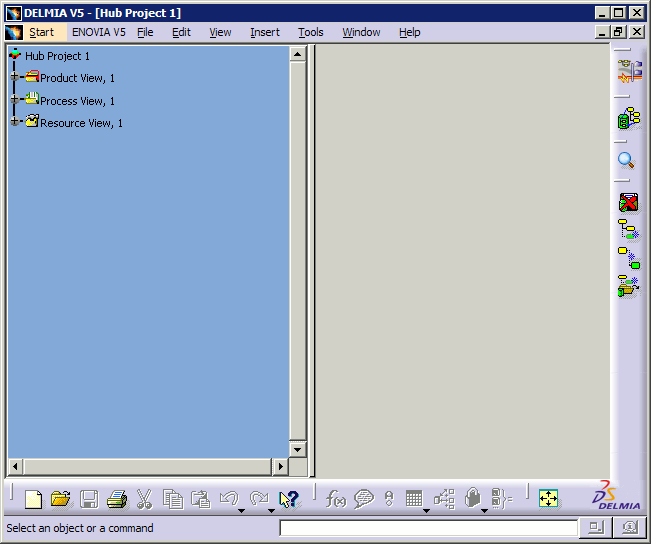
The selected project is opened in PPR Manufacturing Hub Navigator, and the structure displayed is filtered based on the filter defined in the previous Open Project dialog:
Objects in the PPR Navigator tree are displayed in the same order as they are in Process Engineer. PPR nodes in the Navigator tree are sorted based on the sort criterion specified for their parent node in Process Engineer. The sort criterion value for a component in Process Engineer can be any of the following:
- Alphabetic
- Numeric
- None
If the sort criterion is either Alphabetic or Numeric, the configured name of the component (as displayed in the Process Engineer tree) is used for sorting the children nodes for their display order. If no sort criterion is specified, the sort index of the children in Process Engineer is used for sorting the children nodes for their display order.
Sort Process Tree
The process tree displayed in Select Process dialog box can be sorted. You can set the sorting criteria in based on sortindex attribute in DPE. For a process sorting criteria can be set as Alphabetic and Numeric.
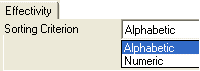
You can modify the sort Index attribute through contextual menu command. Click UP and Down button in Modify Sort Index dialog box to reorder the process.
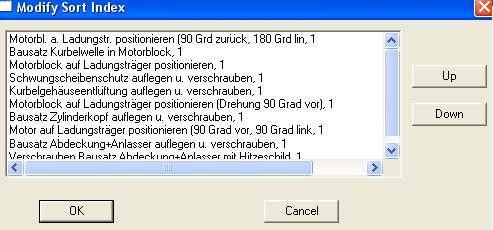
The commands which are using the same browser dialog (Open Products Resources Manufacturing Assemblies and Manufacturing Kit for Manufacturing Hub, Associate WSC Representation, Open Products from selected Process and Instantiate from template) will have the same sorting behavior.
Displaying Relationship Tab Pages in End
You can display relationship tab pages right/left in browser.
Select check box Show Relationship Tab Pages in Browser at the end (restart project) in DPE Tools > Settings > Miscellaneous dialog box.
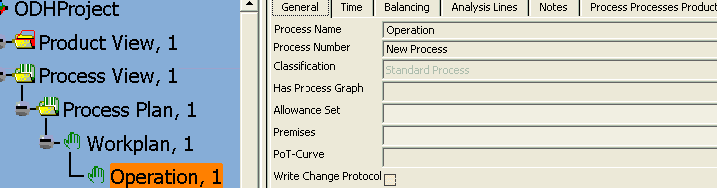
If the setting is enabled, the relationship tab pages appear right in the browser. You cannot change the display order of the relationship pages. Relationship pages can be shown on left or right side in the browser. In the below image, relationship tab pages are displayed right in the browser.
Applying Modification Statements for CMC projects
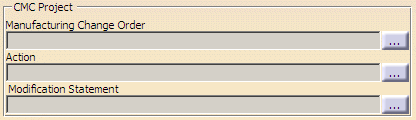
For Change Management Controlled (CMC) projects, the Open Project dialog box allows you to select Modification Statements, Actions and Manufacturing Change Orders to be applied to the project.
 |
A separate MCM (Manufacturing Change Management) product license controls the availability of Change Management Control functionality. You must have this license installed to use the features described below. |
-
Select
 next
to Modification Statement, Manufacturing Change Order or Action to display the Select Modification Statement
dialog box.
next
to Modification Statement, Manufacturing Change Order or Action to display the Select Modification Statement
dialog box.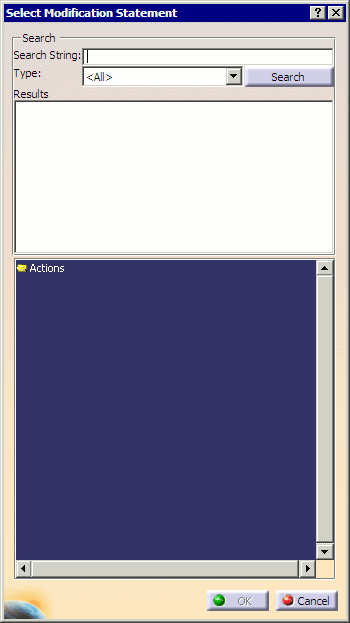
-
Double-click Actions in the lower frame to view the available Modification Statements, Actions and Change Orders for the current project.
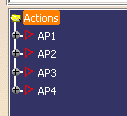
-
Enter a search string (if desired) to narrow the search results, and select the type (Action, Change Order or Modification Statement) to search for.
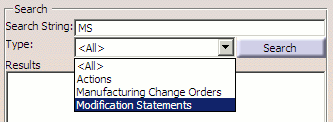
If no Search String is entered, all results of the selected Type will be shown in the search results.
-
Click Search.
The items found that meet your search criteria are listed in the Results frame.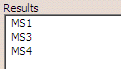
-
Double-click any of the items in the Results list to see the tree view in the lower frame.
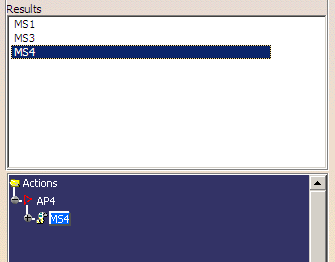
-
Select a Modification Statement in the tree and click OK.
The Modification Statement and its corresponding Manufacturing Change Order and Action are shown in their respective fields of the Open Project dialog box. If the Action has no Manufacturing Change Order, the corresponding field will be left blank (as shown below).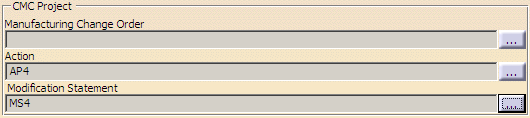
-
If an Action is selected in the tree (instead of a Modification Statement), the Action and its corresponding Manufacturing Change Order are shown in their respective fields of Open Project dialog box. If the selected Action has no Manufacturing Change Order, the corresponding field is blank.
-
If A Manufacturing Change Order is selected, the Manufacturing Change Order is populated in the corresponding field of the Open Project dialog box.
-
Navigating a Project
-
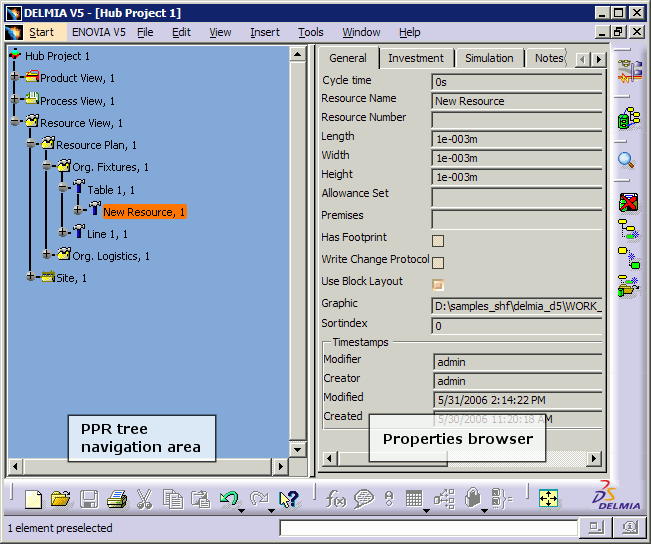
Properties of data selected in the PPR tree can be viewed in the browser pane as shown below:
Notes
- When navigating the PPR structure, child nodes will be displayed that the user has read rights to. Other nodes will not be visible.
- It is possible to invoke as multiple Navigator windows in
various cases, including:
- Different windows with either the same filter or no filter on the same project
- Different windows with different filters defined for the same project
- Different windows navigating different projects (with no plantypeset restrictions)
- When viewing the properties of an object, the Properties dialog box is launched in read-only mode if the current user does not have edit rights on the object.
- Data is not locked during the navigation of a structure. When the Properties dialog is invoked on an object for which the user has edit rights, that object becomes locked in write mode. In this scenario, the lock is released when the user clicks OK in the Properties dialog box.
- As there is no document associated with the PPR Navigator window, it does not support any scripting capabilities.