


Uploading reads a RAPID (robot language) program file and creates the corresponding activities in the PPR tree. The following steps take place:
- Read the RAPID file and generate an XML file. The commands in the RAPID file are mapped to elements in the XML file. The XML file generated is independent of the robot language.
- Read the XML file and generate the required activities, actions, sequences or other items as specified.

Uploading an ABB robot program
-
Click Import Robot Program
 in the Offline Programming toolbar.
 -
Select robot IRB_6400_24_120.1 in the PPR tree.
The File Selection dialog box appears and prompts you to select a program file. -
Navigate to the desired program file, ABBRapid_BodyPickAndPlace_mod.mod, (previously downloaded and saved as described in Downloading or Creating ABB S4/S4C+/C5 Robot Programs) and click Open.
Another File Selection dialog box prompts you to select the Java parser.
-
Select Rapid.jar as upload translator and click Open.
The Uploading Method dialog box opens.
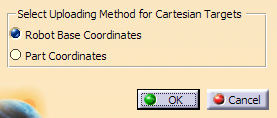
- When Robot Base Coordinates is selected, all of the targets are created with respect to the robot’s kinematics base frame or object frame (if non-zero).
- When Part Coordinates is selected, all of the targets are created with respect to the selected part’s base frames. If a target is not attached to a part, it is created with respect to robot’s kinematics base frame object frame (if non-zero).
-
Select Robot Base Coordinates and click OK.
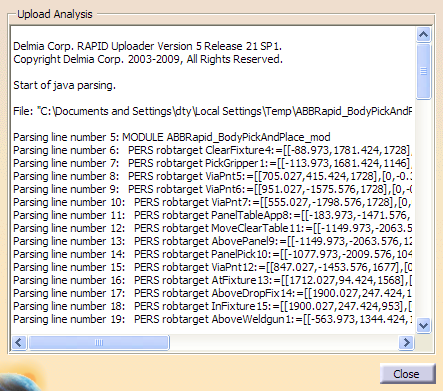
The Upload Information dialog box is displayed, and provides information about the status of the upload, unparsed statements and logical errors.
-
Click Robot Task Simulation
 in the Simulation toolbar, and select robot IRB_6400_24_120.1.
The Select dialog box appears.

-
Choose the robot task as shown above and click OK.
The Process Simulation toolbar appears. -
Click Run
 in the Process Simulation toolbar to simulate the process.
