


Downloading generates a RAPID file (RAPID is the language of ABB S4/S4C+/C5 robot controllers) from the PPR tree. The following steps take place:
- Generate an XML file from the activities defined in the PPR tree. This involves a mapping between the activities in the PPR tree and the elements in the XML file. The XML file generated is independent of the robot language (RAPID, in this case)
- A style sheet transformation file (XSLT) is provided for the ABB RAPID translator. This file defines the mapping between the activities in XML file and RAPID commands.
- The XSLT is run through the XML file to generate the required RAPID file.

Downloading an ABB/Rapid program
-
Click Create Robot Program
 in the Offline Programming toolbar.
 -
Select ABBRapid_BodyPickAndPlace of IRB_6400_24_150.1 in the PPR tree.
The Downloading Options dialog box is displayed: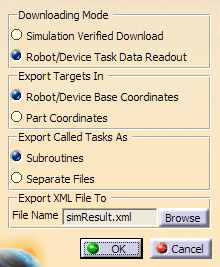
-
Choose the settings as shown above, and click OK.
The Multiple Task Download dialog box is displayed:
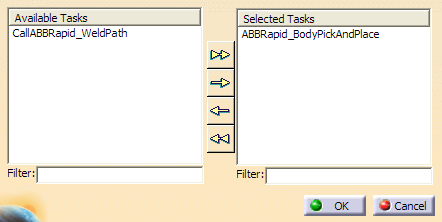
When more than one task is defined for the selected resource, the name of the selected task appears in the Selected Tasks list, while all other tasks in the robot task list are displayed in the Available Tasks list.
-
Select CallABBRapid_WeldPath in the Available Tasks list and click the right arrow button to move it to the Selected Tasks list.
-
Select OK to start the download.
A progress dialog displays information on the state of downloading activities.
When finished, the Download Editor window appears:
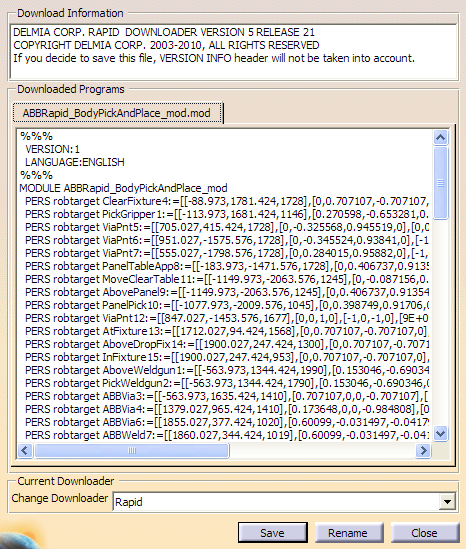
The download information editor contains downloader version and release information and also the possible list of errors that occurred during download. The translation (download) could fail due to one or more of the following reasons:
- Incorrect Java SDK version (requires Java 2 SDK version 1.4.1 or later)
- Parent directory names of Java 2 SDK installation directory containing spaces
- Incorrect settings in Tools > Options
-
Click Save to save the downloaded program.
Note: You can also click Rename to change the currently selected robot program name
