
Specific products, resources, Manufacturing Assemblies, and Manufacturing Kits can be selected from projects that are saved in the Manufacturing Hub. This section describes this procedure.

-
Open a process from the Manufacturing Hub.
-
Select Open Products, Resources, Manufacturing Assemblies and Manufacturing Kit from Manufacturing Hub
 in the Manufacturing Hub toolbar, or select Open Products,
Resources, Manufacturing Assemblies and Manufacturing Kit from the
Insert > Manufacturing Hub menu.
in the Manufacturing Hub toolbar, or select Open Products,
Resources, Manufacturing Assemblies and Manufacturing Kit from the
Insert > Manufacturing Hub menu. -
The PPR Hub - Select Product dialog box prompts for the type of object to be imported (product, resource, manufacturing assembly or manufacturing kit):
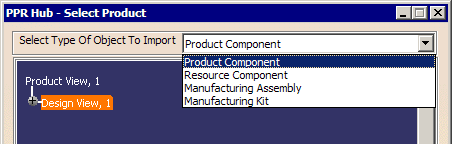
Note that only those object types that are currently available in the open project will be shown in the drop-down list above. If, for example, there are no manufacturing assemblies currently available in the project, Manufacturing Assembly will be omitted from the drop-down list. -
After selecting the type of object to import, double-clicking each level of the resulting hierarchy displays each available child level. Once the desired product, resource or manufacturing assembly is located, click on it to highlight it:
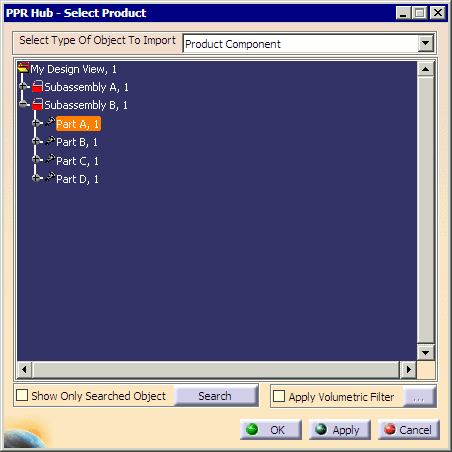
Multiple objects can be selected by holding the Ctrl key as each selection is made: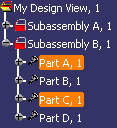
Multiple successive selections can be made by selecting the first item, then holding the Shift key when selecting the last item to include:
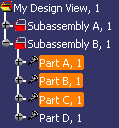
Right-click an object in the browser window to display a context menu containing a Properties command which allows read-only access to the object's Extended Properties dialog box.
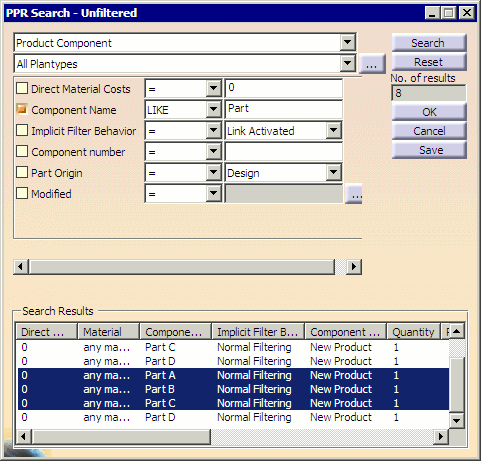
The Search button may also be used to display the PPR Search dialog box to search for an object based on specific criteria.
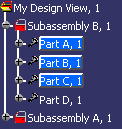
After selecting one or more objects in the Search Results list and clicking OK, the selected object(s) are highlighted in the Manufacturing Hub - Select dialog box.
-
Click OK.
The selected object is inserted into the current PPR: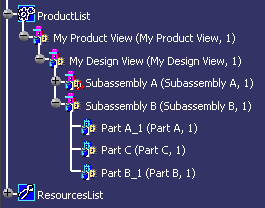
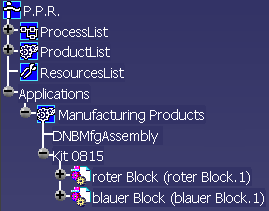
Loaded Manufacturing Kits and Assemblies appear under the Applications node in the Manufacturing Products folder as shown below. The parts and resources of the Kit are shown as children of the kit:
Selecting Products Based on Volume
This feature allows you to specify a bounding box, boundary clearance and boundary operator (i.e., Fully In, Fully Out, etc.,) to select products to load based on volume.
When inserting product data by specifying a volume, products present in the specified volume are identified using an optimized database query and there is no need to select the reference product in the browser. However, if you want to load only the products available under a specific subnode, select the subnode.
-
Select Open Products, Resources, Manufacturing Assemblies and Manufacturing Kit from Manufacturing Hub
. -
In the PPR Hub - Select Product dialog box, select the Apply Volumetric Filter check box:

The
 button becomes enabled.
 -
Select the loaded product and click
.
The current bounding box is displayed in the 3D viewer, and the
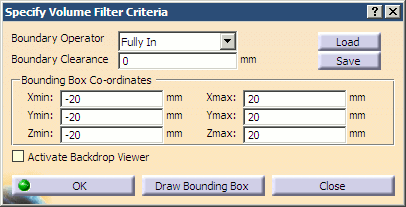
Specify Volume Filter Criteria dialog box is also displayed:
-
Modify the Bounding Box Co-ordinates as needed and specify the desired Boundary Operator and Boundary Clearance accordingly in the Specify Volume Filter Criteria dialog box.
-
Change the search criteria in the Specify Volume Filter Criteria dialog box and click OK to modify the the volume criteria.
-
Click Close to close the dialog box and the volume criteria remain the same as before.
After specifying the volume criteria if you keep the mouse on the
button you will see the actual volume criteria (as a tool tip)
that is applied. However, when the Specify Volume Filter Criteria
dialog box is launched for the first time, the volume criteria
is not initialized. In this case, you are expected to click
OK for the first time after specifying the criteria,
otherwise no filter is applied.
-
- The transparency value specified for the backdrop is effective only when the Transparency Quality option is set to High (Alpha Blending). This option can be found in the Performance tab of Tools > Options > Display.
-
Select OK.
Only those products that match the defined filter criteria are loaded. In addition, the tooltip for the
button now displays the volume filter criteria that has been set.
After the volume filter criteria has been defined, the Apply Volumetric Filter check box can be unchecked at any time so that the filter is not applied.
Using the Backdrop Viewer
To aid in defining the bounding box accurately, select Activate Backdrop Viewer to display a 3D window that contains a semi-transparent image of the entire assembly.
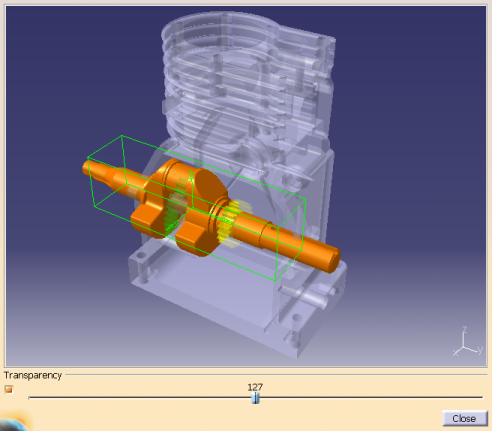 |
To display the backdrop image, a CGR representation of the end product must be specified for the 'graphicname' attribute of the product BOM node in the Manufacturing Hub project. This BOM node then must be selected as the BOM while loading data into DPM.
The corresponding CGR is displayed at the position specified on the BOM node with a default transparency of 50% as shown above. Transparency of 50% as shown above.
|
|
If bounding box co-ordinates are already defined in the Specify Volume Filter Criteria dialog box, this bounding box is drawn in the 3D viewer when Draw Bounding Box is clicked. If no bounding box values are defined, selecting any of the product data in the 3D viewer will display its bounding box. Note that the back drop image itself is not selectable. The user can also select the product data from the main window to display a bounding box in the viewer. The bounding box in the viewer can be manipulated to accurately define a specific volume of interest.
After a satisfactory bounding box has
been defined, click Close to dismiss the viewer.
Volume filters can be loaded and saved with the Load and
Save buttons as described in
Defining and applying filters.
Product and Resource Behavior
Products and resources inserted from the Manufacturing Hub are made flexible by default. For details about flexible and rigid modes, please refer to Using Flexible Sub-Products in the DELMIA Product Structure Users Guide for more information.
Product and resource data loaded in in DPM will be visualized at the position specified in the Manufacturing Hub, and any modifications to the resource positions are saved back to the Manufacturing Hub when the process is saved. This default behavior can be modified to convert the flexible assembly to a rigid assembly via commands available in the product structure workbench. The flexible or rigid status of a product or resource is saved in the detailing when the process is saved back to the Manufacturing Hub.
Synchronize Product/Resource Tree Structures in DPE and V5 DPM
You can display the product/resource tree in V5 DPM in the same order as the customized E5 DPE product/resource tree, when data is loaded from the Manufacturing Hub. If a PackNGo document is created from this loaded data, then the PackNGo document will maintain the order of the product/resource tree whenever it is opened. This highlight is enabled by setting the Tools > Options > Trees > ProductList/ResourceList Display Order > Manufacturing Hub Order > Manufacturing Hub Order.All product/resource in the tree can be sorted based on the DELMIA Process Engineer (DPE) Sorting Criteria (Alphabetic/Numeric/Sort Index based).
You can order the product/resource tree in DPM only for products/resources present in the Manufacturing Hub. This will not apply to Product/Resource nodes that are part of the internal structure of CATProduct and CATPart documents and are not exposed in the Manufacturing Hub.
The ordering of the tree display will be done only during the first load of products/resources from the Manufacturing Hub, during detailing load from manufacturing hub and incremental load of products/resources from Manufacturing Hub.resources from Manufacturing Hub.
This capability will not support products/resources created new in V5 by any existing commands or using the V5 Cut/Copy/Paste mechanism. When new products/resources are saved to the Manufacturing Hub and loaded back the they will be displayed in the DPM as the per existing DPE Sorting Criteria.
There is no Data Upward Compatibility (DUC) support for PackNGo process documents.
Notes
- When a Manufacturing Kit is loaded, 3D states and positioned objects linked to any of its sub-components are also loaded. However, any 3D state or position information linked to the Manufacturing Kit itself is not loaded.
- When loading a Manufacturing Assembly in DPM, Manufacturing Assemblies defined as AST are not displayed in the browser.
- If data has been loaded in DPM using a resource-centric load (Please see Process and Resource Definition User's Guide: Advanced Task: resource-centric load), attempting to load a resource with the Open Products, Resources, Manufacturing Assemblies and Manufacturing Kit from Manufacturing Hub command, a warning message will be displayed to note that the resource load will continue without loading the processes associated to these resources.
- If some components have already been inserted into the document using the Open Products, Resources, Manufacturing Assemblies and Manufacturing Kit from Manufacturing Hub command, then subsequent use of this command will not unload the components inserted earlier. Hence if the complete product structure has been inserted first and then you try to load a partial product structure with some volume filter, the products which are already loaded will not be removed from the document to match the filter criteria.
- Volume filters applied while loading the data in DPM are transient in nature and will not be remembered/used for subsequent loading of data from the Manufacturing Hub using this command.
