|
You may not see Define Generic on the Inspection Activities toolbar; the toolbar shows
either Define Generic
(the initial default) or the last define feature command used.
If, for instance, you last defined a line, you see Define
Line
on the Inspection Activities toolbar; the toolbar shows
either Define Generic
(the initial default) or the last define feature command used.
If, for instance, you last defined a line, you see Define
Line instead of the Define Generic.
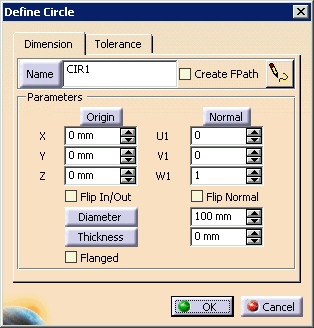
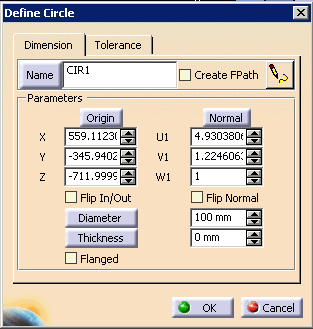
If you see the Define Circle on the Inspection Activities toolbar, you can simply
click on the center of the command and not on the black triangle.
The Define Circle is activated without recourse to the
Define Feature Activities sub-toolbar.
on the Inspection Activities toolbar, you can simply
click on the center of the command and not on the black triangle.
The Define Circle is activated without recourse to the
Define Feature Activities sub-toolbar. |