|
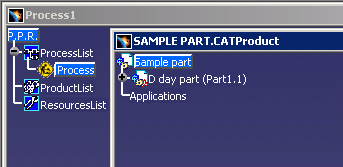
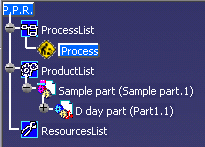
This procedure describes how to load or insert a part onto a blank PPR tree. | |||||||
 |
To follow along with the procedure, use the following sample parts and resources: | |||||||
 |
Products and resources appear in product structure documents. The files containing resources have a .CATProduct extension. Users may create resource parts (using Resource Builder) or load V5-created resources from the catalog browser. | |||||||
 |
|
|||||||
|
|
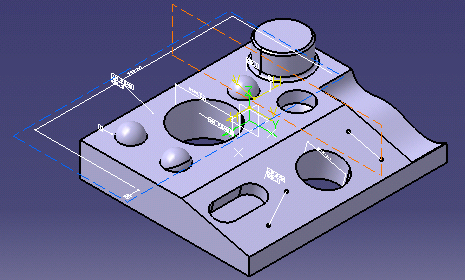
The part and fixture are in the right
position as the fixture has been designed in the context of the part
(that is, they are in the same reference axis).
Once the SAMPLE PART and FIXTURE are loaded, you are ready to load and position the CMM and probe from the catalog browser and load and position a tool assembly. |