
- Define
- Measure
- Construct
- Goto points
- Alignments
These elements can be selected on the PPR tree or in the geometry. It
can be very useful to display the names of features when reordering them.
You can do this by changing to geometry and point view. See Using Quick View Commands.


-
Click Reorder 3D/Tree
 .
.The Sequence 3D/Tree dialog box appears. 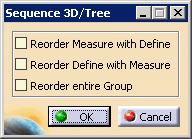
- Reorder Measure with Define: When selecting the define activity or feature, the corresponding measure activity will be moved as well.
- Reorder Define with Measure: When selecting the measure activity or the path, the corresponding define activity will be moved as well.
- Reorder entire Group: If the activity belongs to a group, the whole group will be moved.

When a Measure Cylinder, Measure Cone, or Measure Sphere activity has been created with the Check Probe option, reordering the activities will trigger an automatic update of the path to reflect the new probe configuration for all features. -
Select an option (the example below shows Reorder Measure with Define).
This image shows the original: 
-
Select the points in the new order.
This image shows the revised order. 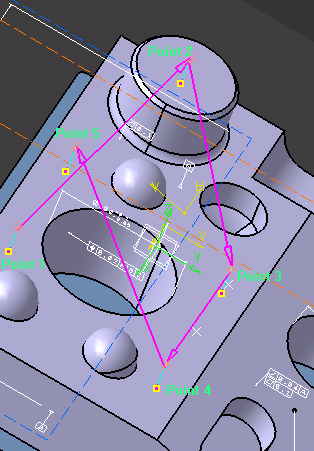
-
Click the OK button.
The sequence is reordered.
- OK moves the activity
- Cancel de-selects the activity
