Defining an Iterative Alignment  

This procedure describes how to define an iterative alignment. 

The iterative alignment function tells the CMM to iterate or repeat an alignment result until a given quality or precision criterion is reached.  This quality or precision criterion is called the "threshold value." More information is available about iterative alignment in About Iterative Alignment.

To create an alignment, you must have a product loaded, and at least one feature defined and measured as well as an alignment constructed.
  1. On the Inspection Activities toolbar, select the Alignment Activities toolbar, then select the Iterative Alignment.

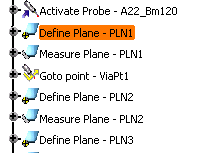
  2. On the PPR tree, select the first activity that you want to be part of the iterative alignment. 

    In the example below, the iterative alignment starts after the Define Plane activity. 
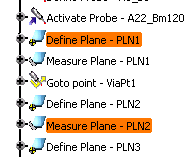
  3. On the PPR tree, select the last activity that you want to be part of the iterative alignment.

    In the example below, the Measure Plane activity is the last activity of the iterative alignment.
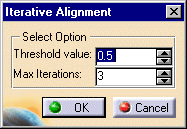
    The Iterative Alignment dialog box appears:
  4. Use the spinners to enter the threshold value and the maximum number of iterations.

  5. Select the OK button.

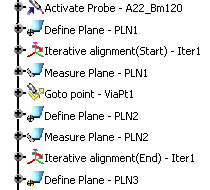
    The iterative alignment is added to the PPR tree:
Once you create an alignment, it is not activated until you use the activate alignment command.