 |
This procedure describes how to define an alignment by
translation. |
 |
To create an alignment, you must have a product loaded,
and at least one feature defined and
measured. |
 |
-
Select the parent process or preceding activity for
the defining a translated alignment activity.
-
On the Inspection Activities toolbar, click
Alignment Translate . .
-
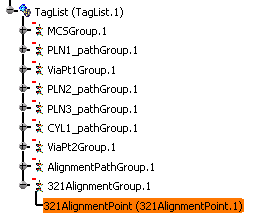
On the PPR tree, under the TagList node,
select the PCS node for the alignment you wish to rotate.
 |
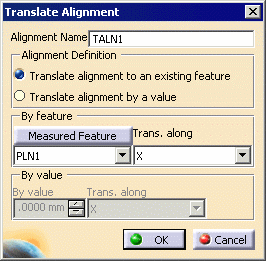
| The Translate Alignment dialog box appears. |
 |
-
Select either Translate alignment to an existing
feature or Translate alignment by a value.
If you select Translate alignment to an existing feature:
- The names of all measured features that are part of the
process before the insertion point of the Define Alignment by
Translation Activity appear on the pulldown menu.
- Choose a feature from the pulldown menu or from the
geometry; to choose a measured feature from the geometry, select
the Measured Feature button.
- Select an axis along which you want the translation to occur
from the pulldown menu under Trans. along.
|
If you select Translate alignment by a value:
- Select a value using the spinners under By value.
- Select an axis along which you want the translation to occur
from the pulldown menu under Trans. along.
|
-
Select the OK button.
| A translated alignment activity appears in the process and a
translated alignment group appears under the tag list node in the
resources list. The new alignment is represented by an x-y-z
vector in thin black. |
|
 |
If you create this activity before you insert a CMM
into the resource list of the PPR tree, you will be asked to confirm
that you wish to create the activity without a CMM assigned to it.
You can assign the CMM to all the
activities within the process once you are ready to insert the CMM.
|
|
Once you create an alignment, it is not activated until
you use the activate alignment
command. |
