|
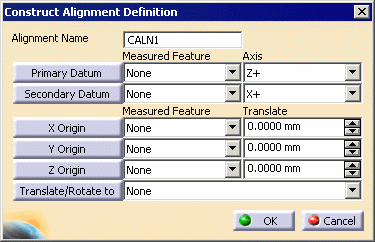
This procedure describes how to create a constructed alignment. This procedure can also be used to construct an alignment that functions as a teach point alignment. | ||||||||
 |
To create an alignment, you must have a product loaded, and at least one feature defined and measured. | ||||||||
 |
|
||||||||
Constructing an Alignment that Functions as a Teach Point Alignment |
|||||||||
| The single teach point is generally used to
quickly establish the part position on the CMM bed during a program
execution, and is generally collected in a manual mode. This method of
quick alignment minimizes operator input to initiate a part program.
The teach point is manually probed by the operator. The teach point is defined as a point feature at a desired location in the CAD model. The point provides an origin for xyz translation, and the MCS (or current alignment) provides orientation. The teach point alignment is generally followed by a Direct Computer Control (DCC) driven alignment. Users can create a teach point alignment by using the Define Constructed Alignment command, and leaving the Primary Datum, Secondary Datum, or X, Y, and Z Origin fields undefined. Any information that is not provided is extracted from the current alignment. |
|||||||||
 |
If you create this activity before you insert a CMM into the resource list of the PPR tree, you will be asked to confirm that you wish to create the activity without a CMM assigned to it. You can assign the CMM to all the activities within the process once you are ready to insert the CMM. | ||||||||
| Once you create an alignment, it is not activated until you use the activate alignment command. |
 .
.