


-
Select the parent process or preceding activity for the measure line activity.
-
On the Inspection Activities toolbar, click Measure Line
 .
. -
Select the defined line you wish to measure.
A Measure Line dialog box appears. 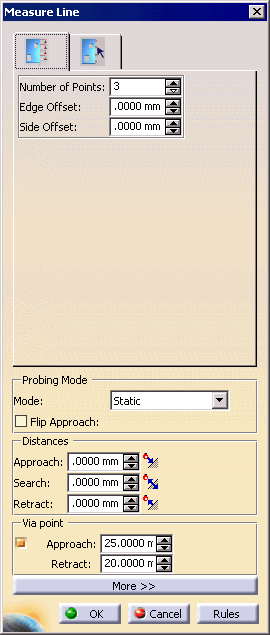
-
Alter the information in the dialog box as desired. (A preview of the path appears as you alter the data).
-
Once you have defined the measurement desired, select the OK button.
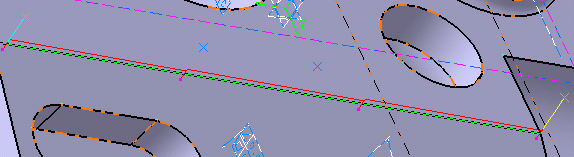
The activity is added to the PPR tree. Note that creating a measure line activity also creates a tag list resource (which consists of line path groups) and line path applications. The measured line appears highlighted on the part geometry.

