 |
-
Select the parent or preceding activity for the define
line activity.
-
On the Inspection Activities toolbar, click
Define Line . .
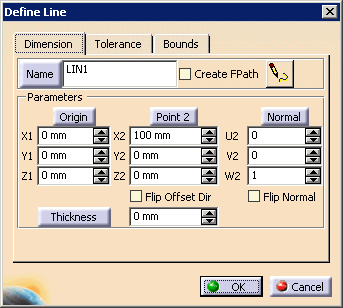
| The Define Line dialog box appears. |
 |
 |
You can select the Name button, select an item from
the geometry, and the feature will take that item's name. |
| |
When you first create a feature, you need to select a
thickness for it. Inspect uses that thickness value as the
default value thereafter. |
 |
See also Using Bounds. |
-
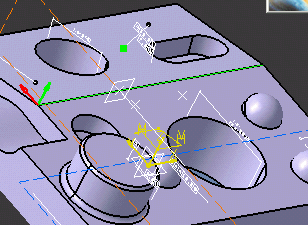
On the 3D geometry, select the line.
| Once selected, the line is highlighted. |
 |
| The dialog box also contains the data for the line
selected. |
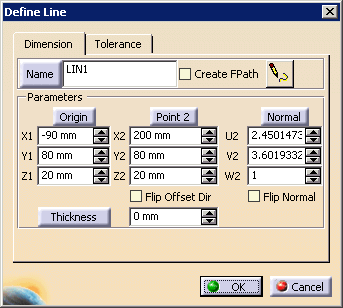 |
| You may enter a name for the line in the name
frame. |
|
|
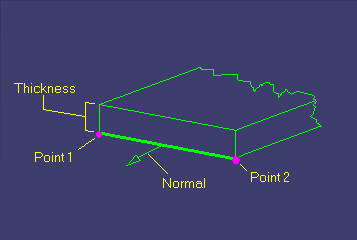
For an image defining the dimensions, click on the button. The image appears.
 |
| |
 |
| |
You can also alter the direction of Origin, Point2, Normal,
and Thickness by selecting the buttons with those parameter names. |
| |
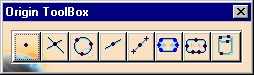
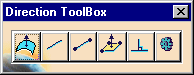
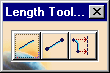
If you select any of these buttons, the dialog box disappears,
and the appropriate toolbox appears in its place. Select the
button on the toolbar that changes the direction as desired. |
| |
 |
|
|
See About the Toolboxes for
information on using the toolboxes. |
-
Select the OK button.
| The activity is added to the PPR tree. |
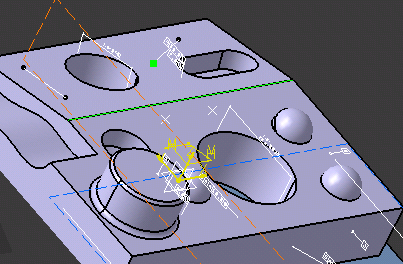
| The defined line appears highlighted on the part geometry. |
 |
|


