|
This task explains how to create a styling
corner, that is a
connecting curve of a given radius between two other planar curves.
Styling corners are especially useful to create good quality surfaces based
on a curve net, as described in Creating a Net Surface (available with the
FreeStyle Profiler product only). |
 |
Open the
FreeStyle_Part_19.CATPart document. |
 |
-
Click the Styling Corner icon
 . .
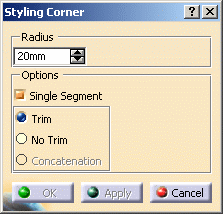
The Styling Corner dialog box is displayed.
-
Select the two curves to be connected by a styling
corner.
-
Key in a radius value.
|
| |
 |
You can create a styling corner by setting the
values for the radius parameters.
|
To set the step value for the radius parameters:
- Right-click the box and select Change step.
- Select the value.
 |
You can enter a new step value
in the New step dialog box by
selecting new one. |
|
- Right-click the box and select
Change step > new one.
The new step dialog box
appears.
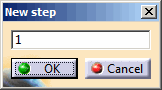 |
- In the box, type a new step value.
- Click OK.
|
|
To calculate minimum distance between geometrical entities (Measure
Between) and calculate property of any geometrical entity
(Measure Item):
- Right-click the box and select
Measure Between.
- Right-click the box and select
Measure Item.
|
To set the range value for the radius parameters:
- Right-click the box and select Range > Edit.
|
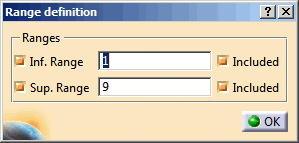
The Range definition dialog box appears.
|
- In the Inf. Range box, type a value.
- In the Sup. Range box, type a value.
- Click OK.
|
| |
|
|
To add range values perform the following
actions:
|
|
- Right-click the box and select
Range > Suppress.
- Right-click Number of Stripes box and
select Add Range….
|
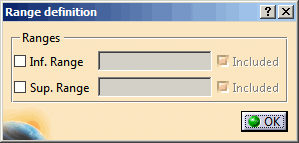
The
Range definition dialog
box appears.
|
|
| |
- Select the
Inf. Range check box and
Sup. Range
check box.
- Enter the range values and click
OK.
|
| |
The default Range, Step and Value of the Radius
scroll bar in Styling Corner command are as
follows:
|
Scroll Bar Name |
Range |
Step |
Value |
|
Radius Scroll Bar |
0.1 mm to 1000 mm |
0.1 mm |
20 mm |
|
|
|
|
|
-
Click Apply.
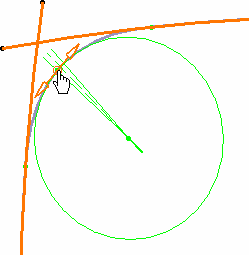
The corner is previewed, with manipulators, at the circle
center, the constant radius limit (the segment between the two solid
radius lines), and at the contact points, provided this option is active
in the dashboard.
|
| |
|
 |
Capabilities are available from the contextual
menu when right-clicking a contact point. |
|
|
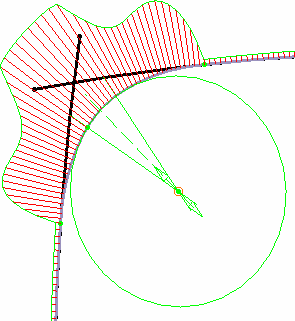
It may be interesting to perform a
curvature analysis clicking the
Porcupine Curvature Analysis icon
 to visualize the resulting corner's curvature, and possibly modify it using
the corner's manipulators.
to visualize the resulting corner's curvature, and possibly modify it using
the corner's manipulators. |
|
|
|
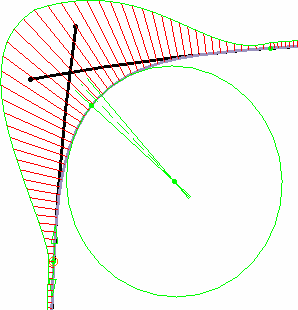
In this case, it may be useful to smooth the curvature at
the contact points and reduce the constant radius area: |
|
|
|
-
Modify the options as needed:
|
|
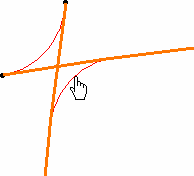
- the Single Segment option to impose a limited number of
control points for the corner curve, thus resulting in a single arc
curve.
In this case, the generative circle is not displayed, only contact points
are, provided the Contact Points option is active in the
dashboard.
Depending on the radius value, there may be several solutions. In this
case, you are prompted to select one of the proposed solutions.
|
 |
The concatenation mode (see below) is not available with this mode. |
| |
|
|
- the resulting curve type:
|
|
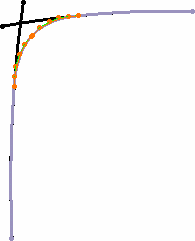
- Trim: to create a three-cell curve limited to the initial
curves endpoints.
You can display their control points independently if you use the
Control Points icon
 (it creates another independent curve corresponding to the selected
cell).
(it creates another independent curve corresponding to the selected
cell).
Initial curves are duplicated and trimmed at the contact points with the
corner segment.
|
| |
|
|
-
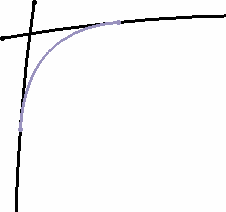
No Trim: to create the corner arc only limited
at the intersection with the initial curves
Initial curves are not modified.
|
| |
|
|
-
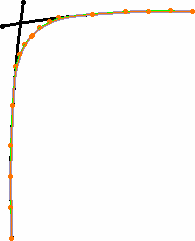
Concatenation: to create a mono-cell curve
limited to the initial curves endpoints. You can display its control
points independently if you use the Control Points icon
(it creates another independent curve corresponding to the whole curve).
Initial curves are duplicated, trimmed at the contact points with the
corner segment, and concatenated with the latter.
|
| |
|
|
-
Click OK to create the styling corner.
|
|
|
A useful application of this command is to create a set of
styling corners based on intersecting curves, then create an associate net
surface based on these styling corners. You can then modify the initial set
of curves and the surface automatically is recomputed. |