-
Select one or more holes and center lines (only center lines not associated with a hole) in the drawing.
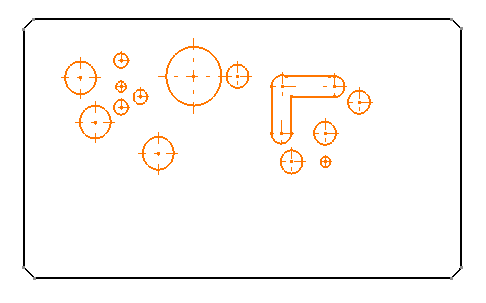

Hole and center line dimension tables cannot be associative. Selecting an element in the drawing does not make the table associative to this element.
-
Click Hole Dimension Table
 in the Dimensioning toolbar.
 The Axis System and Table Parameters dialog box is displayed.

This dialog box contains the following options:
-
Axis system: Indicate the holes coordinates 2D reference axis system. In this example, click on the view origin (you can also select two lines or click anywhere in the drawing, or enter the origin coordinate).
Two reference axes appear:
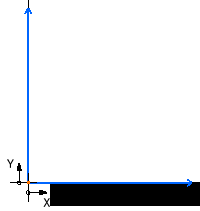
You can rotate the axes using the Angle box, and flip the axes using Flip horizontally and Flip vertically icons. To represent the axis system by checking the Create representation box.
-
Title: Type the table title.
-
Columns:
-
Choose a label (A, B, C... or 1, 2, 3...). If you want column numbering to start with values other than A or 1, click the icon
 and specify the start value.
 -
Select and name the column to display.
-
-
Table format:
-
Select the Transpose table check box to invert columns and rows.
-
Select the Sort table content check box to sort the table elements.
-
Select the Split table check box to split the table into several tables. For more information on splitting tables, see Creating/Modifying a table.
-
-
-
Choose 2D reference axis system for the axis system from the list.
-
Enter the table name in the Title field.
-
Select Label: A, B, C from the Column list (you can also choose the Index naming mode) to give a label to the selected points in the drawing.
-
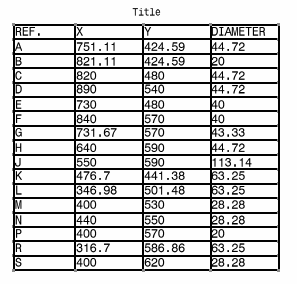
Select the X, Y and Diameter check boxes to have four columns corresponding to the hole labels and to the Cartesian coordinates. Then enter a title for each column.
-
Select the Only closed circles check box to compute only the closed circles.
If you clear this check box, you can also include arcs of circles in the hole and center line dimension table.
-
Optional: Select the Transpose table check box to invert columns and rows in the table.
-
Optional: Select the Sort table content check box and then click the
to
define the sorting parameters.
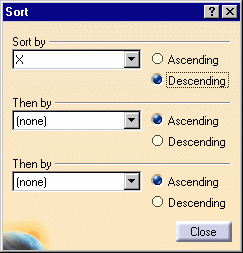
The Sort dialog box appers:
-
To sort the table by descending X coordinates, select X from the Sort by list. Select Descending, then click Close.
At this point, if you want to change the precision value, you may do so using the Numerical Properties toolbar. Note that once you validate the creation of the points coordinate table (by clicking OK in the Axis System and Table Parameters dialog box), you will no longer be able to edit these dimension properties. Also note that you can not edit Coordinates Table precision value through style customization. -
Optional: Select the Split Table check box to split the table.
-
Click OK, and then click in the drawing sheet to define the location of the table.
The table is generated.