
Choose a task:
Creating a Table


-
Click Table
 in the Annotations toolbar.
 -
Click a point in the drawing to specify the table position.

Tables cannot be associative. Selecting an element in the drawing does not make the table associative to this element. -
In the Table Editor dialog box that appears, enter the number of columns and rows you want for the table.
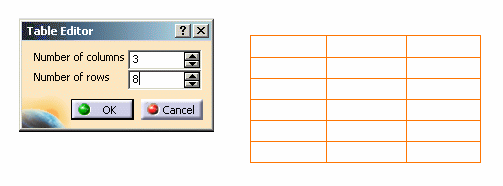

- The minimum row size depends on the font size and also on the vertical margin set in the table style.
- The line width corresponds to 5 times the height of a string.
- The biggest table which can be created is of 10000 cells (example: 102 columns and 98 rows). However, capacity of the computer (available memory and CPU) may induce a lower limit.
-
Click OK to validate the table creation.
Editing and Modifying a Table
-
Select the table and drag it to another position.
-
Double-click the table to switch it to edition mode.
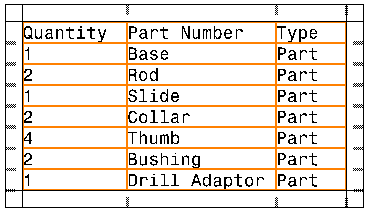
You cannot move a table while it is in edition mode. While in edition mode, you can:
-
Select a column by clicking above the column when the symbol
 appears.
 -
Select a line by clicking on the left-hand side of the row when the symbol
 appears.
 -
Select the entire table by clicking in the corner cells of the table when the symbol
 appears.
 -
Select a cell by clicking in the cell when the symbol
 appears. You can move to other cells by using the arrow keys.
-
Click the left mouse button and drag to select multiple cells.
-
Hold down Shift and drag the left mouse button or use the arrow keys to select multiple cells.
-
-
You can use the following keys for faster cell selection:
-
Home : brings the selection to a cell in the first column of the table.
-
End : brings the selection to a cell in the last column of the table.
-
PageUp : brings the selection to a cell in the first row of the table.
-
PageDown : brings the selection to a cell in the last row of the table.
-
Multiple cell selection is possible by using Shift+ above mentioned four keys (Home, End, PageUp and PageDown).
-
-
Leave edition mode by clicking outside the table.
-
-
To access the general contextual menu, right-click the corner of the frame around the table.
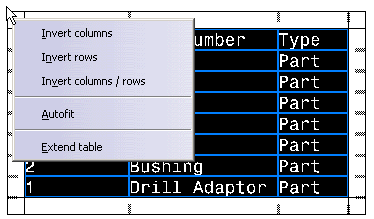
This contextual menu allows you to:
-
invert columns.
-
invert rows.
-
turn rows into columns and columns into rows.
-
fit the text in the cells by automatically defining the optimal cell size.
-
extend the table by adding columns and/or rows to it.
-
-
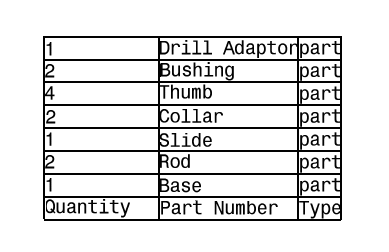
Choose Invert rows in the contextual menu. Rows are inverted, i.e., the last row becomes the first one, the first row becomes the last one, etc.
-
Choose Invert columns in the contextual menu. Columns are inverted.
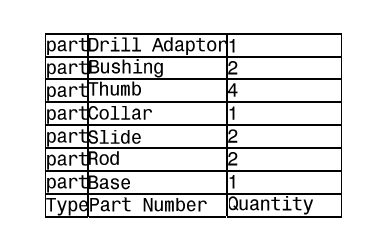
-
Select Invert columns / rows in the contextual menu. Rows and Columns are inverted:

-
Right-click a column or row to access the related contextual menu, which lets you:
-
Insert a column/row.
-
The size of a column or row and the text style depend on the insertion point in the table. If you insert a column/row:
-
At the beginning of a table, the size and the text style are the current text style.
-
In the middle of a table, the size and text style are the same as the preceding column/row.
-
-
More precisely, the text style used for newly-inserted cells is based on the text style of the first character in the preceding cell (upper cell for a row, left cell for a column).
-
-
Delete a column/row.
-
Clear the content of a column/row.
-
Split the table (in case of row contextual menu).
-
Modify the size of a column/row by either:
-
setting a new size for the column/row.
-
"autofitting" the size (the optimal cell size is automatically defined in order for text to fit in it).
The minimum value for a column width is twice the value of the horizontal margin of the cells. By default, this horizontal margin is valued 2mm. -
-
-
Right-click two cells and choose Merge.
You cannot merge a cell that has already been merged. -
Select the new cell formed by the two cells you have merged and choose Unmerge to split them in two cells again.
-
Double-click the text of a cell or press F2 key. The Text Editor dialog box appears: modify the text. Press Shift+Enter to add new line in the Text Editor if needed. Click OK or press Enter to validate the text.
-
To choose vertical and horizontal text alignment, use the Anchor point tool
 .
Align the text of a cell on the right using
.
Align the text of a cell on the right using
 .
.
-
Right-click a cell, and select Properties from the contextual menu. The properties available are the same as those available for texts. Refer to Editing Text Properties for more information.
-
On the Font tab, specify a color, red for example, and click OK. The text in the selected cell is now red.
When editing cell properties, note that a number of properties do not apply to the selected cell, but to the table and all its cells. - On the Text tab:
- X and Y position
- (Orientation) Reference
- Orientation
- Blank Background
- On the Graphic tab (Lines and Curves
section):
- Color
- Linetype
- Thickness
- On the Text tab:
-
The top or bottom row style or left or right column style can be customized by the Administrator in cell formats (Tools > Standards > Drafting > [standard name] > Styles > Table > Default > Cell Formats).
-
When the administrator creates a top or bottom row style or left or right column style, a new node is created in the standards xml file under the Table > Default > Cell Formats node (at the same level as Whole Table).
-
The new node is a duplication of the Whole Table node.
-
An extra parameter is created under top or bottom row style or left or right column style to specify the number of rows/columns being affected by this style. This parameter is named Number of Row/Column and its default value is 1.
-
You cannot select multiple blocks at the same time. Two alternate columns or rows cannot be simultaneously selected.
Splitting a Table
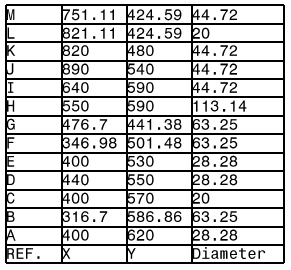
Using Split Table Command
-
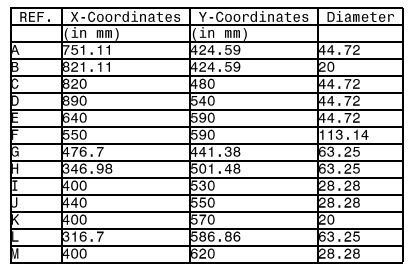
Right-click the table and select Split Table. The Table Split dialog box appears.
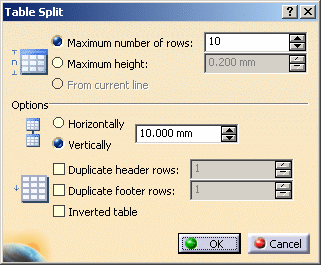
In this case, the From current line option is grayed out. The Table Split dialog box has the following options:
-
Maximum number of rows: if you want to split the table so that each new table contains a maximum number of rows, select this option and enter the required number of rows in the associated field.
-
Maximum height: if you want to split the table so that each new table has a maximum height, select this option and enter the required height in the associated field.
-
From current line: select this option if you want to split the table from a currently selected line when the table is in edition mode.
-
Horizontally: select this option to position the new tables one next to the other and specify the distance between them in the numeric field provided.
-
Vertically: select this option to create the new tables above or below each other depending on the table inverted status and specify the distance between them in the numeric field provided.
-
Duplicate header rows: select this option if you want to duplicate the header row in each new table. A spinner is provider to define the number of header rows you want to duplicate.
-
Duplicate footer rows: select this option if you want to duplicate the footer row in each new table. A spinner is provider to define the number of footer rows you want to duplicate.
-
Inverted table: select this option if you want the table to be read from bottom to top (i.e. header is at the bottom of the table, footer is at its top).
All combinations are possible for the following options: - Duplicate header rows,
- Duplicate footer rows,
- Inverted table.
You can have all the three options or any two options selected.
-
-
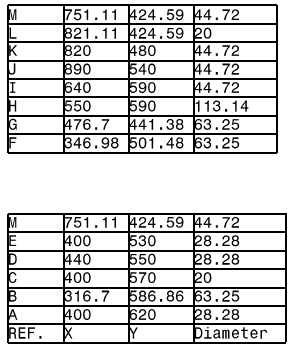
Select Maximum number of rows and enter 8 in the corresponding field.
-
Select Vertically.
-
In the Distance between tables field, type 20mm.
-
Select the option Duplicate header rows keeping the value 1 for the number of rows to be duplicated and also select the option Inverted table.
-
Click OK. The table is split according to the criteria you have specified. The header row is copied in the split tables and the table is read from bottom to top.
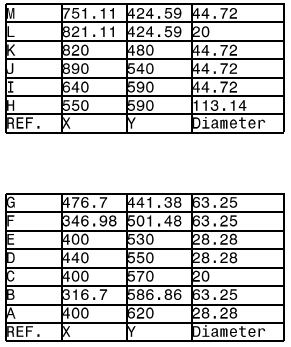
If the Inverted table option is cleared and the Duplicate header rows option is selected with value 1 , then the table is read from top to bottom. Thus the table is split with the top row being considered as the header row, in this case row with M.
Using Split... Command
-
Right-click the row manipulator when the table is in edition mode and select Split....
The Table Split dialog box appears.
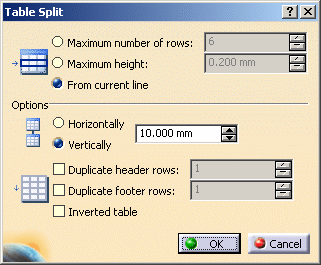
- In this case, the From current line option is available.
- In case of a non-inverted table, the table is split above the selected row with the From current line option selected.
- In case of a inverted table, the table is split below the selected row with the From current line option selected.
-
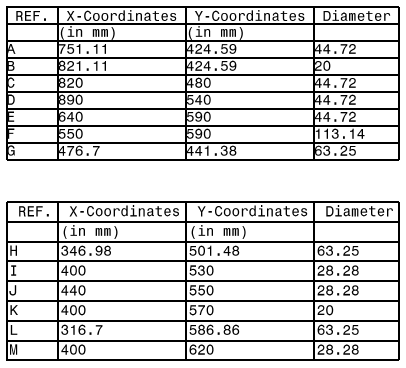
Select the row from which you want to split the table. In this case say from row H.
The From current line option is automatically selected. -
Select Vertically.
-
In the Distance between tables field, type 15mm.
-
Select Duplicate header rows and make the value to 2 using the spinner.
-
Click OK. The table is split into two tables from the row selected by you and the first two header lines are also copied in the split tables.
-
Merging a split table is not supported.
-
Vertical splitting is not supported.
- When creating the Bill of Material or Hole Dimension or
Coordinate Dimension table in drafting, the Table Split
dialog box is available, but the header/footer rows options are
replaced by a Duplicate Title
option which is selected by default. This option duplicates the
title row.
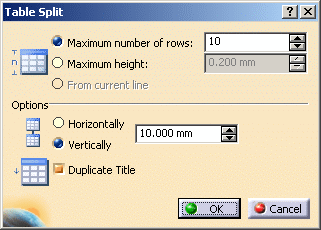
Creation of Bill of Material or Hole Dimension or Coordinate Dimension table is not supported in 2D Layout for 3D Design workbench.
Importing a Table
Values) file, each line corresponds to a line in the table; within a given line, each cell is separated by a specific character that depends on the decimal separator specified in the system options.
This decimal separator determines the character that will be interpreted as the cell separator:
- if the decimal separator is a dot, then the comma (,) is used as the column separator.
- if the decimal separator is a comma, then the semi-column is used as the column separator.
-
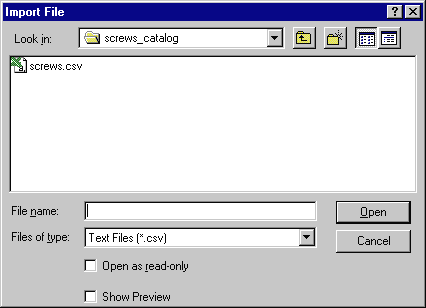
Click Import Table
 and select the table you want to import.
-
Click Open. The table is imported into the drawing.
Inserting a View in a Table
-
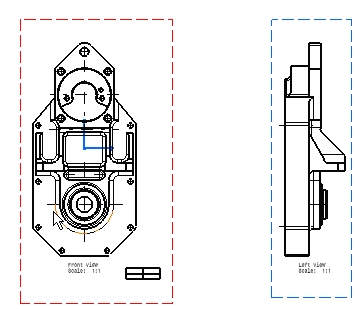
Double-click the table to switch it to edition mode.
-
Right-click the cell you want to fill. Select Insert view.
The command "Insert view" is not available with 2D Layout for 3D Design workbench. -
Choose the view you want to insert by clicking the view in the drawing or in the tree.
- You cannot select the view containing the table,
- The view must be in the same drawing.
- If you modify the 3D part and update the drawing, the view in the table will be updated as well.
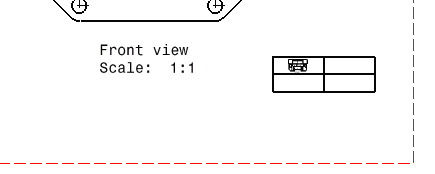
Choose the Top view:
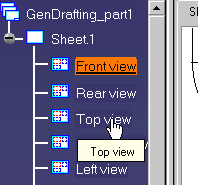
The top view is inserted in the table, and it is resized so as to fit the cell. You can resize the cell if you want to enlarge the view in the table.
Rotating a Table
-
Click the table.
-
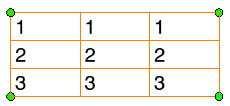
Click Free rotation
 in the Select toolbar.
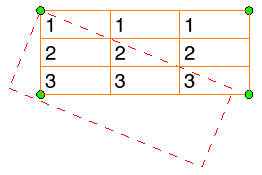
The rotation handles appear.
-
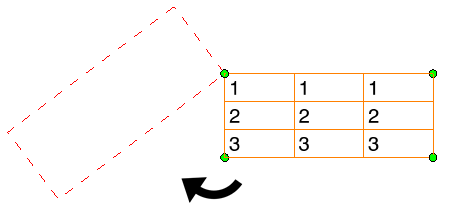
Drag any one of the rotation handles to the required angle and click in the sheet.
The table is rotated.
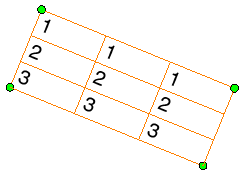
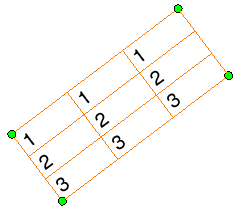
- If you rotate the table (for example by 135 deg
clockwise). The
table is automatically flipped and its content is placed in
a readable position.
- To change this option, follow the below steps:
- Right-click the table and select Properties.
- Click the Text tab.
- Under
Orientation, from the
Mirroring
list, select No
flip.
By default, Auto flip is selected.
- If you rotate the table (for example by 135 deg
clockwise). The
table is automatically flipped and its content is placed in
a readable position.
Copying the Table
Content
-
Double-click the table to change to the table edition mode.
-
Select the content to be copied.
-
Right-click and select Copy Plain Text to Clipboard.
- If the selected content has merged cells, they are considered as a single cell. The text inside these merged cells is processed as the text of the first cell and rest of the cells are considered as empty.
- Table or text properties such as font or border definition are not taken into account.
-
Right-click the upper left corner of the table or the cell in which content is to be pasted and select Paste Plain Text from Clipboard.
- The multi-selection of the cells is not necessary as pasting process always starts from the upper left corner.
- If the table in which content is to be pasted has less rows or columns than needed, extra rows or columns are added. The table cannot exceed 10000 cells.
- If the table contains an attribute link or a link template, it will be copied as a simple text.
- Images cannot be copied.
