 |
If you activate assignment of
child parts under Tools Options and select any product node in the
PPR tree that has children, all child parts are listed regardless of
whether they are linked to a process.
Displaying child parts. |
 |
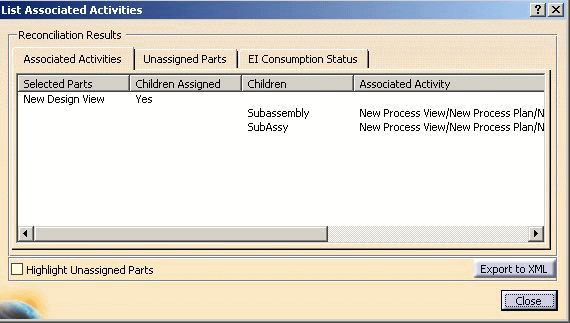
The two columns Children assigned and Children are displayed only if you have
activated the option assignment of child parts.
-
The column Children Assigned shows whether the children of the selected product node are linked to a
process:
-
Yes means that all children of the selected product node are linked to a process.
-
No means that at least one of the children is not linked to a process. Children of the selected product node that are
not linked to a process are displayed under Unassigned Parts.
-
If the selected product node does not have a link to a process, the
column Associated Activity is
empty in the line for Selected Parts (in the example in New Design
View).
-
All children that are not linked to a process are listed with the corresponding names in the column
Children.
|
|
Unassigned Parts
EI Consumption Status Information
-
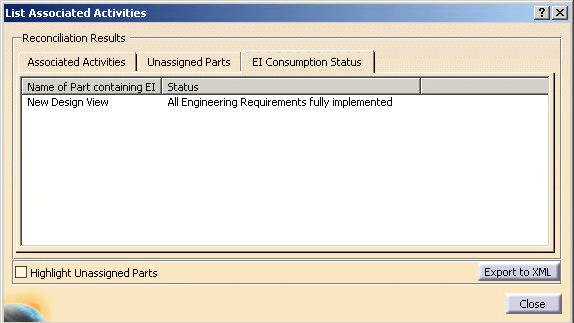
Click on the tab EI Consumption Status in order to display the processing status of linked
Engineering Intents (EI).
-
The example shows that the linked EI has the processing status fully implemented,
or in other words, all instructions specified by the designer are taken into consideration in
the process planning; the EIs of the selected products do not require any further processing.
 |
