Working With Constraint Area Properties

This task shows you how to add or modify the constraint area properties.
The document is still open from the previous task.

The place keep-out area (Pad.2) is displayed in transparency.
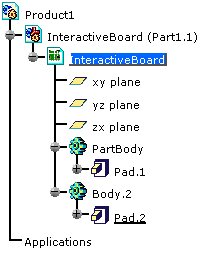
  1. Right-click the Pad.2 in the specification tree and select Properties.
    The Properties dialog box opens.

  2. Click More .

    The Circuit Board Design tab appears.
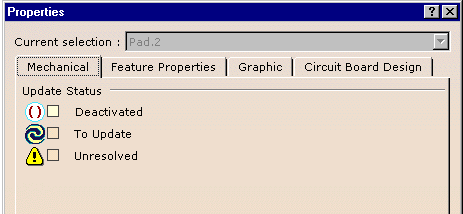
  3. Select the Circuit Board Design tab.

    The dialog box is updated as:
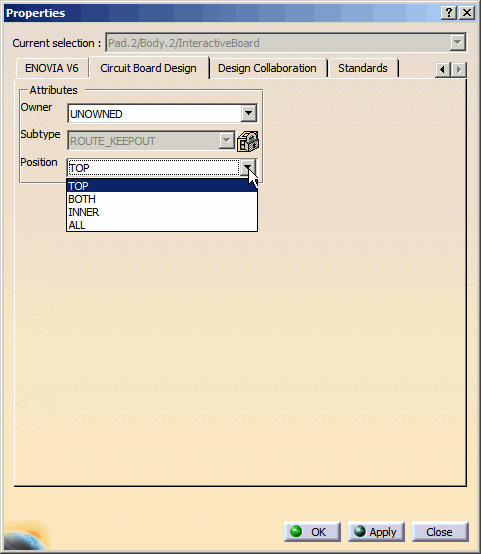
  4. Change the position of the constraint area to TOP, BOTTOM, BOTH, INNER, or ALL.
    Notes:
     
    • The following table explains the constraint areas in terms of layout restrictions:

    Top
    Bottom
    Both
    Inner
    All
    • If the sketch of the constraint area lies on the top face of the board, the proposed position is TOP. Else, if it lies on the bottom face, the proposed position is BOTTOM. This is true for all constraint areas.

    • The various types of positions available for different types of constraint areas are as follows:
      • ROUTE OUTLINE : TOP, BOTTOM, BOTH, INNER, and ALL.
      • PLACE_OUTLINE: TOP, BOTTOM, and BOTH.
      • OTHER_OUTLINE: Change in position type not available.
      • VIA_KEEPOUT: Change in position type not available.
      • PLACE_KEEPOUT: TOP, BOTTOM, and BOTH.
      • PLACE_REGION: TOP, BOTTOM, and BOTH.
      • ROUTE_KEEPOUT: TOP, BOTTOM, BOTH, INNER, and ALL.

    • Once you select a position type, the initial height of the constraint area can be lost.
    • Some of the constraint area attributes are displayed but cannot be modified:
      • Subtype
      • Position: TOP to BOTTOM, or BOTTOM to TOP

      Note that, different types of constraint area can have different properties.

  5. Click OK.

A constraint area may have a representation on both faces of the board.
This attribute is recognized and displayed in the Circuit Board Design tab.
This attribute is managed only on the idf file import.
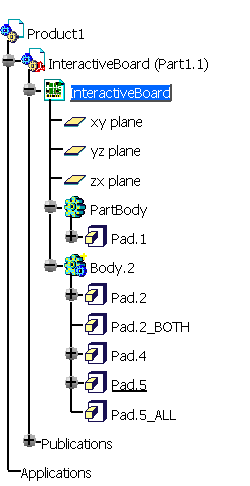
In the specification tree, such a constraint area (BOTH) is represented by two pads in the same body.
They share the same properties: modifying the properties on one pad will modify them on the other pad. If you change the position of the constraint area from BOTH to TOP or BOTTOM. The node denoting two pads is deleted from the specification tree.
Similarly, if a constraint area has ALL as its position type, a new node is created in the specification tree to denote the same.