

A constraint area is a space reservation used for different purposes such as allowing/forbidding the routing or placing of components etc.
This feature is available on both the board and the manufacturing panel.


-
Choose the Insert > Body menu item (optional).
Body.2 is created, belonging to the interactive board component. -
Select the board to define the working plane.
-
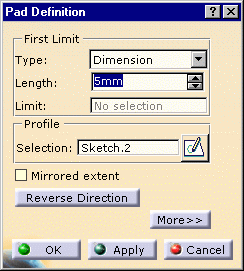
Enter 5mm in Length.
-
Click OK to validate.
-
Select Create Constraint Area
 .
.
 .
. and draw the contour of the constraint area.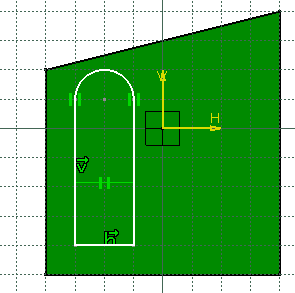
 to return to the 3D world.
 .
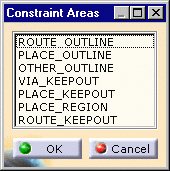
.
-
Choose PLACE_KEEPOUT and click OK.
The place keepout area is displayed in transparency.
The pad is more than a simple pad: it has technological properties.
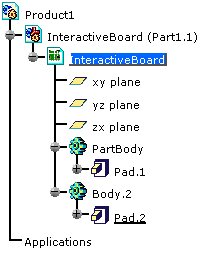
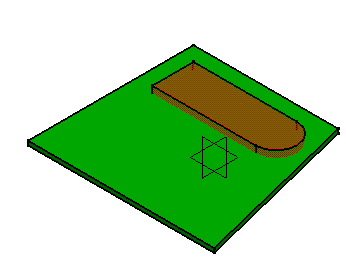
- When you create a constraint area interactively, the body is not automatically renamed with the constraint area type (as it works on import). However, you can change its name using the Properties contextual menu.
- To create cutouts in a constraint area, you have to create/modify the sketch of the constraint area pad accordingly, instead of achieving the same using Pocket, Hole etc. features.
