Viewing or Deleting Job Files
The Storage Manager allows you to do the following:
List the job files created for a particular analysis case or for all analysis cases.
View a particular job file in the external text editor of your choice.
Delete selected job files from the storage directories.
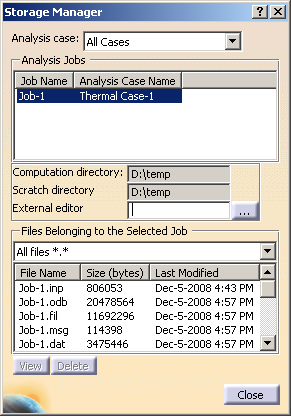
This task shows you how to use the Storage Manager to view or delete the files created for a job. You can also delete a job by right-clicking on the job object in the specification tree and selecting Delete.
Click the Storage Manager icon
 .
.The Storage Manager dialog box appears.
Select the analysis case or cases for which you want to view job files from the drop-down menu at the top of the Storage Manager dialog box. You can view job files for a particular analysis case or for all analysis cases.
The list of jobs is updated to show the jobs that you have created for the selected analysis case or cases. The job name and the analysis case with which it is associated are displayed.
Select a job from the list of Analysis Jobs.
The remaining information in the Storage Manager dialog box is updated to show the information for the selected job.
The Computation directory and Scratch directory fields display the paths to the directories where computation and temporary scratch data, respectively, are stored for the selected job. These fields are for informational purposes only and cannot be edited in the Storage Manager; see Specifying File Storage Directories for information on modifying these paths.
The External editor option provides the path to the external editor used for viewing job text files (for example, xemacs or notepad). The default editor is that specified in the Options dialog box (Configuring an Abaqus Analysis). To specify a different editor, you can do one of the following:
Click in the External editor text field, and type the path to the editor.
Click ... to display the External Text Editor dialog box, and select the editor of your choice.
Select the type of job files that you wish to list from the drop-down menu beneath Files Belonging to the Selected Job. You can list all the files associated with the selected job, or you can filter the list according to file extension. See Understanding the Files Generated by Analyzing a Model in Abaqus for an explanation of the files associated with a job.
The list of job files is updated to reflect your selection. The file name and the file size (in bytes) is displayed.
To view a text file in an external editor, select a text file from the list of job files, and click View. Only data (.dat), input (.inp), log (.log), message (.msg), and status (.sta) files can be viewed.
The selected file is displayed in the text editor specified in the External editor field.
To delete job files, select one or more rows from the list of job files, and click Delete. You can [Ctrl] + Click or [Shift] + Click to select multiple files for deletion.
A dialog box appears, asking you to confirm that you wish to delete the selected file. Click OK to delete the file.
Click Close to close the Storage Manager dialog box.