Viewing Stress Results
This task shows you how to visualize results from your analysis.
Right-click on the Static Step object under the Analysis Case Solution objects set in the specification tree, and select Generate Results Image from the menu that appears.
Tip: Alternatively, you can select the Static Step object in the specification tree to make it active and click the Generate Results Image icon
 .
.The Abaqus Image Generation dialog box appears with a list of the results available from the output database file for the specified step.
To plot contour values of the nodal von Mises stresses in your model, select Von Mises Stress from the list of Available Images, and click OK.
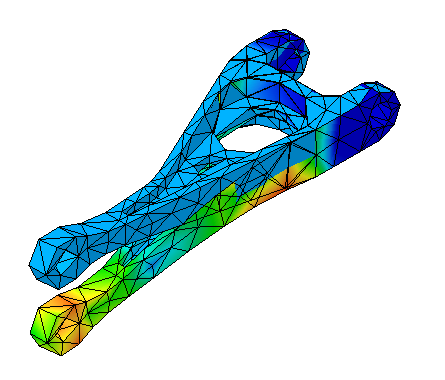
The Abaqus Image Generation dialog box disappears, and the von Mises stress is plotted on the deformed shape of the model, as shown in Figure 3–4. A feature for the generated image appears under the Static Step object in the specification tree.
To remove the undeformed shape of the model from the display, right-click on the Nodes and Elements feature in the specification tree and select Hide/Show from the menu that appears.
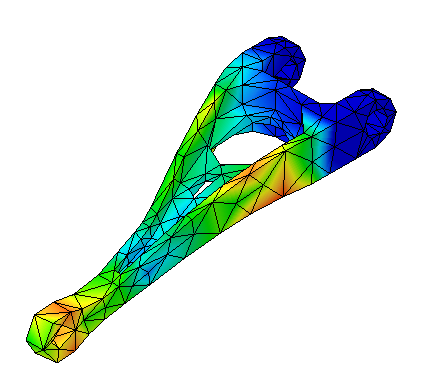
The undeformed shape disappears from view; you can clearly see the von Mises stress contours, as shown in Figure 3–5.
To view an animation of the von Mises stresses, click the Animate icon
 in the Analysis Tools toolbar.
The Animate dialog box appears, and the von Mises stress image is animated in the main window with the default animation parameters. By default, an animated image of the stresses is created by stepping through every increment in the analysis.
To animate the stresses by applying a scale factor to the stress values in the current analysis step, perform the following steps:
Click the Amplification Magnitude icon
 in the Analysis Tools toolbar.
The Amplification Magnitude dialog box appears.
If the Scaling factor option is not selected, toggle it on.
Change the scaling factor for the animation by dragging the slider or by specifying a new value in the Factor field, then click OK.
Your scaling changes will take effect upon a restart of the animation.
Click Close in the Animate dialog box to stop the animation.
You have now finished the tutorial.
For information on related topics, click the following item: