Assigning Temperature-Dependent Material Properties to a Part
This task shows you how to load the .CATPart document that contains the model geometry for this tutorial and how to add temperature-dependent material properties to the material definition.
Open the .CATPart file for this tutorial by clicking on the following link: sample02.CATPart. (If a dialog box appears in your browser, toggle on the option that opens the file.)
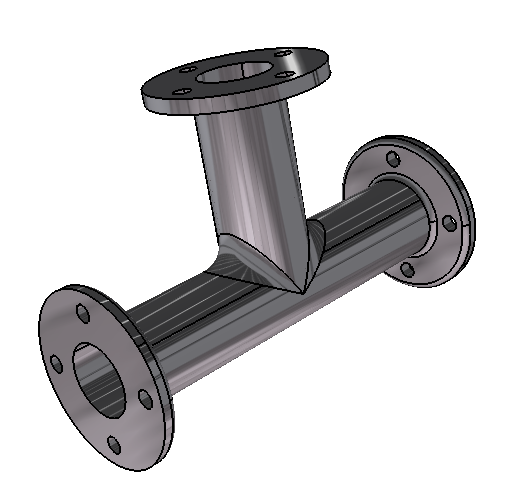
The part design document is opened in the Part Design workbench, and the selected part appears in the window, as shown in Figure 3–6.
Modify the material properties.
Click on the Aluminium object under the PartBody feature in the specification tree, and select Edit>Properties from the menu bar to edit the material properties.
The Properties dialog box appears.
Use the arrows near the top of the dialog box to scroll and reveal additional tabs; click the Nonlinear and Thermal Properties tab when it appears.
A warning dialog box will appear the first time that nonlinear and thermal properties are loaded in an Abaqus for CATIA V5 session. Click OK to dismiss the warning.
In the list of Available Options, toggle on Elasticity; enter a value of 6.9E10 N/m2 for Young’s Modulus and a value of 0.33 for Poisson’s Ratio.
Toggle on Plasticity. Under the Plasticity field, toggle on Use temperature-dependent data. Click the Import data from file icon
 at the bottom of the Properties dialog box. In the File name field at the bottom of the Open File dialog box that appears, type afc_dir\intel_a\doc\online\samples\plasticProps.txt, where afc_dir is the name of the directory in which Abaqus for CATIA V5 is installed, and click Open.
The stress/strain data are imported into the Plasticity table.
Toggle on Density, and enter a value of 2700 kg/m3.
Toggle on Thermal Conductivity. Under the Thermal Conductivity field, toggle on Use temperature-dependent data. Enter a value of 204 W/mK for a temperature of 273 K. Click Add to add a row to the table, and enter a value of 225 W/mK for a temperature of 573 K.
Toggle on Specific Heat, and enter a value of 0.88 KJ/kgK.
Toggle on Coefficient of Thermal Expansion, and enter a value of 8.42E–5/K.
Click OK in the Properties dialog box to update the material properties.
Since you have made changes to the original .CATPart file, you should save it to a location where you have write permissions. Select File>Save from the menu bar, and select a directory in which you can save the file.