 at the bottom left for dumping settings to a .catvbs script macro file:
Infrastructure |
Administrating Settings with Automation |
AbstractIn addition to using the Tools->Options... command, many settings can be managed and administrated using Automation thanks to Automation objects. This enables you to record the current settings, modify the settings values or lock the settings you feel appropriate, and apply this setting customization just running macros without entering all the property pages the modified settings belong to. |
The Tools->Options... dialog box displays a tree in its left part. The first level nodes represent solutions, such as General, Infrastructure, Mechanical Design, Shape, and so on. The second level nodes represent workbenches, such as Display, Compatibility, Parameters and Measure, and so on. A property sheet is displayed in the right part. It is always associated with a workbench, and possibly with a solution. A property sheet contains property pages represented as tab pages.
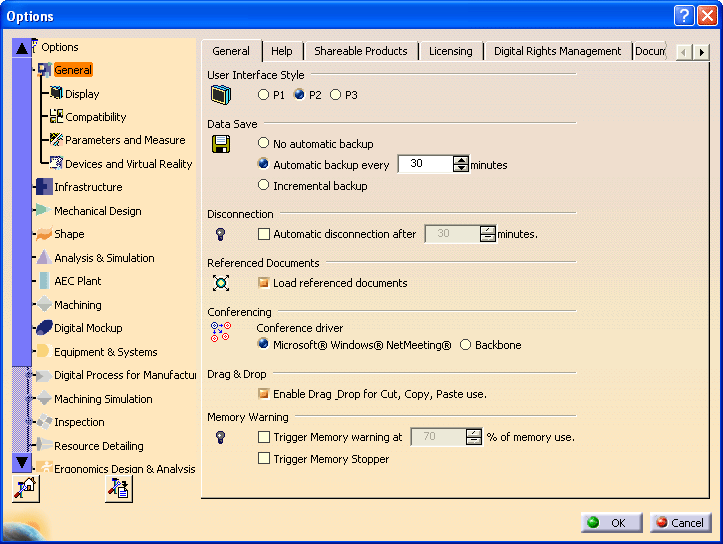
For example, the picture below shows the property sheet associated with the General solution. This property sheet contains the General, Help, Shareable Products, Licensing, and so on, property pages. The property page General is the active one.
A property page displays single setting attributes, such as User Interface Style, or setting parameters, such as Data Save, that are made up of two or more setting attributes. Data Save includes a setting attribute to store which box is checked, and another one to store the frequency as a number of minutes. If the second box is not checked, the second setting attribute is not used, and the box is not available. In the same way, Memory Warning at the bottom of the property page is made up of a setting parameter including two setting attributes for Trigger Memory warning and the percentage of memory use, and a setting attribute for Trigger Memory Stopper.
The setting attributes are stored in setting repositories, usually one for a given tab page. Sometimes, two setting repositories can be used in a tab page. For example, still on the picture below, User Interface Style deals with the user interface part of the application, and Data Save deals with the model part. Since they are accessed by different parts of the application, they are stored in two different setting repositories. But they are displayed in the same tab page because it makes sense for the end user to find them together.
The Tools->Options... dialog box contains a dump button
at the bottom left for dumping settings to a .catvbs script macro file:
Click the dump button to open the following dialog box, specify which settings to dump, the output directory for the dump, and then click Yes:
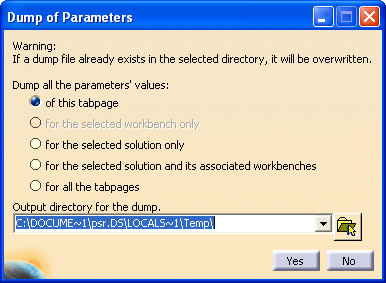
You can chose to dump the parameter's values:
The resulting macros retrieve the current settings values: the values are represented as comments in the macro. This function is only implemented on a limited number of property pages [1]. For the other property pages, the dump command creates an empty macro.
The example described below corresponds to the Dump of Parameters dialog box as it is shown above for the General property page of the General solution. Click Yes to create the macro.
[Top]
The macro files are by default stored in C:\Documents and Settings\user\Local Settings\Temp with Windows, where user is your user name. They are named according to the solution, workbench, and property page names separated by a dash character. If a space character appears in a name, it is replaced with an underscore "_". For example, the macro created from the General property page located in the General solution is named General-General.catvbs, and the macro created from the Tree Appearance property page located in the Display workbench of the General solution is named General-Display-Tree_Appearance.catvbs.
Such a macro contains code to manage the setting attributes the setting repositories of which can be accessed using Automation. So, in such a macro, you may find code for all the setting attributes making up the property page, or a part of them. You may also find a single object to manage all the setting attributes if they all belong to the same setting repository, or several objects otherwise. Each of these objects can be either a setting controller object dedicated to the setting repository, or the generic SettingRepository object:
[Top]
For example, consider the macro file created for the General property page of the General solution as shown in the image above. This macro is named General-General.catvbs and begins with the following statements:
Language="VBSCRIPT"

Sub CATMain()

Set settingControllers1 = CATIA.SettingControllers

Set generalSessionSettingAtt1 = settingControllers1.Item("CATCafGeneralSessionSettingCtrl")
The first object retrieved is the
SettingControllers collection object in the settingControllers1
variable. Since the setting controller collection is aggregated to the Application
object, simply calling CATIA.SettingControllers returns this collection.
The setting controller collection contains all the setting controller objects available in the current session. Each setting controller manages a setting repository stored in a CATSettings file. A setting controller gives you read and write access to the setting values contained in the setting repository, enables you to retrieve information about these settings, namely their default values and whether they are locked, and to lock or unlock them.
The next line retrieves a setting controller in the generalSessionSettingAtt1
variable thanks to the Item method of the setting controller collection
to which the setting controller identifier CATCafGeneralSessionSettingCtrl
is passed as argument. The variable name is built by the Dump command according
to the setting controller object name, with the first character set to lowercase,
and with a digit added to the end. So you can easily get the object name GeneralSessionSettingAtt
from the identifier generalSessionSettingAtt1. A table gives the correspondence
between the property pages, the setting controller object names and their identifiers
you should pass as an argument to retrieve them from the setting controller collection
[1].
Note that the settings displayed in a given property page may belong to different setting repositories, and are thus managed by different setting controllers.
The next lines of this macro are:
Dim long1
long1 = generalSessionSettingAtt1.UIStyle
'--------------------------------------------------
' Returned value : (CATGenUIStyle) UIStyleP2
'--------------------------------------------------
They deal with the User Interface Style setting that is displayed on top of the General property page.

This setting is stored as a long integer and its current value is returned in the long1 variable the name of which is built with the setting type. This setting is managed thanks to the UIStyle property of the GeneralSessionSettingAtt object. This property enables you to get the setting value, as shown in the macro above, or to set it. The comment below, beginning with the simple quote character, displays the current value of this setting: UIStyleP2, which must be chosen among the available ones that are described thanks to the CATGenUIStyle enumeration shown between parentheses. Note that enumerations contain a discrete set of values that prevents from returning or setting out of scope values. Each of these values is an integer, starting with 0 for the first value, 1 for the second one, and so on. Using enumerations helps to give meanings to such values. With CATGenUIStyle, the value 0 is handled with the character string UIStyleP1, the value 1 with UIStyleP2, and the value 2 with UIStyleP3. UIStyleP2 makes sense rather than 1 does not.
The next lines give additional information about this setting attribute.
Dim bSTR1
bSTR1 = ""
Dim bSTR2
bSTR2 = ""
Dim boolean1
boolean1 = generalSessionSettingAtt1.GetUIStyleInfo(bSTR1, bSTR2)
'--------------------------------------------------
' Parameter 1 : (String) "Default value"
' Parameter 2 : (String) "Unlocked"
' Returned value : (Boolean) False
'--------------------------------------------------
These lines use the GetUIStyleInfo method that retrieves the following information displayed as comments:
This method name GetUIStyleInfo is built using the setting attribute name UIStyle to which the prefix Get and the suffix Info are added. This is valid for all the setting repositories managed using a dedicated Automation object. You can refer to the GeneralSessionSettingAtt object to learn more about this method.
Going further in the macro, the following lines met are:
Dim boolean2
boolean2 = generalSessionSettingAtt1.DragDrop
'--------------------------------------------------
' Returned value : (Boolean) False
'--------------------------------------------------

Dim bSTR3
bSTR3 = ""
Dim bSTR4
bSTR4 = ""
Dim boolean3
boolean3 = generalSessionSettingAtt1.GetDragDropInfo(bSTR3, bSTR4)
'--------------------------------------------------
' Parameter 1 : (String) "Default value"
' Parameter 2 : (String) "Unlocked"
' Returned value : (Boolean) True
'--------------------------------------------------
They deal with the Drag & Drop setting, that is displayed almost at the bottom
of the dialog box, but is managed by the same setting controller object, since the
macro uses the same variable generalSessionSettingAtt1. This means
that this setting attribute is stored in the same setting repository. Note that the
different variable names still use the variable types with increasing indexes.

The DragDrop property of the GeneralSessionSettingAtt object returns or sets whether drag and drop for cut, copy, or paste operation is enabled. To depict that, a boolean variable bearing the True for enabled when the check box is checked as above, and False for disabled when the check box is not checked, is enough.
Then the macro contains the following lines.
Set disconnectionSettingAtt1 = settingControllers1.Item("CATSysDisconnectionSettingCtrl")

Dim boolean4
boolean4 = disconnectionSettingAtt1.ActivationState
'--------------------------------------------------
' Returned value : (Boolean) False
'--------------------------------------------------

Dim bSTR5
bSTR5 = ""
Dim bSTR6
bSTR6 = ""
Dim boolean5
boolean5 = disconnectionSettingAtt1.GetActivationStateInfo(bSTR5, bSTR6)
'--------------------------------------------------
' Parameter 1 : (String) "Default value"
' Parameter 2 : (String) "Unlocked"
' Returned value : (Boolean) False
'--------------------------------------------------
Here a new setting controller is returned from the setting controller collection object. This is the DisconnectionSettingAtt object [2]. This is because the setting Disconnection is managed by this object, and not by the previous GeneralSessionSettingAtt object, even if both settings are located in the same dialog box. The reason is that they are stored in two different setting repositories, each having its own setting controller.

The boolean4 variable value indicates whether the disconnection should happen:
True if it should, that corresponds to the check box checked in the dialog box,
and False otherwise. The parameters of the GetActivationStateInfo method
have the same meaning that those of GetUIStyleInfo above.
The next lines are:
Dim long2
long2 = disconnectionSettingAtt1.InactivityDuration
'--------------------------------------------------
' Returned value : (Long) 1800
'--------------------------------------------------

Dim bSTR7
bSTR7 = ""
Dim bSTR8
bSTR8 = ""
Dim boolean6
boolean6 = disconnectionSettingAtt1.GetInactivityDurationInfo(bSTR7, bSTR8)
'--------------------------------------------------
' Parameter 1 : (String) "Default value"
' Parameter 2 : (String) "Unlocked"
' Returned value : (Boolean) False
'--------------------------------------------------
This setting contains the inactivity duration after which the application should disconnect. It makes sense if the previous setting is checked. Note that the value displayed in the dialog box (30) is expressed in minutes, but the value returned and stored in the setting repository (1800) is expressed in seconds. You may find differences like this one between what is shown in the dialog box to the end user and what is actually managed by the application. Note that these two setting attributes are related to each other and make up a setting parameter.
The macro continues, but you should now know enough to understand the remaining part. You will notice that this remaining part only deals with the Memory Warning settings. This means that the other settings displayed in this dialog box are not managed by any setting controller object. These settings are:
Setting management using macros does not apply to these settings.
Note that the macro ends with the statement:
End Sub
[Top]
For example, consider the macro file created for the PCS property page of the General solution as shown in the image below.
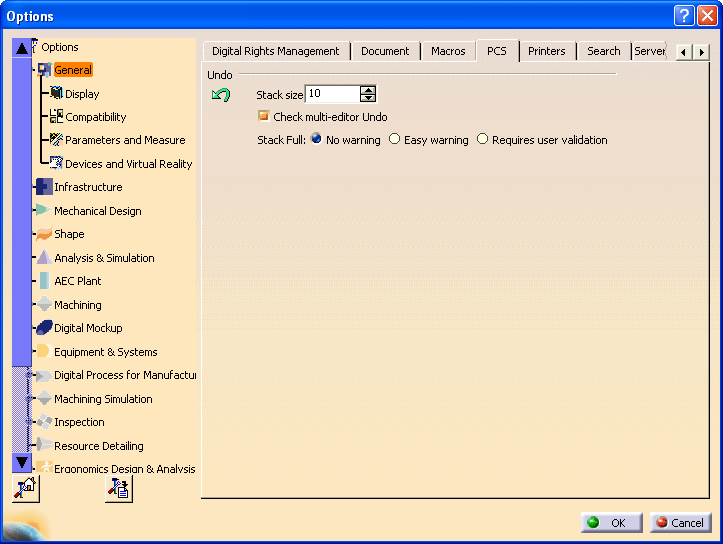
This macro is named General-PCS.catvbs and begins with the following statements:
Language="VBSCRIPT"

Sub CATMain()

Set settingControllers1 = CATIA.SettingControllers

Set settingRepository1 = settingControllers1.Item("GeneralPCS")
The first object retrieved is the
SettingControllers collection object in the settingControllers1
variable. Since the setting controller collection is aggregated to the Application
object, simply calling CATIA.SettingControllers returns this collection.
The setting controller collection contains all the setting controller objects available in the current session. Each setting controller manages a setting repository stored in a CATSettings file. A setting controller gives you read and write access to the setting values contained in the setting repository, enables you to retrieve information about these settings, namely their default values and whether they are locked, and to lock or unlock them.
The next line retrieves the generic SettingRepository object in the
settingRepository1
variable thanks to the Item method of the setting controller collection
to which the setting repository identifier GeneralPCS is passed as
argument. This object is thus dedicated to the GeneralPCS setting repository. A table gives the correspondence
between the property pages and their setting repository identifiers
you should pass as an argument to retrieve a generic SettingRepository object
dedicated to them from the setting controller collection
[1].
Note that the settings displayed in a given property page may belong to different setting repositories.
The next lines of this macro are:
uLong1 = settingRepository1.GetAttr("StackFullWarning")
'--------------------------------------------------
' Parameter 1 : (String) "StackFullWarning"
' Returned value : (Variant) (Unsigned Long) 0
'--------------------------------------------------
They deal with the Stack Full setting attribute.
This setting attribute is stored as a unsigned long integer and its current value is returned in the uLong1 variable the name of which is built with the setting attribute type. This setting attribute is retrieved using the GetAttr method of the SettingRepository object, to which the setting attribute name StackFullWarning is passed as an argument. To know the type and the possible values of this setting attribute, look for the General solution in the Setting Controller Reference page [1], then for None in the Workbench column, since the property page is attached directly to the solution, and then for the PCS property page. This shows you a link to the SettingRepository object and a link to the GeneralPCS setting repository [3], where the setting attributes that can be customized with Automation in this setting repository are described. Here is the documentation of the StackFullWarning setting attribute:
The comments below the first line in this macro, beginning with the simple quote character, display the type, the name, and the current value of this setting attribute.
The next lines give additional information about this setting attribute.
Dim bSTR1
bSTR1 = ""
Dim bSTR2
bSTR2 = ""
Dim boolean1
settingRepository1.GetAttrInfo "StackFullWarning", bSTR1, bSTR2, boolean1
'--------------------------------------------------
' Parameter 1 : (String) "StackFullWarning"
' Parameter 2 : (String) "Default value"
' Parameter 3 : (String) "Unlocked"
' Parameter 4 : (Boolean) False
'--------------------------------------------------
These lines use the GetAttrInfo method of the SettingRepository object that retrieves the following information about the StackFullWarning setting attribute, displayed as comments:
The macro continues, but you should now know enough to understand the remaining part.
[Top]
If you attempt to run the macro as it is created, you will get no more than what is written as comments.
You can now reuse and change this macro to:
The way to do this depends on whether the setting repository can be accessed using a dedicated setting controller object or the generic SettingRepository object.
The setting controller object depends on the setting repository, and includes properties and methods dedicated to each setting attributes. See the Setting Controller Reference [1] to know which setting controller objects apply to a given tab page.
Suppose you want to retrieve information about the User Interface Style setting. You can reuse the part of the created macro as it is, and display the retrieved information in a pop-up, or write it to a file. As seen when detailing the created macro, this information is:
The macro to retrieve this information is just a copy of the created macro.
Option Explicit
Sub CATMain()
The explicit option enables the script compiler/interpreter to issue an
error if a non declared or misspelled variable is found. Note that the Language="VBSCRIPT" is omitted. It is of no use but still output
in recorded or dumped macros.
Dim settingControllers1 As SettingControllers
Set settingControllers1 = CATIA.SettingControllers
Dim generalSessionSettingAtt1  As GeneralSessionSettingAtt
Set generalSessionSettingAtt1 = settingControllers1.Item("CATCafGeneralSessionSettingCtrl")
Dim long1
long1 = generalSessionSettingAtt1.UIStyle
'--------------------------------------------------
'' Returned value : (CATGenUIStyle) UIStyleP2
'--------------------------------------------------
Dim bSTR1 As String
bSTR1 = ""
Dim bSTR2 As String
bSTR2 = ""
Dim boolean1 As Boolean
boolean1 = generalSessionSettingAtt1.GetUIStyleInfo(bSTR1, bSTR2)
'--------------------------------------------------
' Parameter 1 : (String) "Default value"
' Parameter 2 : (String) "Unlocked"
' Returned value : (Boolean) False
'--------------------------------------------------
msgbox "User Interface Style" & Chr(13) & _
       "  Value: " & long1 & Chr(13) & _
       "  Default Value: " & bSTR1 & Chr(13) & _
       "  Lock Value: " & bSTR2 & Chr(13) & _
       "  Locked or modified at this level: " & boolean1
Note that you can add text between double quotes, and line breaks using Chr(13). These are concatenated thanks to the "&" (ampersand) character. The "_" (underscore) character at the end of each line makes the following line part of the same statement.
End Sub
The pop-up displayed is as follows.
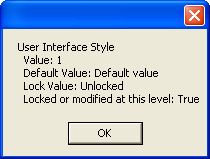
Note that the setting value is returned to the integer 1 corresponding to the second value (UIStyleP2) of the enumeration CATGenUIStyle.
Now assume you want to set the User Interface Style to P1. To ease your job, you can reuse a part of the created macro.
Option Explicit
Sub CATMain()
Dim settingControllers1 As SettingControllers
Set settingControllers1 = CATIA.SettingControllers
Dim generalSessionSettingAtt1  As GeneralSessionSettingAtt
Set generalSessionSettingAtt1 = settingControllers1.Item("CATCafGeneralSessionSettingCtrl")
myNewStyle, and set it the
value UIStyleP1 of the enumeration CATGenUIStyle by writing CATGenUIStyle.UIStyleP1
as value. Then assign that new value to the UIStyle property.
Dim myNewStyle = CATGenUIStyle.UIStyleP1
generalSessionSettingAtt1.UIStyle = myNewStyle
generalSessionSettingAtt1.SaveRepository
End Sub
You can now run this short macro to change the User Interface Style to P1.
Option Explicit
Sub CATMain()
Dim settingControllers1 As SettingControllers
Set settingControllers1 = CATIA.SettingControllers
Dim generalSessionSettingAtt1  As GeneralSessionSettingAtt
Set generalSessionSettingAtt1 = settingControllers1.Item("CATCafGeneralSessionSettingCtrl")
generalSessionSettingAtt1.SetUIStyleLock True
generalSessionSettingAtt1.SaveRepository
End Sub
Do not forget to save your changes by calling the SaveRepository method. You can now run this short macro to lock the User Interface Style setting. Note that since you lock a setting, you need to start in the admin mode, otherwise the macro will fail.
[Top]
The SettingRepository object uses a single set of methods for all the setting attributes. See the Setting Controller Reference [1] to know which setting repository objects apply to a given tab page and to get the description of their setting attributes [3].
Suppose you want to retrieve information about the Stack Full setting attribute. You can reuse the part of the created macro as it is, and display the retrieved information in a pop-up, or write it to a file. As seen when detailing the created macro, this information is:
The macro to retrieve this information is just a copy of the created macro.
Option Explicit
Sub CATMain()
The explicit option enables the script compiler/interpreter to issue an
error if a non declared or misspelled variable is found. Note that the Language="VBSCRIPT" is omitted. It is of no use but still output
in recorded or dumped macros.
Dim settingControllers1 As SettingControllers
Set settingControllers1 = CATIA.SettingControllers
Dim settingRepository1 As SettingRepository
Set settingRepository1 = settingControllers1.Item("GeneralPCS")
You can get the GeneralPCS character string to pass to the Item method in the Setting Controller Reference [1].
Dim uLong1
uLong1 = settingRepository1.GetAttr("StackFullWarning")
'--------------------------------------------------
' Parameter 1 : (String) "StackFullWarning"
' Returned value : (Variant) (Unsigned Long) 0
'--------------------------------------------------
Dim bSTR1 As String
bSTR1 = ""
Dim bSTR2 As String
bSTR2 = ""
Dim boolean1 As Boolean
settingRepository1.GetAttrInfo "StackFullWarning", bSTR1, bSTR2, boolean1
'--------------------------------------------------
' Parameter 1 : (String) "StackFullWarning"
' Parameter 2 : (String) "Default value"
' Parameter 3 : (String) "Unlocked"
' Parameter 4 : (Boolean) False
'--------------------------------------------------
msgbox "Stack Full " & Chr(13) & _
       "  Value: " & uLong1 & Chr(13) & _
       "  Default Value: " & bSTR1 & Chr(13) & _
       "  Lock Value: " & bSTR2 & Chr(13) & _
       "  Locked or modified at this level: " & boolean1
Note that you can add text between double quotes, and line breaks using Chr(13). These are concatenated thanks to the "&" (ampersand) character. The "_" (underscore) character at the end of each line makes the following line part of the same statement.
End Sub
The pop-up displayed is as follows.
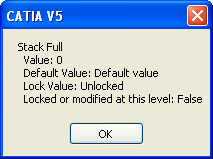
From the Setting Repository Reference [3], you can access to the GeneralPCS setting repository documentation, where the Stack Full setting is represented using the StackFullWarning setting attribute. The value 0 means that no warning is displayed.
Now assume you want to set the Stack Full to Easy warning. To ease your job, you can reuse a part of the created macro.
Option Explicit
Sub CATMain()
Dim settingControllers1 As SettingControllers
Set settingControllers1 = CATIA.SettingControllers
Dim settingRepository1 As SettingRepository
SSet settingRepository1 = settingControllers1.Item("GeneralPCS")
settingRepository1.PutAttr "StackFullWarning", 1
settingRepository1.SaveRepository
End Sub
You can now run this short macro to change the Stack Full to Easy warning.
Option Explicit
Sub CATMain()
Dim settingControllers1 As SettingControllers
Set settingControllers1 = CATIA.SettingControllers
Dim settingRepository1 As SettingRepository
Set settingRepository1 = settingControllers1.Item("GeneralPCS")
settingRepository1.SetAttrLock "StackFullWarning", True
settingRepository1.SaveRepository
End Sub
Do not forget to save your changes by calling the SaveRepository method. You can now run this short macro to lock the Stack Warning setting. Note that since you lock a setting, you need to start in the admin mode, otherwise the macro will fail.
[Top]
You can use macros to administrate settings.
A good working methodology is to save the status of each installed release as it it before any customization takes place. To do this, simply click the Dump button for all the property pages, and store the resulting catvbs files in a folder you can name using the release level, such as V5R17 or V5R18, and a qualifier such as Standard, or Default. Then you can copy the catvbs file you want to customize to carry out your administration tasks in another folder you can name, for example V5R17 Customization, and modify the catvbs files to change the different setting values you need, or to lock some settings.
When a new release is installed, you run the Dump command again for all the property pages, store the resulting files in a new folder named according the new release level, and compare these newly created files to the ones of the previous release using commands, such as diff, or windiff with Windows, or xdiff with UNIX. When you have found out all the differences between the previous release and the new release, you can determine what to do, depending on whether the changes are of interest for you, for example if:
You can then decide to update your customization macros and/or create new ones if the changes are in your customization scope, or use the previous ones as they are otherwise.
[Top]
Administrating settings can be much simplified using Automation. You can record the default settings in macros, use some of these macros to change values, set or reset locks, and apply you customization by simply running the changed macros. These macros keep track of the default values and of your customization, and you can easily compare settings and their default values from one release to another one. This helps decide what to do to administrate settings when a new release is installed.
| [1] | Setting Controller Reference |
| [2] | Setting Controller Automation Objects |
| [3] | Setting Repository Reference |
Copyright © 1999-2011, Dassault Systèmes. All rights reserved.