Performing
DMU Space Analysis Tasks with VPM NavigatorPerforming
DMU Space Analysis Tasks with VPM Navigator
Performing
DMU Space Analysis Tasks with VPM NavigatorPerforming
DMU Space Analysis Tasks with VPM Navigator
 |
The following task shows you how to work with ENOVIA V5, using VPM Navigator. | ||||||||||||||||||||||||
 |
VPM Navigator allows you to access both the product definition and the product data stored in the ENOVIA Hub from a single, simple user interface integrated within CATIA. |
||||||||||||||||||||||||
| The following procedures are covered in this section: | |||||||||||||||||||||||||
 |
Make sure you have selected
ENOVIAV5 in the View > Toolbars menu. This scenario assumes that you already created interferences and saved them in ENOVIA V5 VPM database. For more information, see CATIA/ENOVIA Interoperability Guide: User Tasks: Saving in ENOVIA V5 VPM. |
||||||||||||||||||||||||
 |
Before you begin:
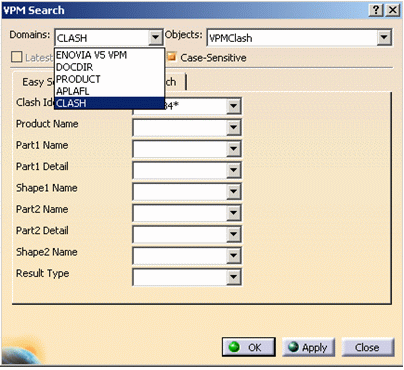
Searching for Clashes
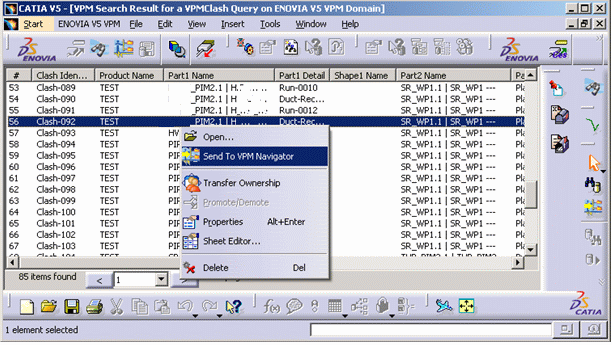
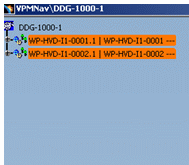
Sending Clashes to VPM Navigator
|
||||||||||||||||||||||||
 |
|
 |
The lock/unlock capability is not available in the
contextual menu. For more information about Properties, Open, Transfer Ownership and Delete operations, see the VPM Navigator User Guide. |
Right-click the clash object and select the
Open
command.
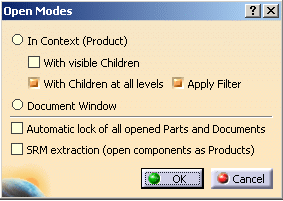
The Open Modes dialog box appears.
The In Context (Product) option button is
selected by default.
Select the option button.
 |
|
|
|
You can open multiple clash objects at a time, for this
select multiple clash objects. The related part instances
involved as well as the interferences are loaded in the CATIA
window. Note that if you select clash objects involving different PRCs, i.e.; if there are two clash objects and they belong to two different PRCs, two CATIA windows open. If the clash objects involve a single PRC, a single CATIA window opens. |
Click OK.
The CATIA window opens.
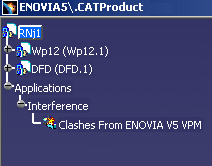 |
Useful Reminder:The tree of the selected object is opened and
displayed within the appropriate context i.e. with all its parents
as far as the PRC. The tree of the selected object appears out of
context. The Out of Context mode allows you to:
For more detailed information, see VPM Navigator User Guide. |
| The CATIA window opens. |
You can delete clash objects either from the VPM Search Results window or VPM Navigator window using the contextual menu.
Right-click the clash object you want to delete either in the VPM Search Results window or in the VPM Navigator window.
Select Delete in the contextual menu.
A confirmation message appears.
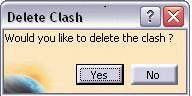 |
|
|
|
Alternatively, you can click Delete in the VPM Edition toolbar. |
Click Yes to confirm the delete operation.
The selected clash object is removed from the database.
 |
Important:
|

 .
The Log On to Enovia V5 dialog box is displayed.
.
The Log On to Enovia V5 dialog box is displayed.  .
. .
.