
The following task shows you how to search clashes in ENOVIA LCA, load them in CATIA V5 and correct the errors in ENOVIA LCA.
How to customize the clash settings of the Clash command

Refer to Customizing Clash Settings in CATIA Infrastructure documentation.
How to launch the interoperability with CATIA V5?

-
In CATIA V5, click Connect to Enovia LCA
 to establish a connection between CATIA V5 and ENOVIA LCA.
Let's perform this action via
Product Class Editor.
to establish a connection between CATIA V5 and ENOVIA LCA.
Let's perform this action via
Product Class Editor. -
In the ENOVIA Homepage panel, select the Engineering Life Cycle folder and double-click the Product Classes bookmark.
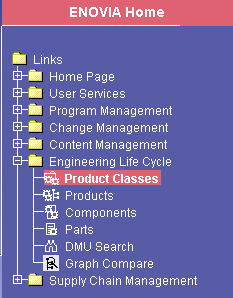
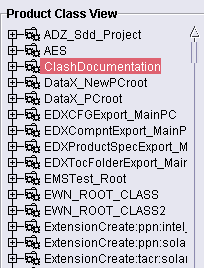
The Product Class View panel is displayed.
-
Create or select a Product Class Root (PCR) and right-click Open (or select Send to-> Product Editor using the contextual menu
Your PRC is opened in the Product Editor panel.To create a Product Root Class, please refer to the Creating a Product Root Class in the LCAS - Engineering LifeCycle documentation. -
Save the PRC you have just created, clicking the Save icon
 .
. -
Expand your product if necessary clicking the file icon

All the item instances are expanded.
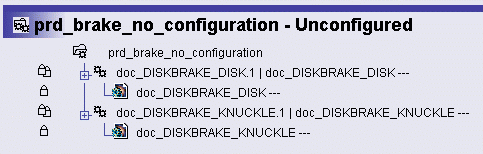
-
Select the instance or document of your choice, right-click and select the Send To > CATIA V5 As Assembly commands from the contextual menu.
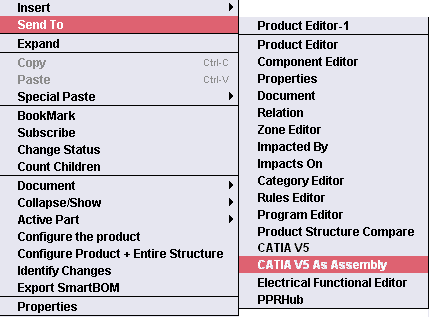
A CATIA V5 Product Structure session is opened:
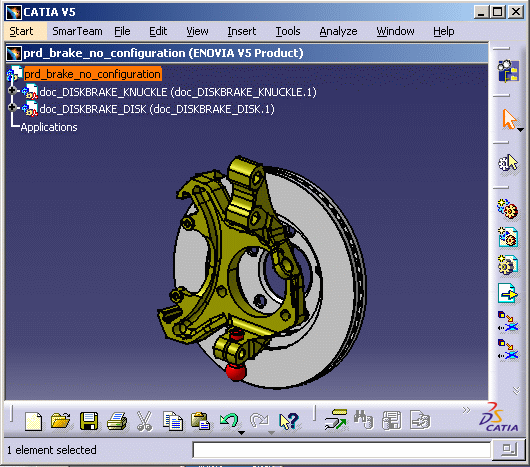
-
Select Digital Mock-up -> DMU Space Analysis from the Start menu
-
Perform the necessary modifications to create clashes, for instance move the parts:
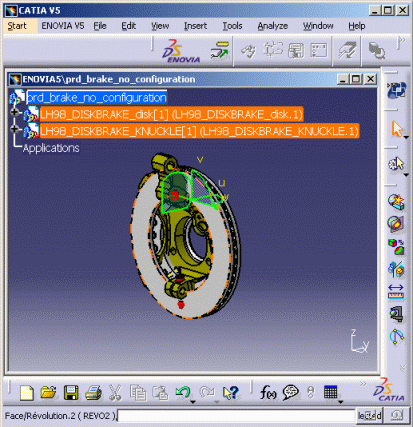

Make sure, you saved you PRC in ENOVIA beforehand. If not, the potential clashes will not be saved in ENOVIA database. -
Select Clash
 in DMU Space Analysis toolbar to check for clashes.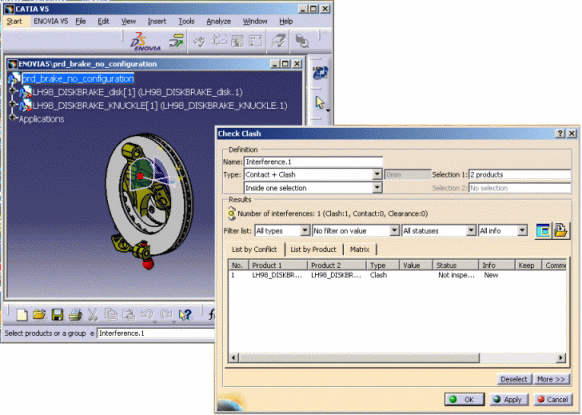
-
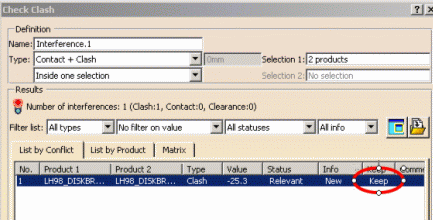
Mark all clashes as Keep in the Keep column.

Notes: - The Keep column appears if you selected from PDM option in Retrieve Information area (Tools > Options > DMU Space Analysis > DMU Clash) refer Customizing DMU Clash in Space Analysis User's Guide
- Clashes that have to be saved in ENOVIA have to be marked as Keep in the Keep column
-
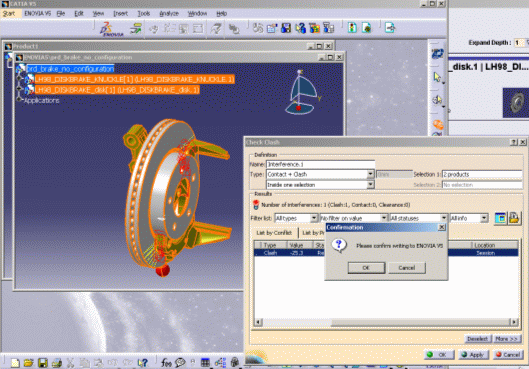
Send your clashes in ENOVIA, clicking Ok in the Check Clash dialog box, when done, click Ok in the Confirmation message:
-
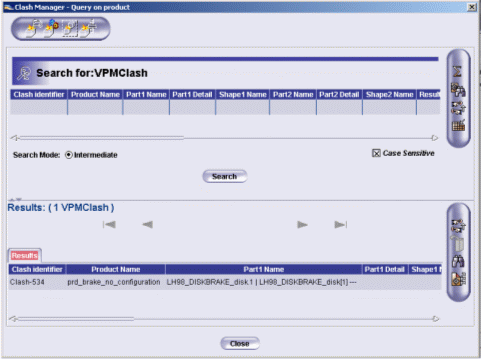
Visualize your clashes in your Enovia session
-
(Optional) You can also compare clash command results with a previous computation, read the dedicated task "Comparing Clash Command Results" in DMU Space Analysis User's Guide

How to detect contacts and clashes
Please refer to the chapter called Detecting Clashes in Space Analysis documentation
How to search clashes in ENOVIA LCA
-
Click the Search Tree
 icon in
the ENOVIA Portal Homepage and, expand the Search
bookmark and select Engineering Life Cycle >
VPMClash
icon in
the ENOVIA Portal Homepage and, expand the Search
bookmark and select Engineering Life Cycle >
VPMClash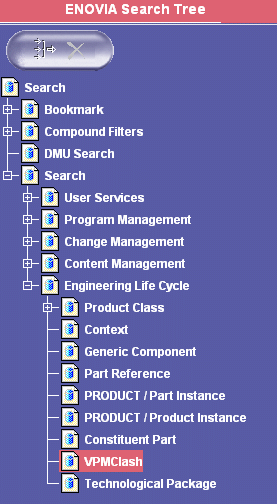
The Search for: VPMClash dialog box appears -
Specify the attributes you wish to query in the top fields and select the Search button to obtain the results.
All the clashes corresponding to the current filter are displayed in the bottom part of the Search panel: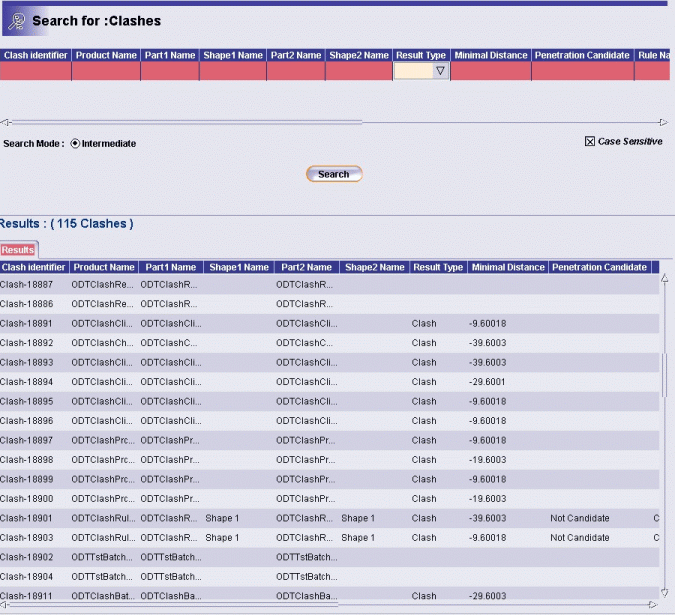
-
In the clash status column, indicate that the clash has been corrected.

We recommend you to perform another clash analysis to check the corrections.