
Using the interactive method, ENOVIA users can take advantage of the ENOVIA and DMU Navigator interoperability.
From the ENOVIA product structure, users can launch any CAD models (CATIA V4/V5 and multi-CAx models) directly to a DMU Navigator session to perform interactive interference analysis. A clash is an interference type where a conflict is detected if two elements occupy the same space zone.
The analysis results from DMU Navigator can be saved back to ENOVIA by a push of a button in the DMU Navigator's user interface.

This task shows you how to compute clashes using CATIA V5 before analyzing the results in ENOVIA V5.

You need to have a current CATIA V5 session and a current ENOVIA V5 VPM session running.
How to transfer templates and documents from ENOVIA V5 VPM to CATIA V5 and from CATIA V5 to ENOVIA V5 VPM

-
In CATIA V5, select Tools > Options... from the menu bar.
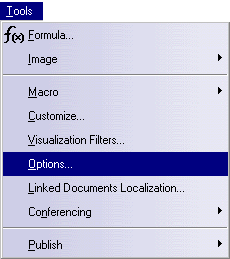
The Options dialog box is displayed. -
On the left side of the Options tree pane, click General.
-
Select the Document tab.
-
In the Linked Document Localization... pane, select ENOVIA V5 VPM and click Activate if it is not set active.
-
Restart you session, if necessary
-
Click OK.

How to display the ENOVIA V5 VPM Interoperability Toolbar
-
Click Start > Infrastructure > Product Structure from menu bar.
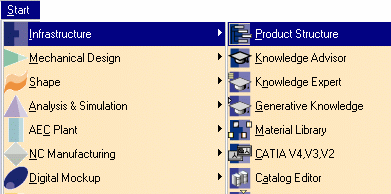
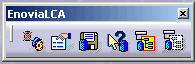
The ENOVIA LCA Interoperability toolbar looks like this,
click Connect to ENOVIA V5 VPM  to launch ENOVIA V5.
How to check ENOVIA V5 VPM Interoperability Toolbar display
-
Select View > Toolbars from the menu bar.
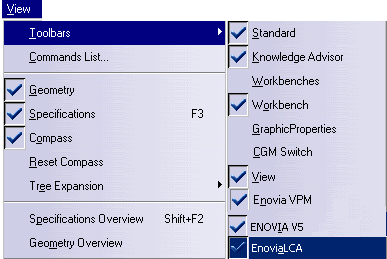

The Enovia V5 VPM checkbox is automatically selected.