

-
Launch VPM V4 and Connect to CATIA V5.
-
Open an existing catalog in CATIA V5 through File > Open.
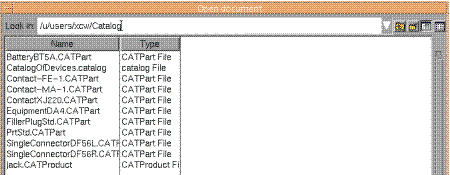
-
Click Set PDM Properties
 to modify the PDM
properties of each of the component in the catalog to VPM V4.
to modify the PDM
properties of each of the component in the catalog to VPM V4.
The Set PDM Properties dialog box appears as shown below.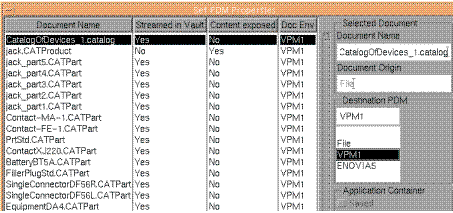
-
Select a catalogue and change its Doc Env to VPM1 from the Destination PDM dropdown.
-
Click OK.
-
Save the catalog in VPM V4 and close the file.
-
Re-open the catalog from VPM V4. Go to Tools > Options > Equipment & Systems > Electrical Mapping tab.
-
A Session document dialog box appears. Click Cancel. A Browse dialog box appears as shown below. Click Loaded document.
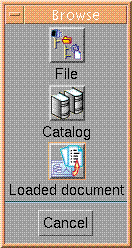
- Select the catalog stored in VPM and click Open. The components of the catalog are displayed in the session with their Family and Type attributes.
-
Select a Family and corresponding Type from the box. For example select Equipment Part for Equipments, select Single Insert Connector for Single Connector and select Filler Plug for Filler Plugs. Ensure that every element in Family is mapped with the relevant Type.
-
Go to Tools > Options > Equipment & Systems > Electrical Process Interfacing and give the path of the directory where the xml files are stored.

The xml files containing the electrical data can be accessed directly from the location where they are stored through file-based import. - Click OK.
- Open the Electrical Assembly Design workbench and manage the external links.
