
- from a CATIA Version V5, you can:
- save a new alternate shape
- modify an existing alternate shape
- delete an existing alternate shape.
- from ENOVIAVPM, you can:
- load alternate shapes into V5 by means of a dialog box.
Loading Alternate Shapes
Alternate shapes are not visible in the PSN; only the master representations are. These are the representations located in the database, either in CATIA_MODEL or in DOCXX. They are available by means of the dialog boxes used to access documents or models.


-
Select the elements to be opened and either select the Open item in the contextual menu or click on the CATIA V5
 icon. If
none of the selected objects contains any alternate shapes, the following
dialog box appears:
icon. If
none of the selected objects contains any alternate shapes, the following
dialog box appears: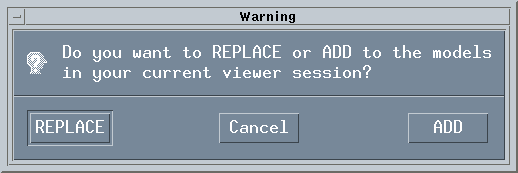
However, if one of the objects does contain an alternate shape, another dialog box will appear allowing you to select the object to be loaded into CATIA V5: 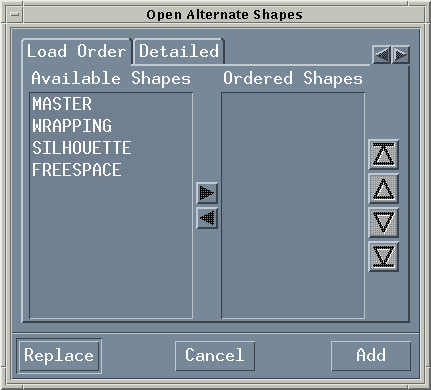
Load Order tab
As you can see below there are two lists:-
Available Shapes: lists the types of alternate shapes there are for all the selected elements.
- Ordered Shapes: Shows the order in which you want to
load the alternate shape types. For each element, the Ordered
Shapes list comes into play.
- If the type exists, the appropriate object is loaded and the next one is processed.
- If the type does not exist the next type in the list is handled and so on until a type is found or until the end of the list is reached. In the latter case, no representation for the object is loaded.
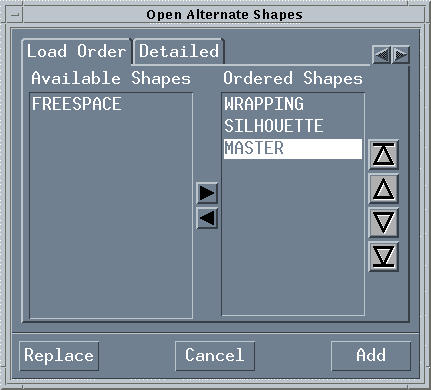
To create the Ordered Shapes list you must first select the types in the Available Shapes list then click on the rightward arrow to put them in the Ordered Shapes list. Then use the vertical arrows to move the types inside the list to indicate the order you prefer.
To remove types from the Ordered Shapes list select them then click on the leftward arrow.
The dialog box should then look something like this
Detailed tab
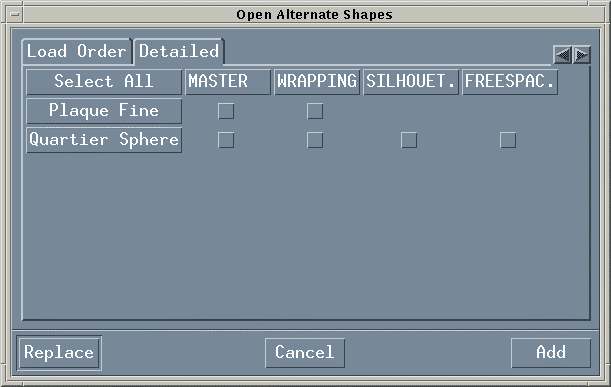
In this tab, only those types that exist for each selected object are displayed. You can select as many as you want for each object or even not select any. You can select a whole line or a whole column by clicking on the appropriate button. To select the whole table, use the Select All button. To deselect, just reclick on the corresponding button. -
-
Once selection of the alternate shapes has been made you just have to click on Add or Replace. The Replace button creates a new session in CATIA V5 where the elements are loaded. Select the Add button to add the elements to the active session in CATIA V5.
-
If there is no representation amongst those you selected for each object a window will appear to tell you what representations are missing in CATIA V5. Also, they are selected in the PSN to enable easy opening of a representation for each object.
Saving and Deleting Alternate Shapes
Once the create or delete operation has been performed it is registered in the CATIA V5 log. A synchronization on CATIA V5 allows you to commit the creation or deletion of one or more alternate shapes, directly in the database. Nothing has to be done on the VPM side.
Limitations
|