Generating a Report from a Macro
 |
This task shows you how to create a new report that lists the attributes of an object. As an alternative you can use the methods described in Generating a Report and Defining the Report Format. | |
 |
The report lists the values of attributes like pressure, length, diameter, open/close position etc. These values only display if they have been added to the object, and if the attribute is included in the report. | |

|
1. | Select the object for which you want to generate a report.
You can select objects in the specifications tree ,or by using the Edit -
Search command.
|
| 2. | Click Tools - Macro - Macros.
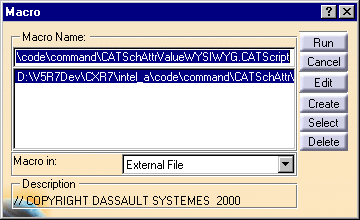
The Macro dialog box displays.
If the file CATSchAttrValueWYSIWYG.CATScript is not displayed in the box, select External File in the Macro In field. Click Select and navigate to the directory ...intel_a\code\command. Select the file named above and click Open. The file displays in the Macro dialog box.
|
|
|
|
If you want to edit the script that creates the report, click Edit. You need to have some knowledge and experience of Visual Basic to edit scripts. | |
| 3. | Select the file and click
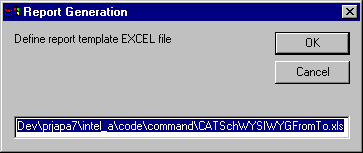
Run. The Report Generation
dialog box displays, asking you to enter the name of a template. Four
templates are provided with this application for four types of reports:
They reside in the ...intel_a\code\command directory. Enter the full directory path, based on your setup, and change the last word to one of the four types mentioned above. Your selection is based on the type of object for which you are seeking to generate a report.
|
|
| 4. | Click
OK. The report appears in the form of an Excel
spreadsheet. If the object has attributes associated with it, and these
attributes are entered in the report, they will display.
|
|
| 5. | If an attribute is not entered in the report, you can add it by clicking on an empty column and entering it. | |