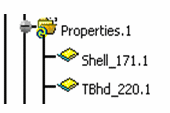
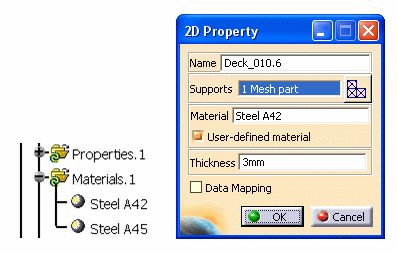
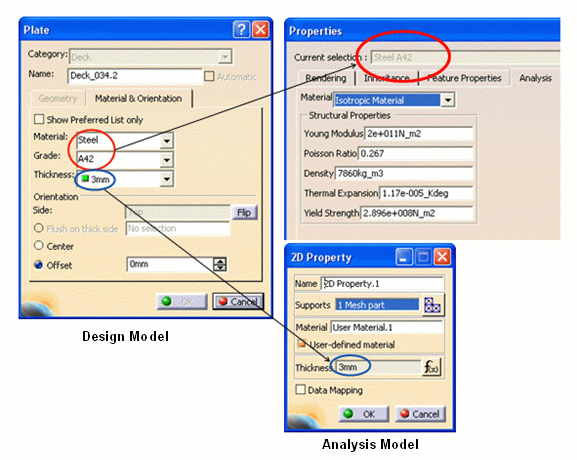
2D Property - Plate
Only one user-defined material is created per combination of material and grade.
1D Property - Beam and Pillars, Stiffener, Stiffener on Free Edge
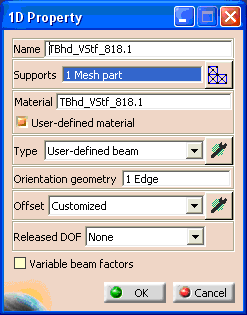
Any section coming from the design model is mapped to the User-defined beam type.
Click the button beside the Type field, and the Beam Definition dialog box displays.
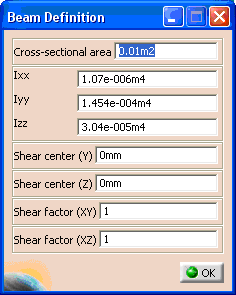
About Section Parameters

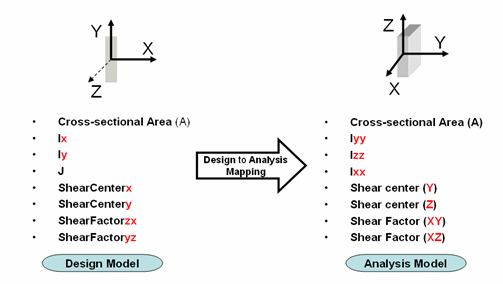
For more information on Analysis section parameters, see the Generative Structural Analysis User Guide.
The required parameters are shown with sample values in the image below.
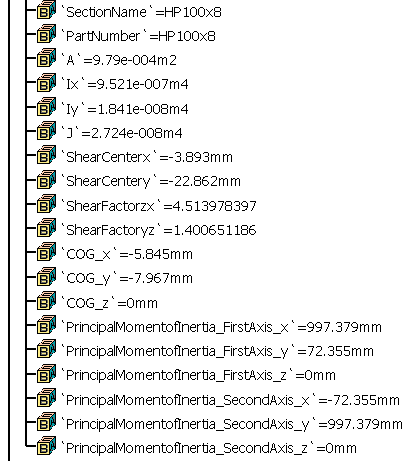
The following list describes these parameters.
Parameter
Description
Ix
Moment of Inertia along X axis. (Strong Axis)
Iy
Moment of Inertia long Y axis. (Weak Axis)
J
Torsional constant of the cross-section
These components of inertia matrix should be expressed with respect to the principal axis. (Diagonal Matrix of Inertia)
Shear Centerx
x-coordinate of the shear center in the section axis, centered at the center of the gravity of the section
Shear Centerx
y-coordinate of the shear center in the section axis, centered at the center of the gravity of the section
Shear Factorzx
Ratio between the cross-sectional area (A) and the shear area (Ax), area section which works in shearing in the ZX-pane (case of a short beam). As defined, this ratio should be superior to one.
Shear Factoryz
Ratio between the cross-sectional area (A) and the shear area (Ay), area section which works in shearing in the YZ-pane. As defined, this ratio should be superior to one.
COG_x
Center of Gravity; x component
COG_y
Center of Gravity; y component
COG_z
Center of Gravity; z component
PrincipalMomentofInertia_FirstAxis_x
First PMI; x component
PrincipalMomentofInertia_FirstAxis_y
First PMI; y component
PrincipalMomentofInertia_FirstAxis_z
First PMI; z component
PrincipalMomentofInertia_SecondAxis_x
Second PMI; x component
PrincipalMomentofInertia_SecondAxis_y
Second PMI; y component
PrincipalMomentofInertia_SecondAxis_z
Second PMI; z component
Obtaining the Section Parameters
- use the Standard Steel tables. (Note that the Principal Moment of Inertia is sometimes referred to as Iu/Iv.)
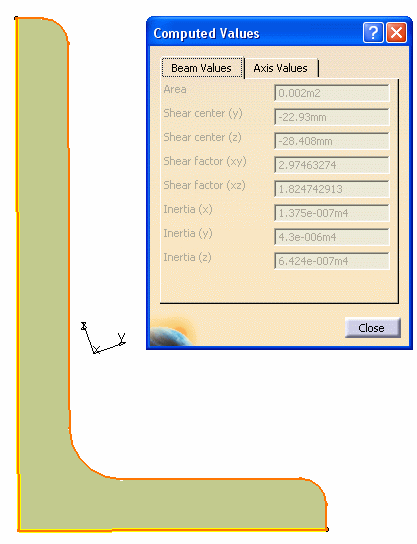
- use the Generative Structural Analysis workbench to obtain the section parameters expressed in the principal axis of the beam. (The axis where the matrix is diagonal.)
- use the Manage Section CATPart command.
1.
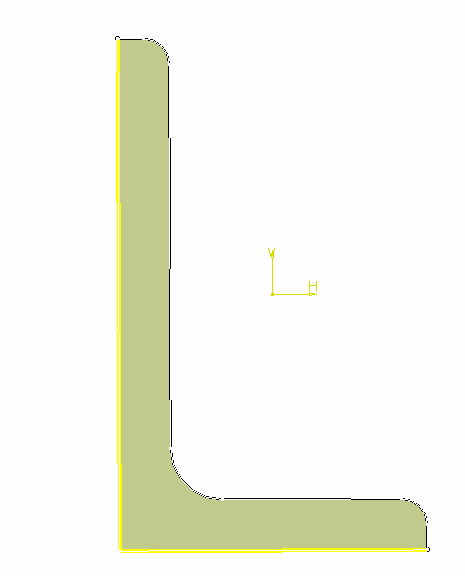
In the Generative Shape Design workbench, create a face from the sketch of a section.
2.
Go to the Generative Structural Analysis
workbench, and click the
1D Property button
 .
.
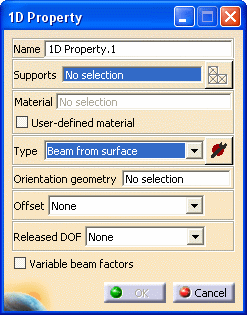
The 1D Property dialog box displays.
3.
Select Beam from Surface
from the Type drop down list, and click the Component
Edition button
 .
.
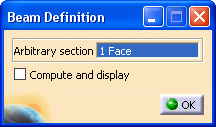
The Beam Definition dialog box displays.
4.
Click OK and the Computed Values dialog box displays.
5.
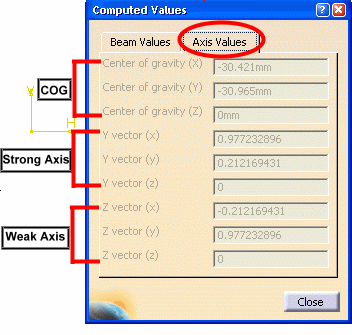
Note: Each 1-D mesh part (profile, beam, stiffener, etc.) can be oriented via one geometry only. It may cause some confusion in case orientation of the beam changes along its support. (for example, stiffener on a free edge). this is a FMS limitation.
 command.
Note: You need an ELFINI Structural Analysis (EST) license to use the Manage Section CATPart command to view the section parameters for analysis.
You can find the command using the Customize option in the Tools menu.
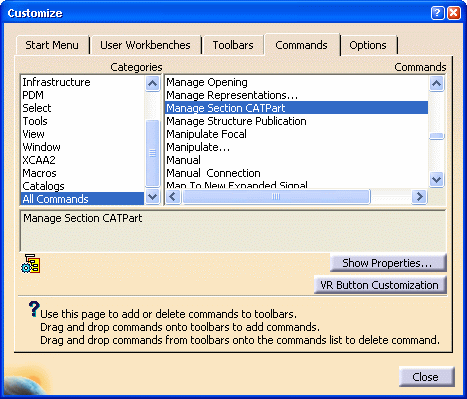
4.
button to display the
Manage Section CATPart dialog box.
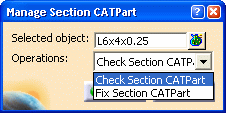
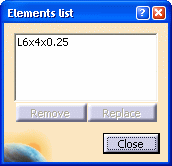
Selected Object displays the section names. Click the Elements list button to remove or replace the objects in the list.
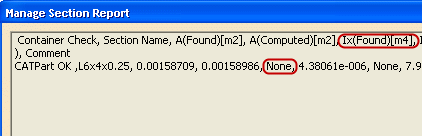
- Check Section CATPart: The Manage Section Report displays the existing value, if any, versus the computed value of the parameters.
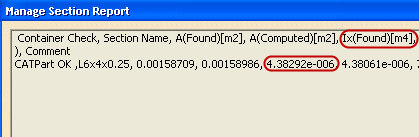
- Fix Section CATPart: The missing parameters are added to the CATPart, as shown in the Manage Section Report. You can also see these added in the specification tree. Save the CATPart.
| Check Section CATPart | Fix Section CATPart |
 |
 |
This report can be imported into a .xls file (delimited by comma) and can be used for design table of sections.
Orientation Geometry - Beam and Pillars, Stiffener, Stiffener on Free Edge
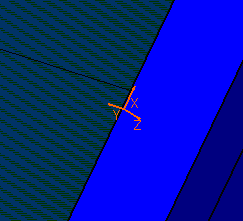
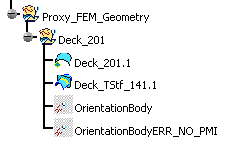
Warning: If the Principal Moment of Inertia (PMI) axis is not provided as a section parameter, a default axis is designated (OrientationBodyERR_NO_PMI) as PMI and is added in the specification tree. As a result, the Y axis becomes normal to the web surface of the profile, which may not always be the correct orientation.
Offset - Beam and Pillars, Stiffener, Stiffener on Free Edge
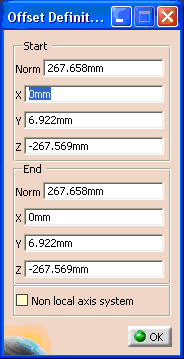
Click the button beside the Offset field on the 1D Property dialog box, and the Offset Definition dialog box displays.