


-
With the document open, select the structural objects to be grouped.
-
Select Insert > Geometrical Tools > Geometrical Set...
 .
.The Insert Geometrical Set dialog box appears displaying the features which will be grouped in the newly created geometrical set. For the pre-selected elements, the name of the part body appears in the Father box. 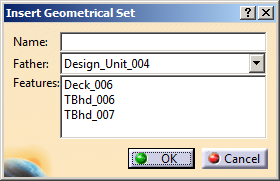
-
In the Name box, enter the name for geometrical set.
-
If required, in the Father list, select the body where the new geometrical set is to be inserted.
-
Click OK.
The geometrical set is created and the selected structural objects are grouped under the geometrical set.

