 |
This task shows you
how to resize an access plate that has been placed on a transitional
part. It allows you to resize a placed access plate to the dimensions
and shape of the flat mating surface of the transitional part.
|
 |
The Resize function is
only available when you are placing an access plate on a transitional
part. You need to place the access plate on a flat surface. There is a difference in behavior when a plate is placed on
rectangular to round, as opposed to rectangular to rectangular. Both are
explained below. |

|
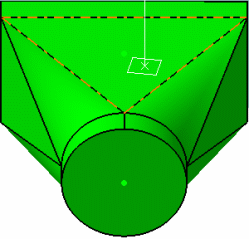
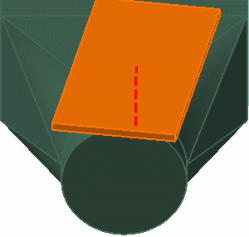
1. |
With your
document open, click the Place Tap and Access button
 to display the
Class Browser. The Class Browser displays the types
of access parts available to you. Expand the entries if necessary by
double clicking, and make your selection, in this case rectangular
Access Cover > Rectangular Access Cover Rectangular. The Parts List
displays, showing the parts available to you. Make your selection and
click to place the part.
to display the
Class Browser. The Class Browser displays the types
of access parts available to you. Expand the entries if necessary by
double clicking, and make your selection, in this case rectangular
Access Cover > Rectangular Access Cover Rectangular. The Parts List
displays, showing the parts available to you. Make your selection and
click to place the part.
|
|
2. |
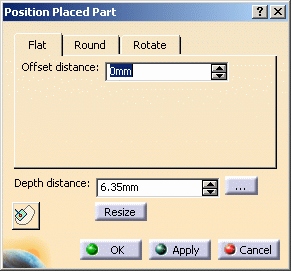
The Position Placed Part
dialog box displays after you place the access plate. It includes the
Resize button, which does not display if you are placing an access plate
on an object that is not a transitional part.
 |
| |
3. |
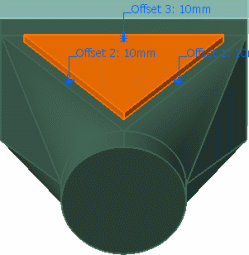
Click the Resize
button. A notice informs you that "a new access plate will be created
and the shape will follow the contour of your selected surface". Click
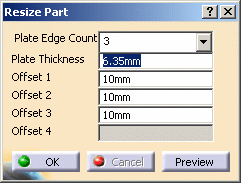
OK. The access plate is resized and the Resize Part
dialog box displays.
 |
| |
4. |
Change the values in the
Plate Thickness and Offset fields to adjust the
thickness and dimensions of the access plate. Use the Preview
button to see the effects of your changes. |
| |
3. |
RECTANGULAR TO ROUND:
When you place an access plate on a rectangular to round part then the
Plate Edge Count field is enabled in the Resize Part
dialog box.
This field allows you to change the shape of the access part from a
triangle to a trapezoid. To do this, click on the down arrow in the
Plate Edge Count field and select 4.
Use the mouse to select a point on the transitional part, as shown in
the image below. The point must be on the surface on which the plate has
been placed.
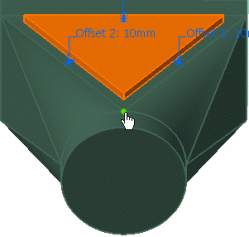
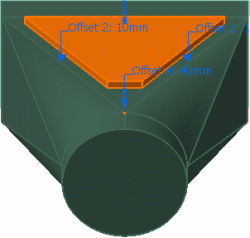
After you select the point the Offset 4 field in the
Resize part dialog box is enabled. Enter a value in this field and
click Preview to view your changes. The access plate will
become a trapezoid - you can adjust the values to your specifications.
|
| |
4. |
RECTANGULAR TO RECTANGULAR:
When you place an access part on a rectangular to rectangular
transitional part, the Plate Edge Count and Offset 4
fields are disabled. The value of Plate Edge Count is always
set at 4 and a trapezoid shape is always created. |
| |
5. |
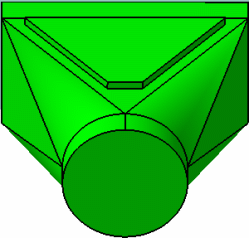
Click OK to exit.
 |
|
 |