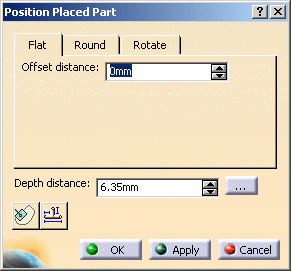
(or Place Tap button in Piping) to display the
Class Browser. The Class Browser displays the types
of access parts available to you. Expand the entries if necessary by double
clicking, and make your selection. The Parts List displays,
showing the parts available to you. Make your selection and click to place
the part.
(or Place Tap button in Piping) to display the
Class Browser. The Class Browser displays the types
of access parts available to you. Expand the entries if necessary by double
clicking, and make your selection. The Parts List displays,
showing the parts available to you. Make your selection and click to place
the part. 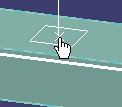
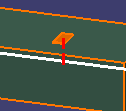
The changed color shows that a connection has been established between the access plate and the duct.
NOTE: This is a logical connection (as opposed to a physical connection) involving two connectors. If you move or resize the duct, the access plate will not move with it. You need to use the Adjust Tap and Access command to adjust and/or reposition the access plate. However, since a logical connection exists, you can still analyze the network or view related objects.