Querying On and Off Sheet Connectors for Linked Objects
 |
This task shows you how to
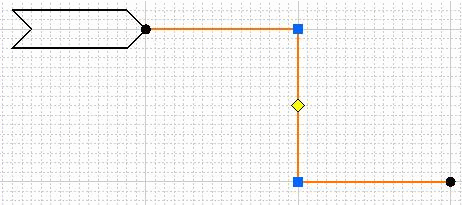
query an on or off sheet connector to determine the document to which it is
linked.
If the linked document is not open, you can use the Query On/Off Sheet Connector Link
dialog box to open the document. Additionally, the dialog box displays the connector to which the queried connector is linked. |
|
 |
1. | In your document, select the connector you want to query. |
|
||
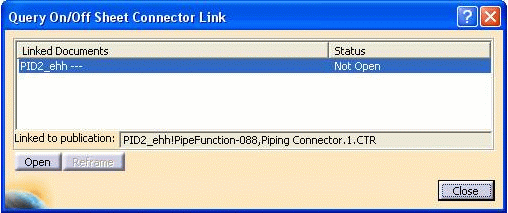
| The connector highlights, and the Query On/Off Sheet Connector Link dialog box displays.
NOTE: If the linked connector is in the same document, a zoomed-in and highlighted image of the linked connector displays. The Query On/Off Sheet Connector Link dialog box does not display. |
||
The Linked Documents column indicates the documents that have the connector to which the queried connector is linked. (There can be more than one if a connector with the same name resides in more than one document. This can happen if you have made copies or other versions of the document.) Status indicates whether or not the listed ocuments are open. The Linked to Publication field displays the specific connector to which the queried connector is linked. |
||
| 2. | If Status indicates
Not Open, select the Open button. The connector to
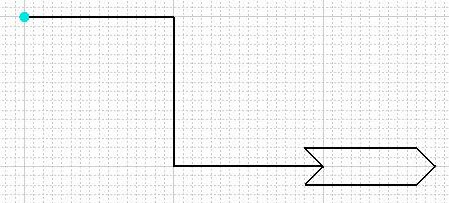
which the queried connector is linked opens as another document, and is
reframed to the queried connector.
When you select the Reframe button, you can reframe the view on the connector that you queried. |
|
 .
.