


-
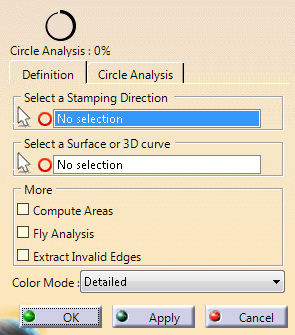
Click Circle Analysis
 in the Analysis toolbar.
-
Click Apply.
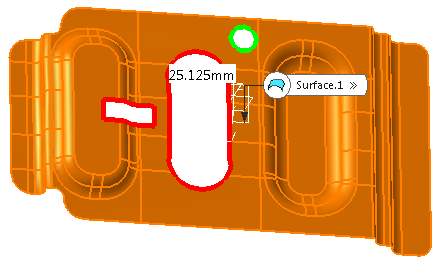
Holes identified as circles are displayed in green.
Other holes are displayed in red. -
Pick a point on any detected boundary (Green or red).
Its distance to the estimated circle center is displayed.
-
Go to the Circle Analysis tab and click Detected maximum Circle Radius.
The list of holes that are not recognized as circles in a given direction and tolerance is displayed. -
If necessary, edit the Maximum Tolerance for Circle Recognition value.
-
Back to the Definition tab, select:
- Compute Areas: Boundaries are displayed in the Detected maximum Circle Radius
- Fly Analysis: Draft angles and depth are displayed on the fly.
- Extract Invalid Edges.
- Smooth
- Detailed
- Face/Edge
Validate.
An Analysis Set is created in the specificaton tree.
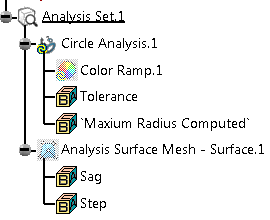
- It contains the invisible mesh created to analyze the surface, with its parameters.
- A Circle Analysis
feature with
- The maximum computed radius
- the tolerance
- the color ramp.
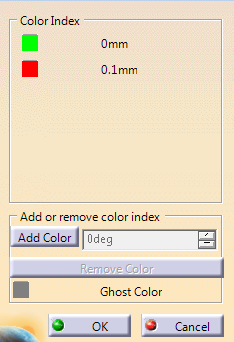
- Double-click any color patch to select another color.
- Add or remove color indices.
