-
Select a vertex.
The Compass snaps to the selection.
A contextual toolbar appears.
The dialog box lists are updated.
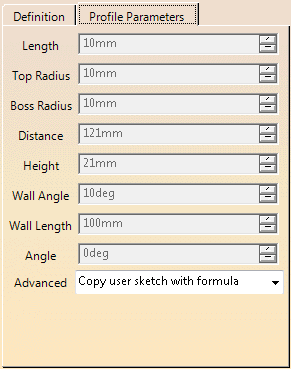
Multi-selection of profiles is available. Drag the compass to set the length or orient the profile.
-
Alternatively, in the contextual toolbar define the direction:
-
 Switches between X-Axis and Y-Axis directions.
 -
 Aligns the selected profiles in the X-Axis direction.
 -
 Aligns the selected profiles in the Y-Axis direction.
 -
 Makes the profile perpendicular to the stamping direction.
 -
 Creates or removes a tangency constraint with the selected
surface.
Creates or removes a tangency constraint with the selected
surface.
-
-
Still in the contextual toolbar:
-
Click OK.
The profile is created under a Profile Set.
 in the Addendum Design toolbar.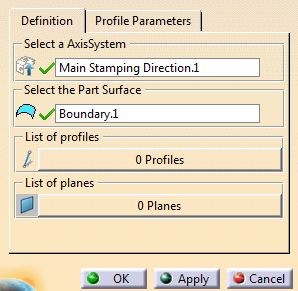
 Deletes the selected profiles.
 Aligns the selected profiles in the same direction as a
selected edge.
Aligns the selected profiles in the same direction as a
selected edge. Inverts the orientation of the selected profiles.
 Creates an addendum surface between the selected profiles.
 Creates a simple profile.
 Creates a top fillet profile.
 Creates a boss profile.
 Creates an user profile from a sketch.
 Reuses an already created profile.