|
-
Click
Connect Surface
 in the Part Extension toolbar.
-
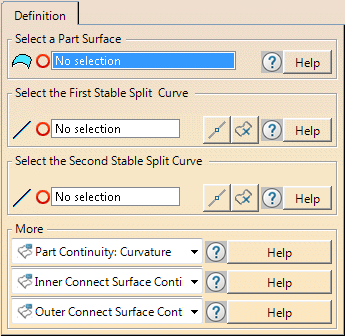
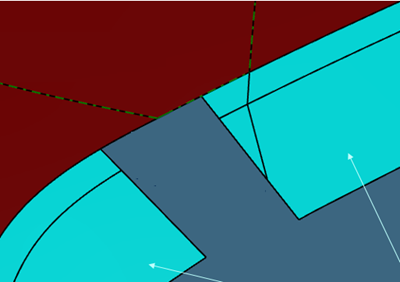
Select the Part Surface, that is the surface
on which extended surfaces have been created leaving a gap.
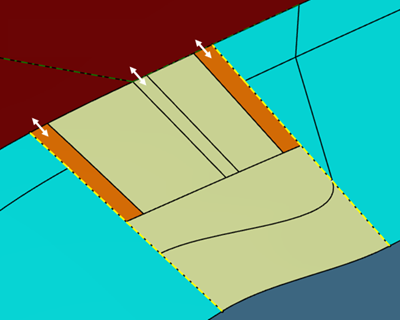
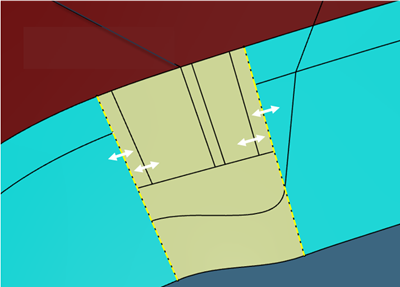
In this example, the Part Surface is in brown, the extended
surfaces in blue.
 |
-
Select
the First Curve and the Second Curve.
They are the Stable Split Curves created on the
edges of the extended surfaces.
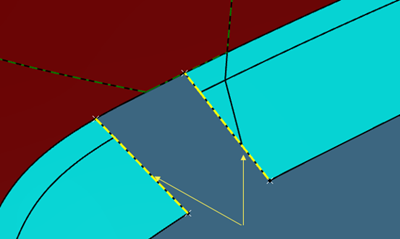
They can be created from the contextual menu Create Area.
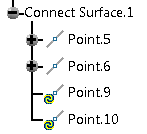
One point is created on the First Curve and on the Second
Curve with a 0.8 ratio.
Two points are created on the boundary
of the Part Surface limited by the First Curve and the Second
Curve,
with a ratio of 0.1 and 0.8.
The points define where
the curves and the boundary are split to create surfaces.
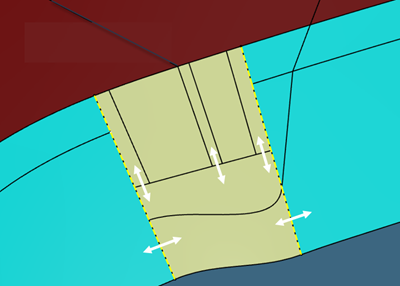
A first
blended surface is created bewteen the First Curve and the Second
Curve,
for the part defined by the 0.8 ration (shown by the
circles).
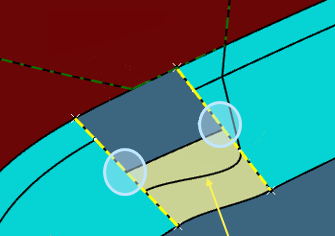
A second blended surface and two fill surfaces (shown by the
arrows) are created on the remaining gap.
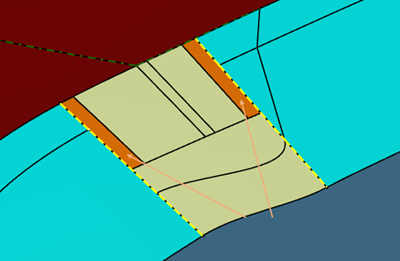
These surfaces form the Connect Surface.
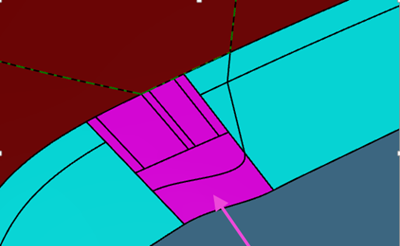
Limitations that apply to blended surfaces also apply to
Connect Surfaces. |
-
Click
 to edit the points on the First Curve and Second Curve.
Click
 to edit the points on the Part Surface
Or drag the
compass.
-
If required, set continuity options
-
|
 Creating a Connect
Surface
Creating a Connect
Surface