


-
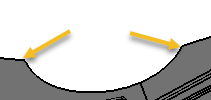
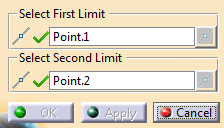
Select one vertex on each side of the concave area opening.
The vertices can be on the same support or not.
-
In the contextual toolbar, apply
 or remove
 a tangency constraint.
 -
To change the position of a vertex:
- Drag it on the boundary (within Fill Concave Area).
- Outside Fill Concave Area, double-click a point in the tree.
- Edit the length parameter of the point.
Click OK.
 in the Part Extension toolbar.
A Fill Concave Set is created under
Clean Contour.
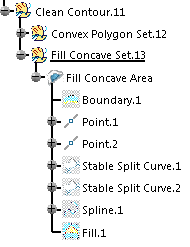
It contains the
Fill Concave Area feature with:
- One boundary (Vertices are on the same support) or two boundaries (Vertices are on different supports).
- The selected vertices (Point on Curves features).
- A join of the supports, if the vertices are on two different supports.
- Two Stable Split Curves computed from the vertices (One for the smallest area, one for the largest area).
- A Spline.
- A Fill.
Double-click the Fill Concave Area to edit the vertices.
