
In order to set the classes to be used during the Bulk Loading operation, you should add/modify dedicated SmarTeam options using the SMARTEAM System Configuration Editor tool.
The syntax of the key is CATIA.Bulk_Loading_CATIAFileType (for example, CATIA.Bulk_Loading_CATPart).
The value of the key is the class to use for Bulk Loading in batch
mode save.
For example:
- For PLMDB: Setting CATIA.Bulk_Loading_CATPart="Standard" will set the default class for CATPart documents to "Standard" class.
- For SmDemo: Setting CATIA.Bulk_Loading_CATPart="Standard CATIA Part" will set the default class for CATPart documents to "Standard CATIA Part" class.
To activate this development, the following environment variable:
CATIA_TEAM_PDM_FORCED_CLASS_NAMES_BULK_LOADING
should be set to 1.
This functionality is useful when saving a large amount of documents of one given file type. When saving lots of documents of various CATIA file types, the rule to save the objects will follow the SmTeam32 information. It is up to the user to check that the targeted class is consistent. When saving Drawing and a Part (Drawing>Part), the part may be saved to Standard CATIA Part. Thus, errors may appear in some cases.

For more information about Bulk Loading, see Importing CATIA Data Inside SmarTeam.

SMARTEAM System Configuration Editor
In order to set the classes to be used during the Bulk Loading operation, you should add/modify dedicated SmarTeam options using the SmarTeam System Configuration tool and proceeding as follows:
-
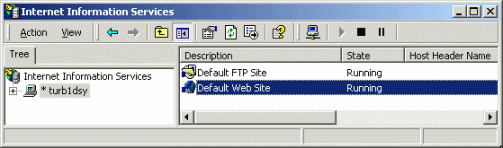
Prior to launching SmarTeam System Configurator, ensure that Default Web Site is running.
-
Now, launch SmarTeam System Configurator.
-
Enter 'Bulk' in the Search field.
-
Click Search.
Many items are found as displayed below: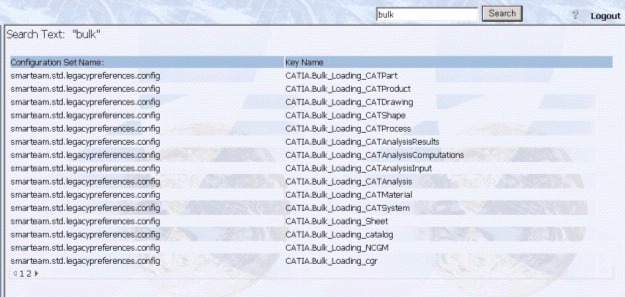
-
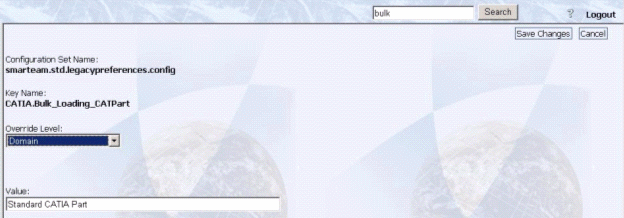
Select one item from the list. For instance, CATIA_Bulk_Loading_CATPart.
-
Set the appropriate value: for example, choose Domain from the Override Level combo box and enter Standard CATIA Part in the Value field.
-
Click the Save Changes button to confirm the changes.
Once saved, the dialog box looks like this: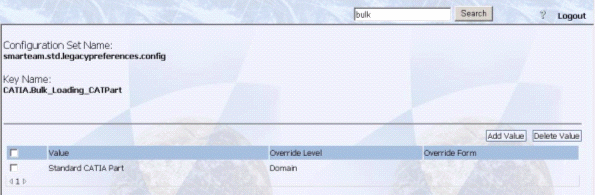
Note: the current Bulk Loading functionality does not allow you to select projects.
