
Note: Original Assembly means the Root assembly from which the WIP is created.
To understand Synchronizing, refer to the following sections:

Synchronize functionality replaces all immediate children (both of Light and Design Representations) of WIP with their latest revisions or with the revisions under latest Original Assembly. The synchronized documents are positioned according to their respective positions under the latest Original Assembly.
Synchronize functionality performs the following tasks:
-
Refresh the representations (both Light and Design Representation): It allows you to replace these representations with their latest revisions or with the revisions under latest revision of Original Assembly. If new instances are added, deleted or renamed in latest revision of Original Assembly, then it will be taken care during Synchronization. Synchronization will add or remove instances to WIP accordingly.
-
Refresh the position of representation: It allows you to refresh the position of each representation (both Light and design) directly under WIP as per the latest revision of Original Assembly.
-
Modify WIP information: It allows you to modify WIP information, so that WIP will start referring to the latest revision of Original Assembly. So if you want to add some more components to your WIP, you can directly use command WIP Management/Insert Component to see the panel for latest revision of Original Assembly.
Synchronizing WIP Documents
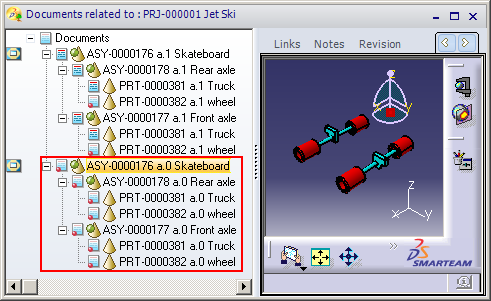
- ASY-0000176 a.0 Skateboard (Not latest assembly)
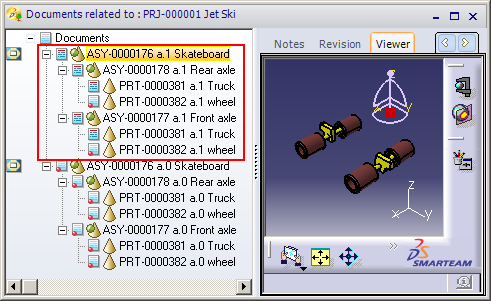
- ASY-0000176 a.1 Skateboard (latest assembly)
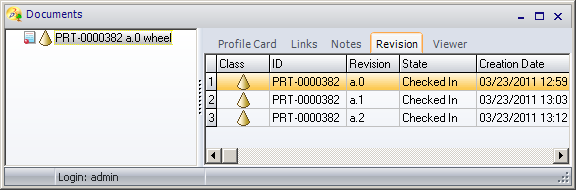
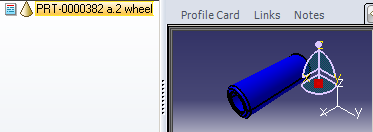
- wheel a.0, a.1, and a.2 (which is not under the latest assembly)

-
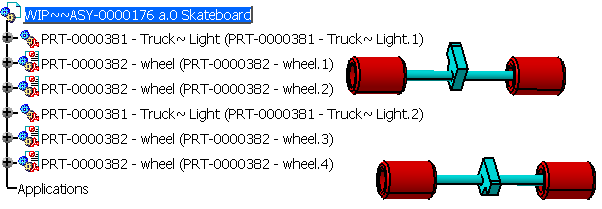
Create WIP on an assembly which is not latest in the SmaTeam. For example, the following WIP is created for Skateboard a.0 assembly.
-
From the SmarTeam menu, select Large Assembly > WIP Management > Synchronize.
-or-
From the WIP Management toolbar, click the Synchronize icon.
icon.
The Synchronize dialog box appears.
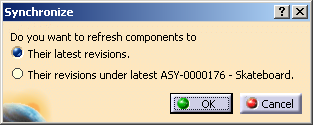
If you select Their latest revisions, default option,
wheel (wheel.1 and wheel.2) will be replaced by their latest revision that is a.2. Truck will be replaced by its latest revision that is a.1.
Both wheel and Truck will be positioned as per their respective positions under Skateboard (a.1).
WIP~~ASY-0000176 a.0 Skateboard will refer to the Skateboard (a.1). -
Click OK.
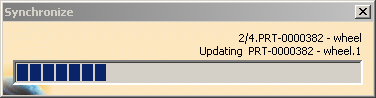
The Synchronize progress bar appears. For more information on Synchronize progress bar, see About Synchronizing Progress bar.
If the synchronization is successful, the following message appears.
-
Click OK.
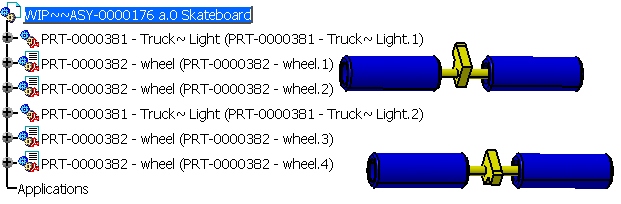
The synchronized WIP assembly with the latest revision appears. wheel (wheel.1 and wheel.2) is replaced by their latest revision that is a.2.
-
To synchronize with the WIP documents with Their revision under latest ASY-0000176 - Skateboard, from the WIP Management toolbar, click the Synchronize
icon.
The Synchronize dialog box appears.
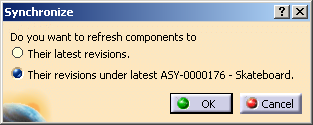
If user select Refresh component to their revision under latest ASY-0000176-Skateboard, then
wheel (wheel.1 and wheel.2) and Truck will be replaced by its revision under Skateboard (a.1), that is a.1 for both.
Both wheel and Truck will be positioned as per their respective positions under Skateboard (a.1).
WIP~~ASY-0000176 a.0 Skateboard will refer to the Skateboard (a.1). -
Click Their revision under latest ASY-0000176 - Skateboard, and click OK.
The Synchronize progress bar appears. If the synchronization is successful, WIP Synchronize succeeded message appears.
The documents of WIP~~ASY-0000176 a.0 Skateboard is synchronized with their revision under latest assembly which is Skateboard a.1.
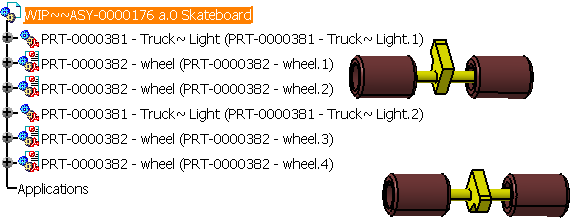
The wheel part is not latest because the latest revision of the wheel part is not under Skateboard a.1.
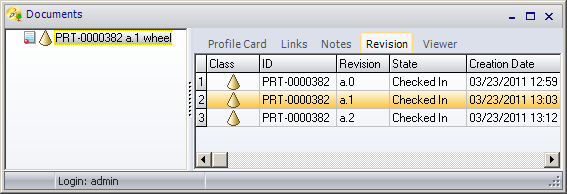
If you apply Show Profile Card on the wheel.1, you can view the latest revision of a.2 which is not under Skateboard assembly but available in the database.
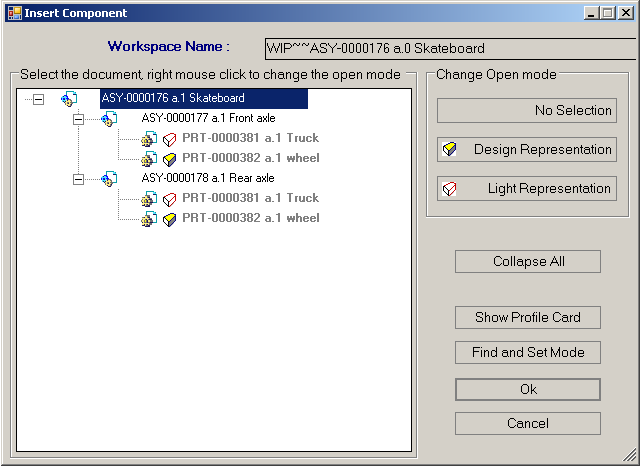
If you apply Insert Component on the WIP assembly, the Insert Component dialog box appears with the a.1 revision. This verifies that WIP~~ASY-0000176 a.0 Skateboard refers to Skateboard (a.1).
About WIP Synchronization Rules
- If WIP contains Representations of Checked out or Read only modified
or not unloadable components, then Synchronize will update only
positions of such instances. Such documents will not be refreshed.
- If Original Assembly on which WIP is created has no newer revisions,
then WIP will be synchronized as per the same Original Assembly
revision. All rules of Synchronization are applicable for that.
For example, if the positions of component are modified under WIP, then positions under Original Assembly will be restored.
- If for an instance under WIP, corresponding instance is not present
in latest revision of Original Assembly, during Synchronization, this
instance will be removed from the WIP.
- If a new instance is added under same parent in latest revision of
Original Assembly, and WIP already contains instance with same tree path
till root, during Synchronization, the new instance will be added in
WIP.
- If an instance is renamed in latest revision of Original Assembly,
during Synchronization, the corresponding instance is removed from WIP
and a new instance corresponding to renamed instance is added to WIP.
- If all instances with the same tree path till root are removed or
deleted in latest revision of Original Assembly, during Synchronization,
the corresponding instances are removed from WIP.
- If an instance is added to WIP using non WIP commands or if an
instance under WIP is renamed, Synchronization will not consider this
instance. It will be considered as Out of WIP document.
- If an instance under WIP is deleted, but other instance with the
same tree path till root exists under WIP, Synchronization will add all
the corresponding instances under same parent from new revision, back to
WIP.
- If all instances with the same tree path till root are deleted from
WIP, synchronization will not add the corresponding instances under same
parent from new revision, to WIP.
- If all representations under WIP are latest, then Synchronize dialog box will not appear for refresh option. Synchronize will update only positions of instances as per the latest Original Assembly.

About Synchronizing Progress bar
The Synchronize progress bar displays information for using following:
- 2/4: Second node of the total four nodes selected for Synchronize
- PRT-0000382 - wheel: Part number of the node
Note: If two nodes have same part number, the same Part Number is displayed at different stages of Progress.
For example, If there are two instances of Axle with different hierarchy, the Part Number in the Progress dialog appears as,
1/6. PRT-0000729 – Axle~Light
PRT-0000729 – Axle~Light.1
2/6. PRT-0000729 – Axle~Light
PRT-0000729 – Axle~Light.2 - Updating: Process going on current instance. The process title appears for Updating, Removing, and Inserting Instance.
- PRT-0000382 - wheel.1: Instance name of instance,
which is currently under synchronization process
