
Switch to Design Representation

Using this command, you can replace the documents in Light Representation with their respective Design Representation in the existing WIP.
Multiple selection of documents is available for this
command. If the
document is not eligible for this command, you will be informed by
message box.
In case of multiple selections, you will be informed about the documents
for which this operation is not valid. You will have choice whether
to continue the operation for other documents or not.
The component will be positioned to the same position, as the Light Representation as in the WIP Assembly.
Switch to Light Representation
Using this command, you can replace the documents in Design Representations in the existing WIP with their respective Light representation (CGR).
Multiple selection of documents is available for this command. If the document is not eligible for this operation, you will be informed by message box.
In case of multiple selections, you will be informed about the documents for which this operation is not valid. You will have choice whether to continue the operation for other documents or not.
The component will be positioned to the same position, as the Light Representation as in the WIP Assembly.

-
Open a WIP assembly. For example, Skateboard.
-
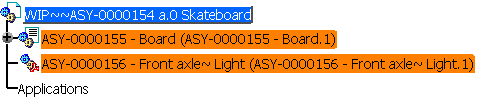
Select the nodes for which you want to change the Open Mode. In this example, Design Representation mode - Board, and Light Representation mode - Front axle are selected.
-
To change the Open mode to Design Representation:
-
From the SmarTeam menu, select Large Assembly > WIP Management > Switch to Design Representation.
-or-
From the WIP Management toolbar, click the Switch to Design Representation icon.
icon.
The WIP Management : Switch Representation dialog box appears.
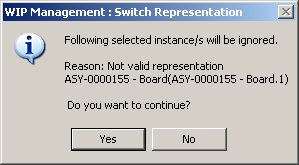
The Board is Not valid representation for this Open mode because Board is already in Design Representation. -
Click Yes to continue.
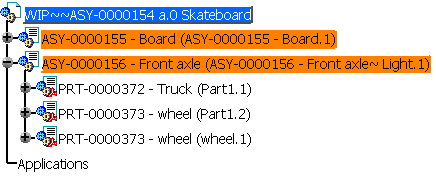
The Front axle changes to Design Representation.
-or-
If you want to cancel the command, click No.
-
-
To change the Open mode to Light Representation mode on above mentioned assembly:
-
From the SmarTeam menu, select Large Assembly > WIP Management > Switch to Light Representation.
-or-
From the WIP Management toolbar, click the Switch to Light Representation icon.
icon.
The WIP Management : Switch Representation dialog box appears.
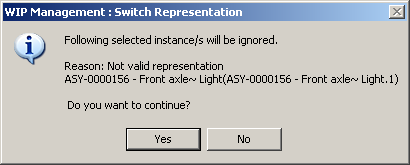
The Front axle is Not valid representation for this Open mode because Front axle is already in Light Representation. -
Click Yes to continue.
The Board changes to Light Representation.
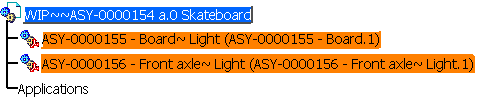
-or-
If you want to cancel the command, click No.
-
Refresh Representation |
|

Using this command, you can replace the Light
Representation by their latest CGR stored in SmarTeam.
If the components in Light Representation are older than their
corresponding documents in SmarTeam, then you can use this command to
get the latest Light Representation of the components.
When the Refresh Representation is launched on highlighted Light
Representation, then only that representation and its all respective
instances under WIP will be considered for Refresh.
When the Refresh Representation is launched on Root WIP Product, a
Refresh proposal panel appears which displays the list of all the Light
Representations eligible for refresh.
Multiple selection is available for this command.
-
Open a WIP assembly and select the Light Representation which you want Refresh.
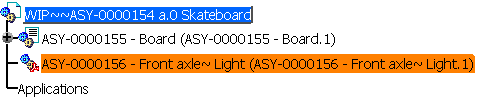
-
From the SmarTeam menu, select Large Assembly > WIP Management > Refresh Representation.
-or-
From the WIP Management toolbar, click the Refresh Representation icon.
icon.
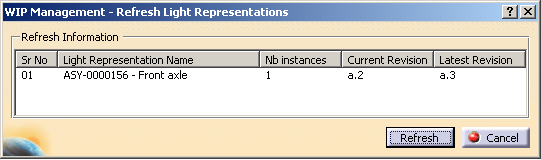
The WIP Management - Refresh Light Representation dialog box appears.
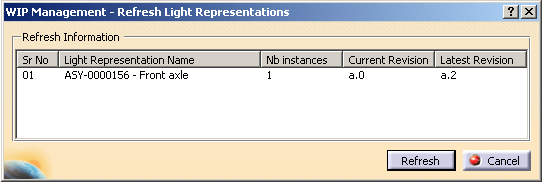
-
Click Refresh.
If the Refresh is successful, the following message appears:
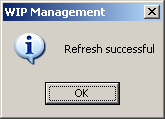
-
If the command fails, the WIP Management - Refresh Representation dialog box appears with the following failure message:
Refresh Representation failed. -
If the Refresh Representation is applied on component which is in Design Representation, inserted or created using Non-WIP commands, then the error messages will appear as shown below and operation will be canceled.
-
For non-WIP component, the following message appears:
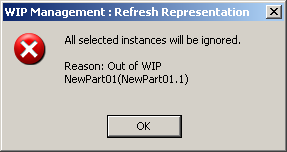
-
For Design Representation component, the following message appears:
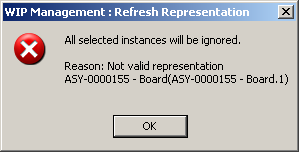
-
-
In case of multiple selection, non-eligible components will be ignored for the operation and Refresh Representation panel will be launched only for eligible components.
The following message box appears:
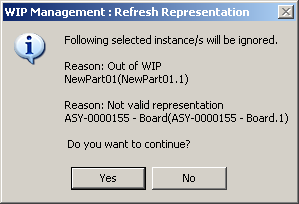
If you click Yes, the WIP Management - Refresh Light Representation dialog box appears which allows you to refresh the representation.
Insert Component |
|
This command will launch WIP creation dialog and populate
its Tree view with the Assembly from which the WIP has been derived. The
components which are already part of existing WIP will not be eligible
for change in the existing open modes. The user can choose the rest of
the components from the assembly to insert them in existing WIP in
Design or Light Representation.
The WIP Panel opened for editing the current WIP will bear the workspace
name as the WIP Product in CATIA and will not be editable.
-
Open a WIP assembly. For example, Skateboard.
-
From the SmarTeam menu, select Large Assembly > WIP Management > Insert Component.
-or-
From the WIP Management toolbar, click the Insert Component icon.
icon.
The Insert Component dialog box appears.
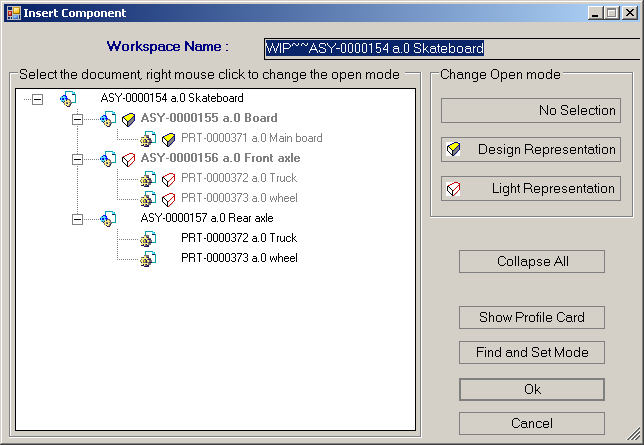
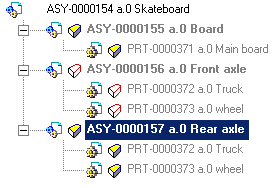
In the above example, only Rear axle is available for insert as it is not the included in WIP. You can apply Open mode for this component and then insert it in the WIP assembly. -
Apply the appropriate Open mode and then click OK. In this example, Design Representation mode is applied.
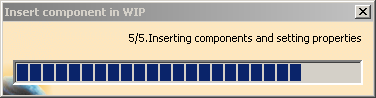
The Insert component in WIP progress bar appears.
The progress bar displays the current process of the insert component command such as Retrieving information from SmarTeam, Checking documents in CATIA session, Copying documents from SmarTeam, Getting root WIP product, Inserting components and setting properties.
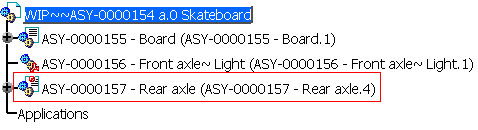
The component gets inserted with the applied Open Mode. In this example, Rear axle is inserted in the WIP assembly with the Design Representation mode as shown below:

- The component should be direct child of the WIP Product and inserted using WIP creation command.
- The component meant for Switch to... commands should be in
Checked-In or Released state.
The following error message appears if you apply these commands on component not in Checked-In or Released state.
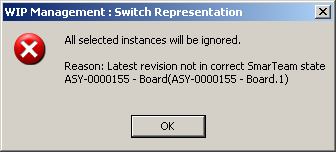
- If you apply Switch to Design Representation, Switch to Light
Representation, or Insert Component on an inconsistent assembly, (that
is if you have different revisions of same component in Design
Representation and in Light Representation in current WIP), the
following message appears and the commands get cancelled as shown in
the following example:
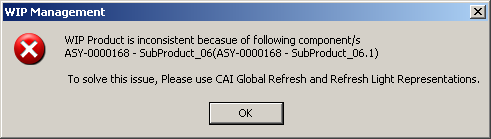
- If you modify the position of the immediate child of the WIP Product, then this position change is with respect to WIP product and will not be reflected in the original assembly. So you change the mode of such a child from Light to Design or vice versa, then document or CGR would be placed to the position as in WIP assembly.
- If the component is changed from Light to Design Representation or vice versa, all
instances under the same parent will be changed to respective
representations. If there are instances under different parents, then a
message appears asking whether you want to apply the change in
mode for all the other instances under different parents as shown in the
following example:
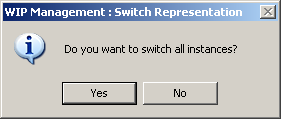
If you click Yes, then all other instances under different parents will be changed to the applied mode. If you click No, then only the selected component will be changed to the applied mode. - Documents which are not unloadable will not be switched either from Design to Light representation or vice versa. In case of multiple selections only unloadable documents will be switched.
- If you insert any component under the Embedded Component meant for
Light Representation, and perform Switch to Design representation on
the Light Representation, then during Switch operation, a warning
message appears as shown in the following example:
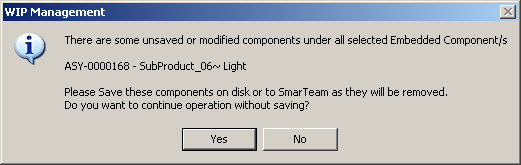
If you click Yes, the operation will continue else the operation will be cancelled. The light representation will be replaced by its corresponding design representation under Original Assembly. The inserted component will not be available under WIP. - If the component to be inserted in Design or Light Representation is not in the current WIP, Insert is allowed.
- If the component to be inserted in Design or Light Representation is already present in the WIP in Design or Light Representation and of same revision, you will be informed of possible overwrite of the document in session. If you select to continue, insert will be done overwriting the document in session.
- If the document to be inserted or its latest revision is
checked-out, error message will be shown as follows and the insert
operation will be cancelled:
Selected component's or any of it's latest revision is not in Checked-In or Released state. Document name. - In case of multiple selection in Find and Set Mode dialog, such type
of components will be ignored for setting the mode. Following message
appears:
Following components will be ignored for this operation
		as the component or any of it's children's latest revision is not in
		Checked-In or Released state. Document name
. - Refer to the following table to understand the Insert Component
command. For all the cases mentioned in the below table, the Insert will
be successful.
| Component in WIP | Revision | Component to be INSERTED | Replace Document in Session |
| Light | Same Revision | Light | No Replace |
| Different Revision | All revisions in WIP replaced | ||
| Design | Same Revision | Light | No Replace |
| Different Revision | No Replace | ||
| Light | Same Revision | Design | No Replace |
| Different Revision | No Replace | ||
| Design | Same Revision | Design | All revisions in WIP replaced |
| Different Revision | All revisions in WIP replaced |
