
Concept
Until now, the Title Block mapping was based on a CATIA script. In V5R19, the only constraint is that the text id must be defined according to SmarTeam rules; the mapping is performed automatically.
In a CATIA drawing, text is mapped to SmarTeam attributes that can be displayed in the SmarTeam profile card. The user can update the text that is mapped to SmarTeam in the drawing by modifying the text directly or by updating the drawing based on SmarTeam attribute values.

Procedure
The user uses the Title Block defined by the Administrator. The user can change the text in the Title Block and, after a Save operation is performed, the Title Block is updated.
Note: The mapping only takes place if the Title Block is located in the background of the Drawing sheet.
Mapping Order
If the same attribute has been mapped in different ways from/to CATIA the mappings take place in the following order:
-
File properties mapped from CATIA to SmarTeam
-
CATIA Text name mapped from CATIA to SmarTeam
-
CATIA knowledge parameters mapped from CATIA to SmarTeam
-
CATIA knowledge parameters mapped from SmarTeam to CATIA
-
CATIA Text name mapped from SmarTeam to CATIA
File properties mapped from SmarTeam to CATIA
Save and Lifecycle Operations
The mapping is performed from CATIA to SmarTeam and then from SmarTeam to CATIA. Mapping is automatically performed in the following events:
-
Open a drawing in CATIA
-
Save drawing to SmarTeam
-
Check in
-
Release
-
Obsolete
-
User clicks SmarTeam menu in CATIA
Properties > Load from Database – map from SmarTeam to CATIA Drawing
-
Properties> Save to Database – map from CATIA Drawing to SmarTeam
Release operation can be performed when the drawing in checked out or checked in state.
Current behavior of mapping revision – related attributes must be preserved as they are for other mappings
Configuration
Configuration is done by the Administrator during the setup. It comprises of two steps:
- Defining the Feature Name
- Defining Mapping in SmarTeam Integration Tool Setup
Defining the Feature Name
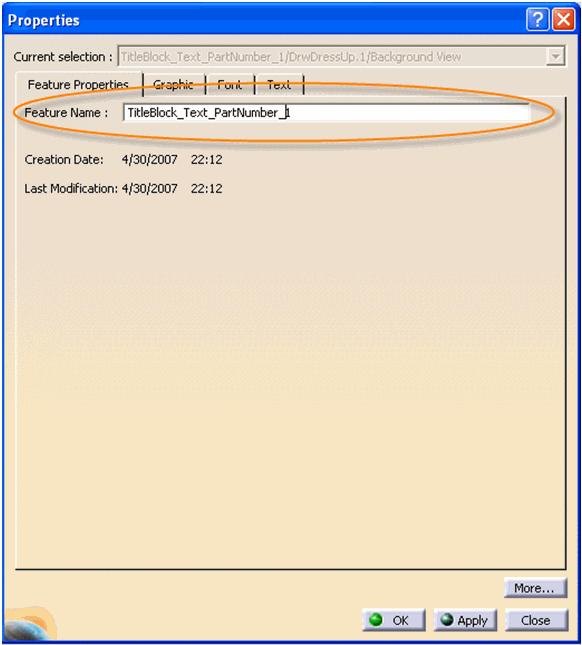
In the Title Block Properties window, the administrator types in a specific Feature Name in the Feature Name field.
Defining Mapping in SmarTeam Integration Tool Setup
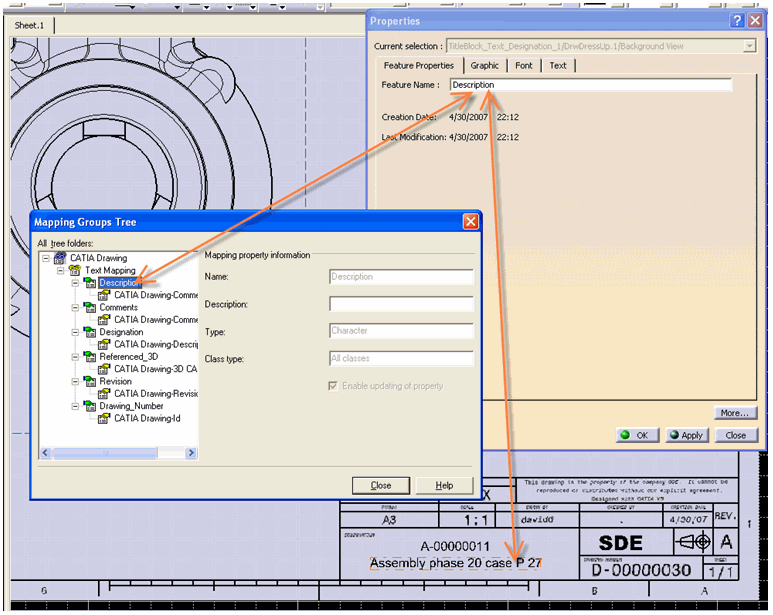
The feature name is mapped to SmarTeam using the Integration Tool Setup. In the Integration Tool Setup, the administrator defines mappings between the CATIA Drawing text and a SmarTeam attribute, as shown in the example below:
Note: When SmarTeam attributes are mapped to text values containing carriage returns, the carriage return will not be correctly displayed in the title block of a drawing. Drawings ignore carriage returns in text.
The administrator can define the mapping direction by enabling/disabling the updating of properties. For details, see the Integration Tool Setup documentation in the SmarTeam – Editor Online Help.
When Exposed Mode is set to No, the mapping will be defined in the mapping group with the name of the class to which the CATIA Drawing is mapped.
When Exposed Mode is set to Yes, the mapping will be defined in the mapping group with the name of the class to which the CATIA Sheet is mapped.
