

Enabling Design Compare for CATIA Parts
-
In Script Maintenance, select CATIA Part from the Documents class. In the right pane, open the User Defined tab.
-
In the Operation column, add a key: Design Compare.
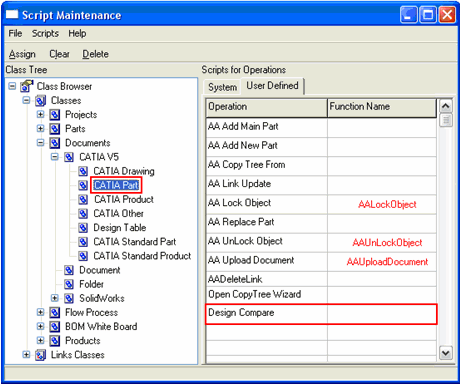
-
Double-click in the Function Name cell of the Design Compare operation. The Script Browser window opens.
-
In the File Name column, select DesignCompare.bs.
In the Functions column, select DesignCompare. Click Compile.
After clicking OK, the DesignCompare script is hooked to the database:
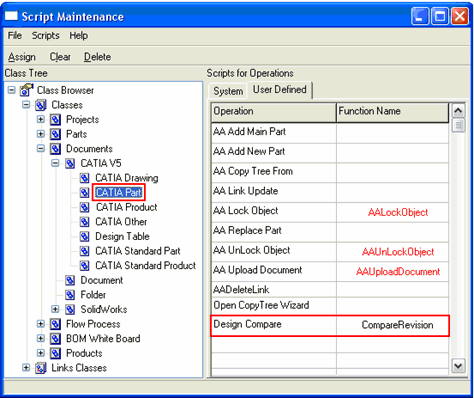
Note: Following this procedure, you may compare several CATIA parts stored with CATIA Part class in the database. To compare several CATIA parts stored with other classes, e.g., CATIA Standard Part class, repeat the same steps for other CATIA Part files classes.
Enabling Design Compare for CATIA Products
The Design Compare for CATIA Product function is performed in the same way as the Design Compare for CATIA Part function.
