Using a Macro to Import Clash Results Saved in XML Format

This task illustrates how to import clash results saved in XML files generated:
 

This is done by running a macro which opens a CATProduct and imports the clash results stored in an XML file.
 

Have an XML file containing clash results and generated from batch processing an existing CATProduct.

A sample macro, ImportClashResultsfromXML.CATScript, is supplied in spaug/samples

Opening and Editing a Macro

  1. To Open and edit the macro:
     

    • Select Tools > Macro > Macros in DMU Space Analysis menu bar

    • Identify the folder containing the macro, select the CATScript then click Edit...

    • Add the name and path of the CATProduct that will be opened and that will contain clash results.

    • Typically, this CATProduct document contains the products on which the interference analysis was run.

    • Add the name and path of the XML file containing the clash results you want to import.

    • Save the macro.

Looking at a Sample Macro

  1. The following macro extract will help you to

    Sub CATMain()

    ' 1 - Load the document
    sProductPath = CATIA.SystemService.Environ("E:\
    \tmp\\ImportXMLTest")
    Dim documents1 As Documents
    Set documents1 = CATIA.Documents
    Set productDocument1 = documents1.Open("E:
    \\tmp\\ImportXMLTest.CATProduct")
    CATIA.ActiveWindow.ActiveViewer.Viewpoint3D.ProjectionMode = 0

    ' 2 - Retrieve the Clashes collection
    Dim rClashes As ClashResults
    Set rClashes = CATIA.ActiveDocument.Product.GetTechnologicalObject("ClashResults")

    ' 3 - Read a clash stored on the disk, and import it in the active document
    Dim rClash As ClashResult
    Set rClash = rClashes.AddFromXML("E:
    \\tmp\\XML_file_to_Import.xml", CatClashImportTypeClashOnly)

    End Sub


    • If the Federated XML Output option is selected in DMU Clash-Process setting page, the xml file to be imported is the temlFile.xml generated in the CATTemp folder in the directory where the clash result is exported.

    • If the Federated XML Output option is cleared, the xml file to be imported is the one generated in the directory where the clash report is exported.

Running the Macro

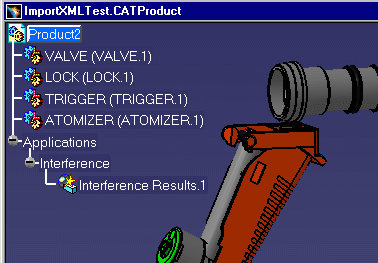
  1. Click Run to run the macro. A CATProduct is opened in your current DMU session.

  2. Double-click the results to analyze them using the Clash command.

    Selecting the Compute all numeric and graphic results check box in the DMU Clash tab page (Tools > Options > Digital Mockup > DMU Space Analysis) means that all numeric and graphic results are computed and displayed directly when you import clash results via the macro.
     

    This is useful when presenting results in a meeting for example. Cleared, the detailed computation will only be run as you select conflicts in the Check Clash dialog box.

  3. (Optional) Add your macro to a toolbar if desired using the Tools > Customize... command.

    • Select the Commands tab, then

    • the Macros category: all macros will be detected and listed.

    • You can then drag and drop onto toolbars for convenient access.

Importing XML Clash Results & VPM

  1. You can also import clash results saved in XML files that concern products stored in VPM. For this:

     
    • Use the CATDMUBuilder batch process.
      This batch reads the XML file, queries VPM for the products impacted, then re-creates the corresponding CATProduct and clash results.

    For more information on CATDMUBuilder, read "Running the CATDMUBuilder
    Batch Process" in the DMU Navigator User's Guide