
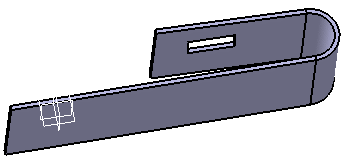
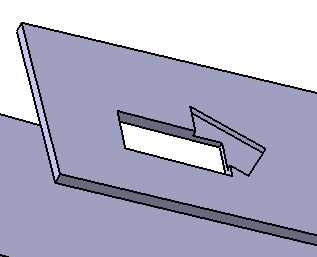
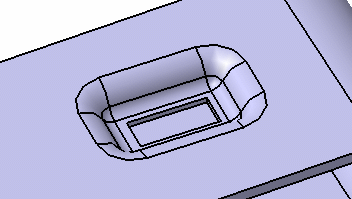
A standard cutout consists in thicknening the profile normal to the wall. A pocket cutout is built by extruding a profile and removing the material resulting from the extrusion.

Open the NEWCutout1.CATPart document.

Create a Standard cutout
-
Click Cutout
 .
.The Cutout Definition dialog box is displayed.
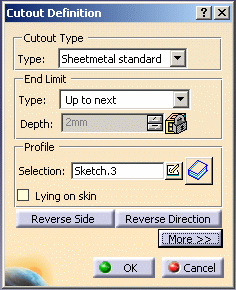
The surface to be impacted by the cutout is displayed in light blue. 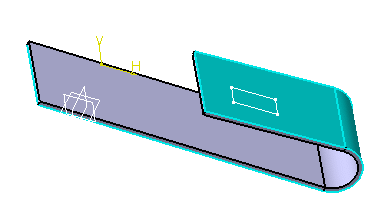
-
Select a profile (sketch.3 in our example).
A preview of the projected cutout is displayed. 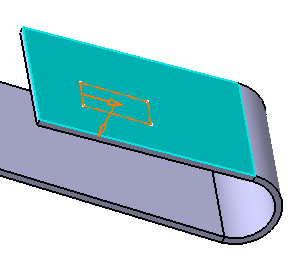

You are strongly advised to use a closed profile to create a cutout. In case you create a cutout from a profile containing more than one open contour, you are warned that the cutout may fail.
Once the profile is selected, you can modify it by clicking Sketcher
 .
.
-
The Reverse Side option lets you choose between removing the material defined within the profile, which is the application's default behavior, or the material surrounding the profile.
- The Reverse Direction option allows you to invert the direction of the extrusion pointed by the arrow.
-
-
Click OK in the Cutout Definition dialog box.
The cutout is created. 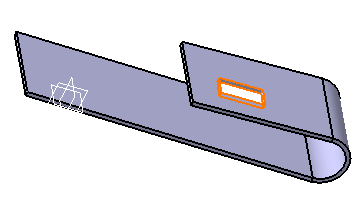
Several end limit types are available:
-
Up to next: the limit is the first face the application detects while extruding the profile. This face must stops the whole extrusion, not only a portion of it, and the hole goes through material.
-
Up to last: the last face encountered by the extrusion is going to limit the cutout.
-
Dimension: the cutout depth is defined by the specified value.
-
-
In the specification tree, double click on Cut Out.1 to display the Cutout Definition dialog box.
-
Click More>> to display the maximum information.
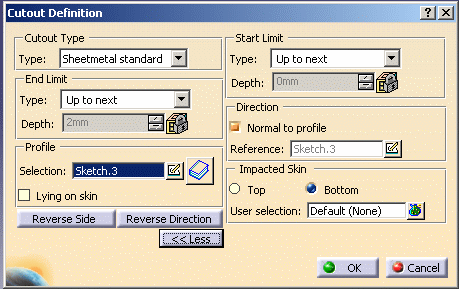
Here the Cutout's impacted skin is set to Default, that is, the surface on which lies Sketch.3 -
Click on
 and
select the support for the cutout.
and
select the support for the cutout.The Support Selection dialog box is displayed. -
Select Wall.1 as your new support for the cutout.
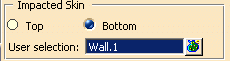
Should you want to perform a cutout on the opening line (unfold reference) of a rolled wall or a hopper, you must select the rolled wall or the hopper feature as the support for the cutout. -
Close the Support Selection dialog box and click OK in the Cutout Definition dialog box.
The cutout is created on Wall.1. 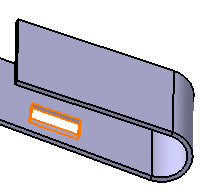
Specifying the support for the cutout avoid confusions in case of overlaps. 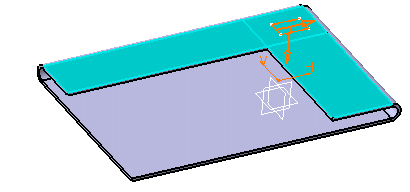
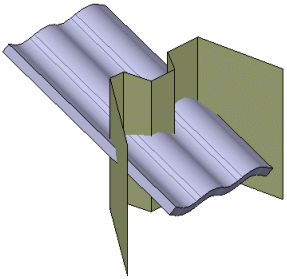
For instance, if you try to create a cutout on the part below, the following message is displayed: 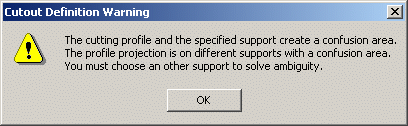
To avoid this, you have to select the exact support for the cutout. 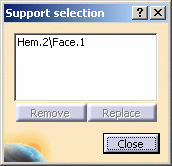
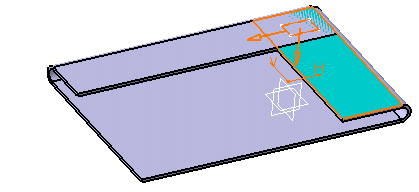
- When Lying on skin
is checked,
- The End limit and Start limit types are automatically disabled,
- The Depth field is disabled,
- The skin to be impacted is displayed on the part.
The cutout is not projected anymore on the skin. It is based on a sketch that inevitably lies on a surface.
This option is available only when creating a standard cutout.
In case the prism resulting from the cutout's profile and direction is tangent to the impacted skin, the projection is non-valid and the cutout cannot be created. To avoid this, check Lying on skin or select a wall as support to be able to create your cutout.
- When Lying on skin
is checked,
Create a Cutout to Let a Cylinder Get through a Sheetmetal Part
If you want to have a cylinder get through a sheetmetal part, you can create only one cutout that cuts the bottom skin and the top skin at the same time using Both option. In this case, the geometry of the cutting profile is the minimum ellipse containing ellipses formed at the top and bottom skins. You can specify the Split tolerance to keep a gap between cylinder and cutting part.
-
Click Cut Out
.
The Cutout Definition dialog box is displayed. -
Select Sheetmetal standard as Cutout type in the combo box.
-
Select the cylinder you want to pass through your sheetmetal part from the geometry.
The End limit, Start Limit and Direction fields are not available.
-
Click More>> to display the maximum information. The Skin frame is updated and displays the Both option.
-
Select the Both option. The Split tolerance field is displayed in the Impacted Skin frame.
-
Use the Up and Down arrows to enter the value you want for the split tolerance.

By default the Split tolerance is null.
-
Click OK in the Cutout Definition dialog box. The cutout is created.
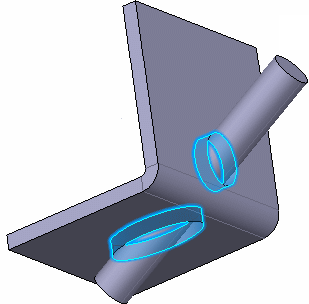
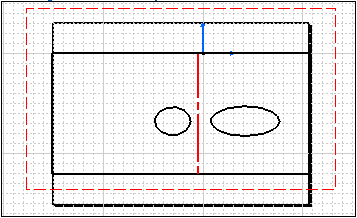
Created Cutouts
Drawing View

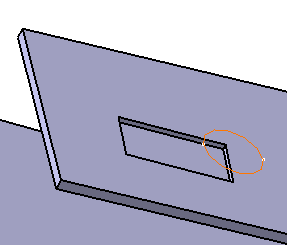
You can create an open cutout by thickening the profile.
-
Click Cutout
.
The Cutout Definition dialog box is displayed. -
Select Sheetmetal Standard from the Type list.
-
In the Profile box, select the open sketch on which you want to create a cutout.
-
Select the Thick checkbox.
More options are displayed. -
In the Thick Profile area, use the arrows to set the values of the thickness:
- Thickness1 allows you to change the outside thickness of the profile.
- Thickness2 allows you to change the inside thickness of the profile.
The cutout is previewed.
-
In the Cutout Definition dialog box, click OK to validate.
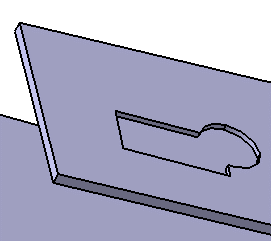
The cutout from open profile is created.
Create a Pocket cutout
Open the NEWCutout1.CATPart document again.
-
Click Cutout
.
The Cutout Definition dialog box is displayed. -
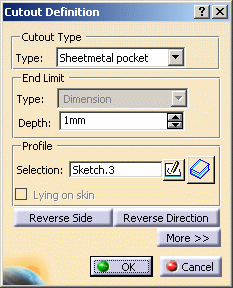
Select Sheetmetal pocket as Cutout type in the combo box.
The skin to be impacted remains grey and the End limit type is disabled. -
Set the Depth to 1mm.
-
Select Sketch.3 as profile.
A preview of the cutout is displayed. In our example, the cutout will impact only half the wall. 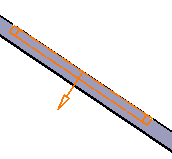
-
Click OK in the Cutout Definition dialog box.
The cutout is created. 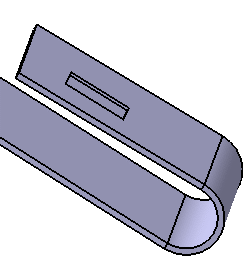
-
In the specification tree, double click on Cut Out.1 to display the Cutout Definition dialog box.
-
Click More>> to display the maximum information.
The Direction is already selected (Sketch.3). By default, it is set as normal to the profile. 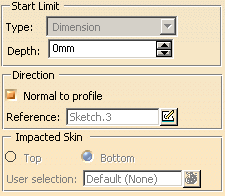
-
Clear the Normal to profile check box.
-
Click inside the Reference field to activate it.
-
Select Line.1 to perform a cutout normal to the line direction.
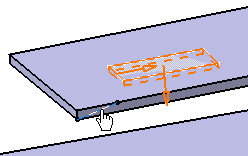
To create a line, right-click the Reference and select Create Line. Refer to Creating Lines for further information. -
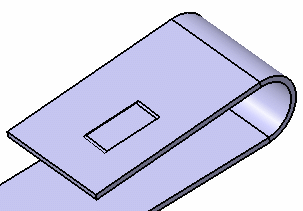
Click OK to create the cutout normal to the line direction.
 to open the Catalog Browser.
- Refer to the Component Catalog Editor User's Guide for further information on how to use catalogs.
- Refer to the Create a Pocket task in the Part Design User's Guide for further details on how to create cutouts.
