


-
Create a spot light source by clicking Create Spot Light
 .
. -
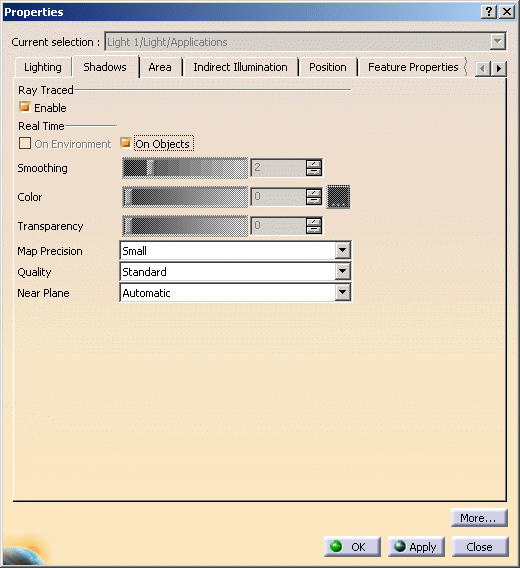
Access the lighting properties dialog box by right-clicking the light in the specification tree then selecting Properties.
-
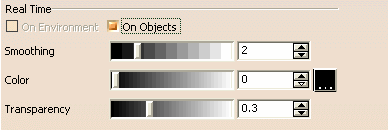
Click the Shadows tab and select the On Objects check box to activate shadow casting between objects (in this case the option Enable OpenGL Shader is not selected in Tools > Options > General > Display > Performances tab, Miscellaneous area:
-
Use the Map Precision list in the Properties dialog box to define the size of the shadow map: Small, Medium or Large.
A shadow map identifies illuminated points in the scene with respect to a given light source. This ray-tracing technique relies on a precomputed depth map attached to the light source.
The higher the map precision, the more accurate the shadows but bear in mind that there is a price to pay in performance and allocated memory.
-
Define the shadow Quality, which enables you to optimize the performance by selecting a value from the list:
- Standard:
this is the default value. In that case, the shadow map is not
recomputed at each interaction - Good: the
shadow map is recomputed at each interaction, which provides a
more accurate shadow but affects performance.

We recommend that you start with a low precision and a standard quality then, when satisfied with your lighting parameters, increase Map Precision and Quality. - Standard:
this is the default value. In that case, the shadow map is not
-
Click OK or Apply then OK to validate.
The following are sample images showing shadows between objects On and Off: 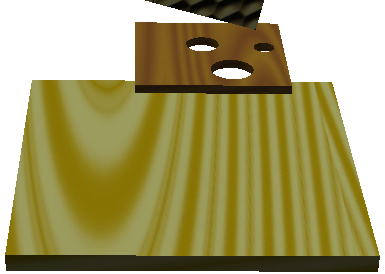
Shadows Off 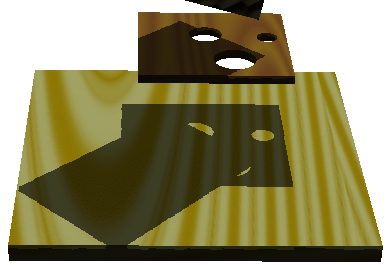
Shadows On with Enable OpenGL Shader not selected 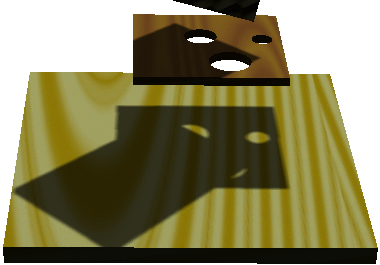
Smooth Shadows On with Enable OpenGL Shader selected
 .
A color palette allows you to change the color.
.
A color palette allows you to change the color.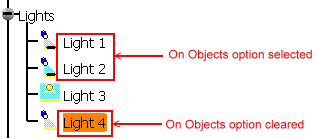

Note that when On Objects is activated, shadows are cast on the environment as well (if there is one), even though the On Environment option is cleared.
