
This task shows you how to transform a vectors field from an origin position to a target position.

-
Click Vectors Field Transform
 in the Realistic Shape Optimizer toolbar.
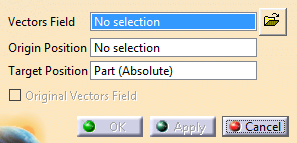
-
It can be: - A Deviation Analysis feature
- A displacement file
- A displacement optimization feature.
If the input is selected in another part, a Cloud of Points feature is created and used as input.
-
Select the target position (Axis system).
By default, it is set to the absolute axis system or the current axis system. -
If required, select the Original Vectors Field check box to display it in grey.
-
Click Apply.
The Vectors Fields is transformed from the origin position to the target position.
The points of the source vectors are displayed in blue,
the target points in red,
vectors between them are displayed in grey.
A
Vectors Field Transformation feature
is created.
It can be used as input in other Realistic Shape Optimizer
commands such as Vectors Field
Filter or Digitized Morphing.
