


-
Click Mirror
 .
.
The Mirror Definition dialog box appears.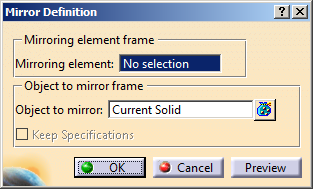
-
In the Object to mirror box, select the cylindrical pad.
The Keep Specifications check box is available. -
In the Mirroring element box, select the mirroring planar element. The wireframe preview of the feature appears. The mirror of the feature is created without maintaining its original specifications.
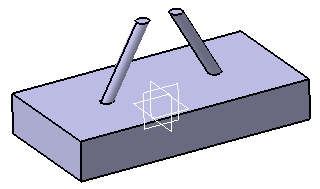
-
Optional: Select the Keep Specifications check box.
The wireframe preview of the feature is displayed. The mirror of the feature is created with the same direction and limiting specifications such as up to next, up to last, up to plane, or up to surface.
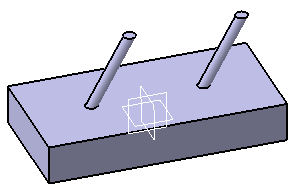

If the Object to mirror contains non-movable elements or sub-elements like wireframe geometry, it is suggested to clear the Keep Specifications check box.
More about Mirror
- The color properties of the current solid body are not applicable for its mirrored body.
- Using a plane to mirror a body lets you obtain two independent
portions of material in a same body. The following mirror is obtained by
using plane zx as the reference.
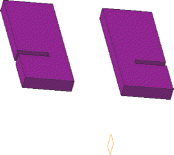
- When editing a mirror feature, contextual
commands creating the mirror references you need are now available from
the Mirroring element field:
- Create Plane: for more information, see Creating Planes
- XY Plane: the XY plane of the current coordinate system origin (0,0,0) becomes the mirroring element.
- YZ Plane: the YZ plane of the current coordinate system origin (0,0,0) becomes the mirroring element.
- ZX Plane: the ZX plane of the current coordinate system origin (0,0,0) becomes the mirroring element.
If you create any of these elements, the application then displays the corresponding icon next to the Mirroring element field. Clicking this icon enables you to edit the element.
- Following features cannot be mirrored:
- Contextual features
- Mirrored features
- Shelled features
- Translated features
- Rotated features
- Axis to Axis features
- Affinity features
- Scaled features
- Symmetrical features
- Split features
- Features under Boolean operation
- Imported features
- Sew features
