
This task shows how to create a cavity.

-
Select the face to be removed.
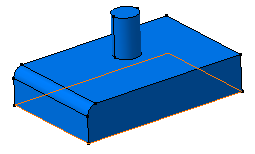
-
Click Shell
 .
.
The Shell Definition dialog box appears. The selected face becomes purple.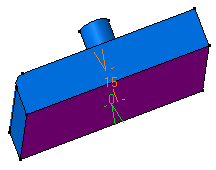
-
In the Inside thickness box, enter a value.
-
Under Other Thickness,
- In the Face box, select the face to be thickened.
- In the Inside thickness and the Outside thickness boxes, enter the required values.
- Repeat the steps a and b for other faces.
- Optional: In the table, select the face to be removed and click Remove.
- Optional: In the table, select the face to be replaced by the selected face and click Replace.
-
Click OK.
The feature is shelled: the selected face is left open. This creation appears in the specification tree.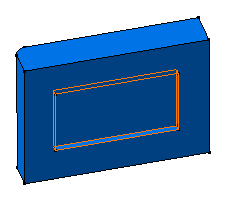
-
Select the Propagate faces to remove and Propagate other
thickness faces check boxes to propagate the specified thickness
to the faces tangent to the selected features in the Faces to remove
box and
under Other thickness faces, respectively.

If a face is tangent to a face to be removed and an other thickness face, then the thickness of the face to be removed is applied to it. -
Double-click the shell to edit it.
-
Decrease the inside thickness value. Enter 4mm.
-
Click OK.
The cylinder is now hollowed: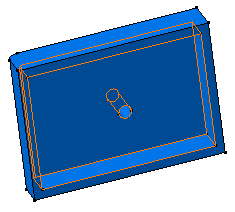
-
Double-click the shell again and click the Other thickness faces field.
-
Select the face as shown.
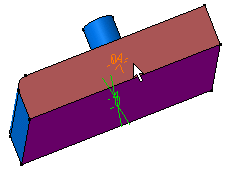
-
Double-click the thickness value displayed on this face.
-
In the dialog box that appears, enter 10mm.
-
Click OK to confirm and close the dialog box.
-
Click More>>
-
Select the Smoothing mode under the Deviation parameters section.
|
-
Optional: Select one of the Regularization type on the offset surface:
- Local: regularizes the offset surface
locally to minimize the deviation.
This option improves the number of successful computations by adding local adaptations to the offset body. As a result, some new internal faces, edges or vertices may be created. However, as the distortion is local, deviation area is restrained and the deviation is lower. - Global: regularizes the offset surface completely. If the local regularization fails, an informative prompt is displayed and the offset surface is globally regularized.
- Local: regularizes the offset surface
locally to minimize the deviation.

-
Click OK to create the shell feature.
The length between the selected face and the shell is 10mm.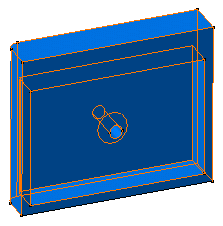
Propagate Faces To Remove
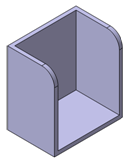
If the faces selected in the Faces to remove box have tangent continuous edges, the edges tangent to the edges of the selected faces can be taken into account. To do so, select the Propagate faces to remove check box while creating a shell feature. Thus, the entire faces along these edges are removed.
 By default, this option is selected.
In the below example, the yellow face is selected in the Faces to remove box for creating shell feature.
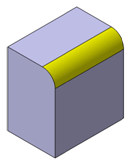 |
| The result is as shown below: |
|
|
|
|
With the Propagate faces to remove check box selected |
With the Propagate faces to remove check box cleared |
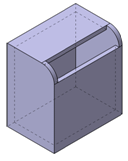
A Few Notes About Shells
- The value for the shell must be lower by half than the thickness of
the input body. Otherwise, the resulting body may be not valid due to
self-intersections. To avoid problems, ensure that the input body is
thick enough.
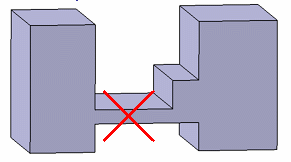
-
In some specific cases, you may need to perform two shell operations consecutively. To avoid problems, the value for the second shell should be lower by half than the value of the first shell.
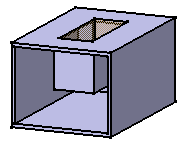
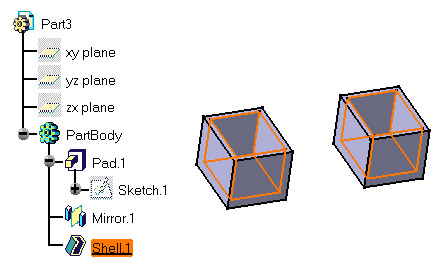
- If you need to shell a multi-domain body, perform only one Shell
operation : select one face by domain to avoid problems. The
specification tree then includes only one Shell feature as illustrated
below.
Solving Problems
Ignoring Faces
In some specific cases, the application cannot shell the selected face. An error message appears informing you that the body cannot be built properly. After closing that window, another message appears proposing you to ignore the faces causing trouble. If you accept that solution, the shell is performed and the face causing trouble is removed.
Later on if you edit the shell, the ignored face is previewed and the Reset ignored faces option is then available in the Shell Definition dialog box.
By checking this option, the ignored face is reinitialized and the indication Ignored face in the geometry is deleted. If the check box is unchecked, the previous ignored face is still taken into account for the next feature definition.
Extracting Geometry
Sometimes, you will need to use Extract to be able to add thickness to a face. The Extract capability lets you generate separate elements from initial geometry, without deleting geometry. This command is available after clicking a dialog box prompting you to deactivate the shell and extract the geometry. Once the operation has been done, the Extracted Geometry (Shell.1) node is displayed in the tree. This category includes the elements created by the application.
The Extract capability is available if only one face was selected to perform the shell operation.
Note also that if you have Generative Shape Design installed, the geometry resulting from the Extract operation is associative.
