|
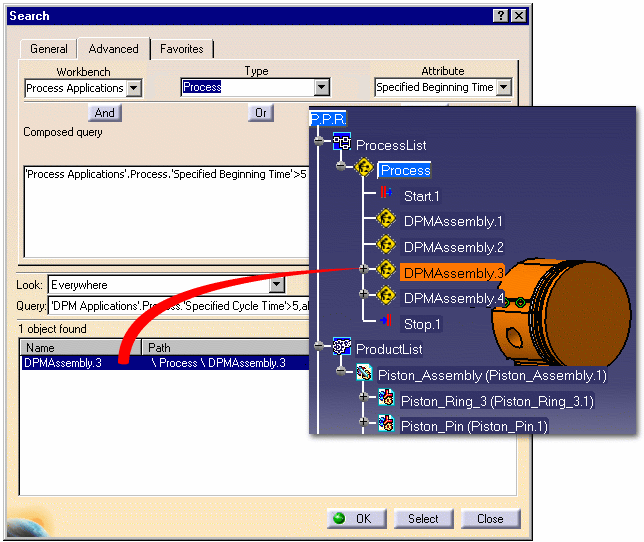
The Search command in DPM allows you to search for PPR objects in a process document based on activity types and attributes. Searches based on the following attributes are supported:
The following example illustrates the use of the Search command. |
|
 |
Using the Search Command |
|
|
1. |
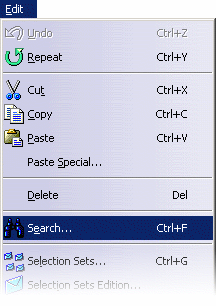
Launch the Search command by selecting the Edit> Search menu command, or typing Ctrl-F:
|
|
|
2. |
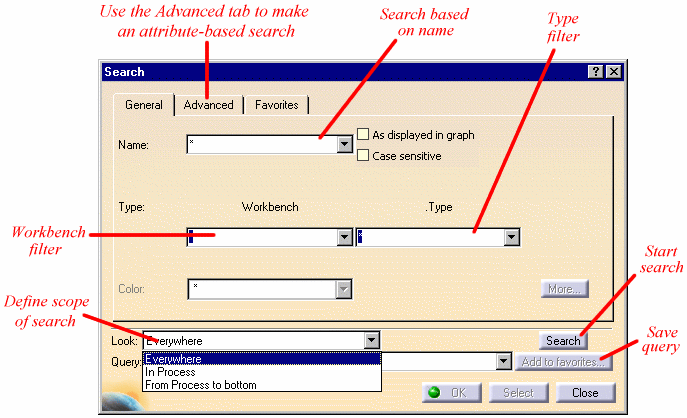
The General search page provides the following functionality:
|
|
| 3. | Click on the Advanced tab to make an attribute-based search of PPR objects in the process
document, and select "DPM Applications" from the Workbench combo box, as shown below:
|
|
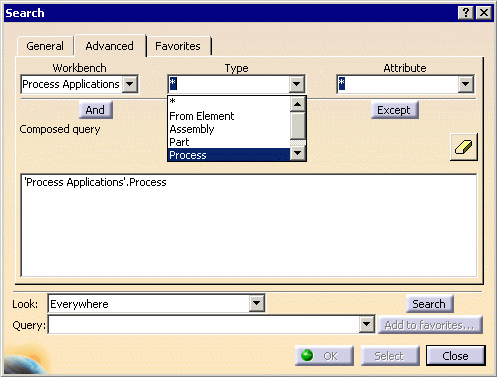
| 4. | Select "Process" from the Type combo box to search for objects of type "activity" in the process
document:
|
|
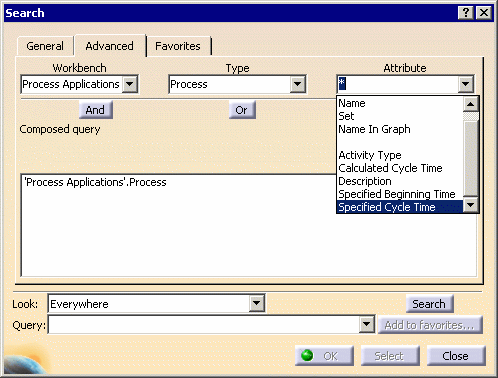
| 5. | In the Attribute combo box, select an attribute (such as Specified Cycle Time) to base the
search on:
|
|
| 6. | A dialog will be displayed for the user to enter the value of the selected attribute. Enter the
relevant value(s) and click OK to return to the Search dialog:
|
|
| 7. | Click the Search button to start the search based on the criteria supplied by the user. Click
the Select button to select the corresponding activity in the PPR, Pert and Gantt viewers:
|
|