|
Pert chart icons can be changed from their default (the Activity icon) to an automatically-generated icon that is derived from the assigned parts of the activity. This is achieved via a Visual Basic macro, an example of which is provided below and also provided with the DPM installation. |
|
 |
Script Example
|
|
Using the Macro
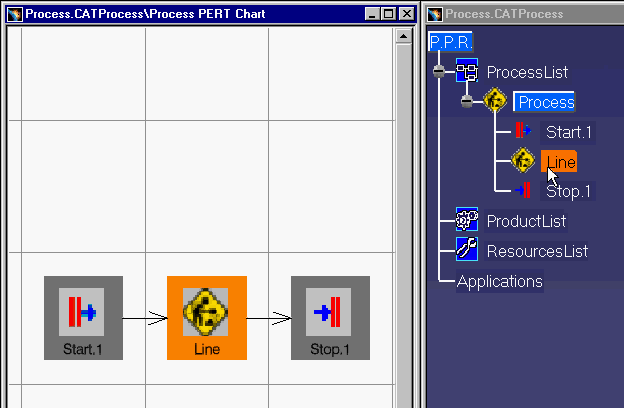
In the following example, the "Line" activity in the Pert shown above chart will be assigned a new icon that is generated automatically. |
||
| 1. |
Select the activity who's icon is to be changed. |
|
|
2. |
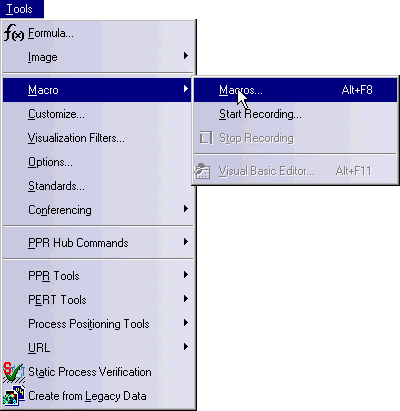
Select the Tools> Macro> Macros option to access the list of available scripts:
|
|
|
3. |
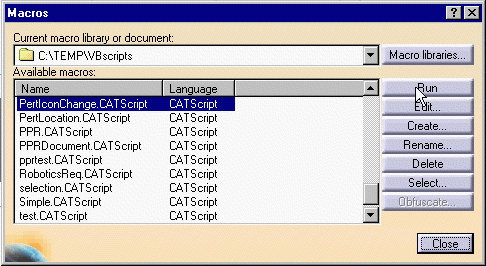
Select the PertIconChange script and click the Run button to execute it:
|
|
|
4. |
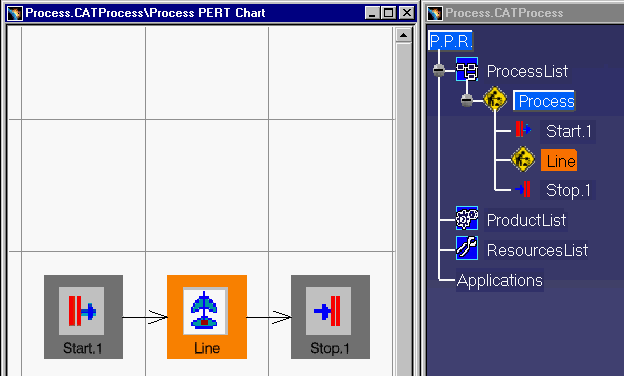
When the processing is complete, the new icon is created and assigned to the proper node in the
Pert chart:
|
|